Add Team Member: Step-by-Step Guide
Use this feature to add new team members, assign permissions, and collaborate more effectively within FeedPlay.
1. Navigate to the Team Section
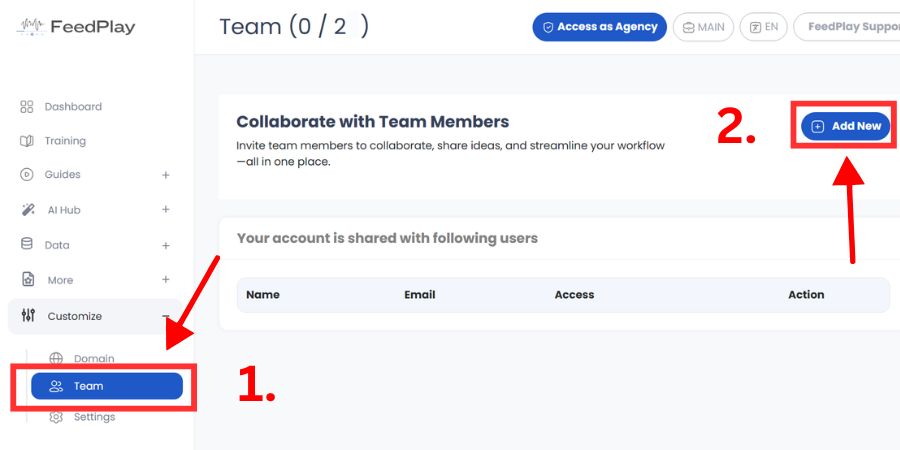
From your FeedPlay dashboard, go to the “Customize” dropdown.
Select “Team.”
2. Add a New Team Member
Click the “Add New” button.
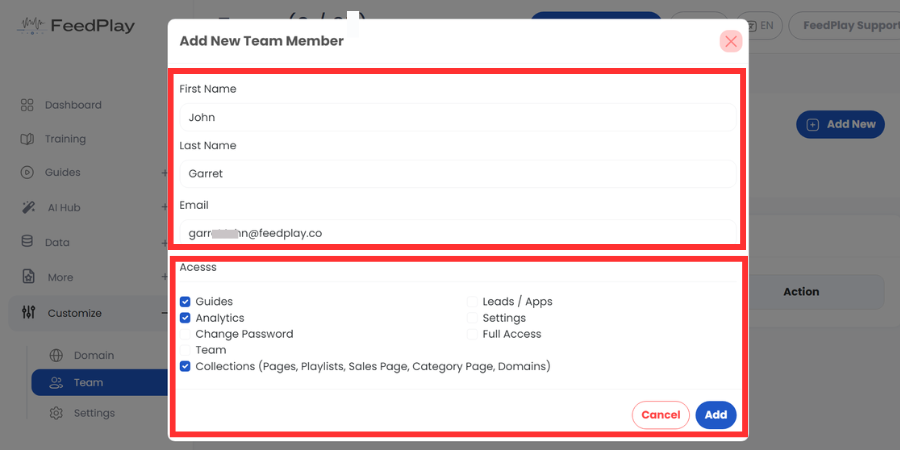
In the popup, fill out the first name, last name, and email address of the team member you’re inviting.
3. Assign Permissions
Select the level of access you’d like this team member to have. Options can include:
Creating and editing guides
Viewing analytics
Changing admin settings or passwords
Inviting additional team members
Accessing pages, playlists, leads, and more
If you want the user to have unrestricted access, check the “Full Access” button. Otherwise, only enable the specific permissions you want them to have.
4. Send Invite
Click “Add” to finalize the invitation.
The new team member will receive an email invite with a link to set up their account.
5. Manage Existing Team Members
To modify a team member’s access, return to the Team tab and edit their permissions.
You can delete their account at any time to revoke access.
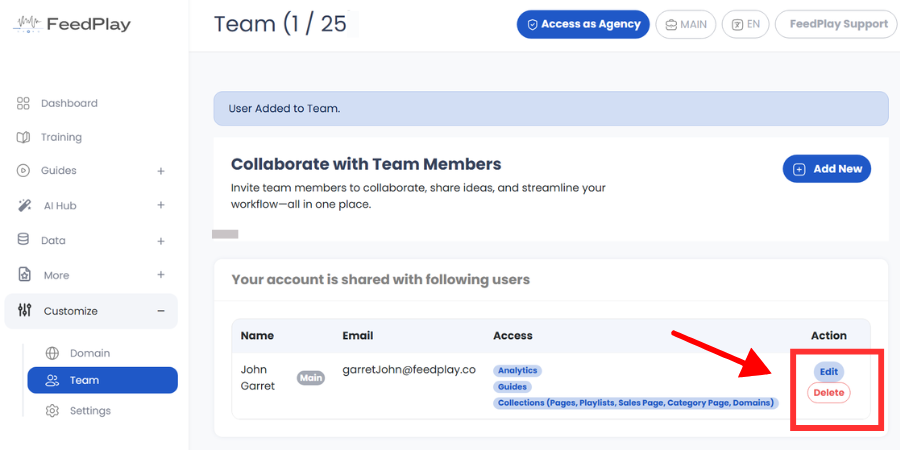
Your team member can now log in and start contributing to your FeedPlay workspace with the permissions you’ve assigned.
Was this article helpful?
That’s Great!
Thank you for your feedback
Sorry! We couldn't be helpful
Thank you for your feedback
Feedback sent
We appreciate your effort and will try to fix the article