FeedPlay Workspace: Step-by-Step Guide
Use Workspaces to organize your projects and collaborate with different teams or clients. Follow these steps to create and manage multiple workspaces within FeedPlay.
1. Create a New Workspace
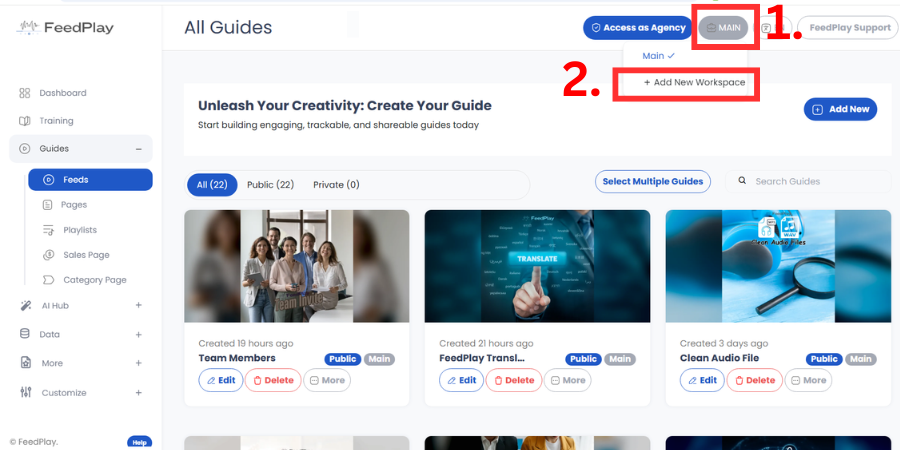
- In the top-right corner of your FeedPlay dashboard, click on the “Main” tab (or your current workspace name).
- Select “Add New Workspace.”
- In the pop-up, name your new workspace and save.
2. Rename Your Default Workspace (Optional)
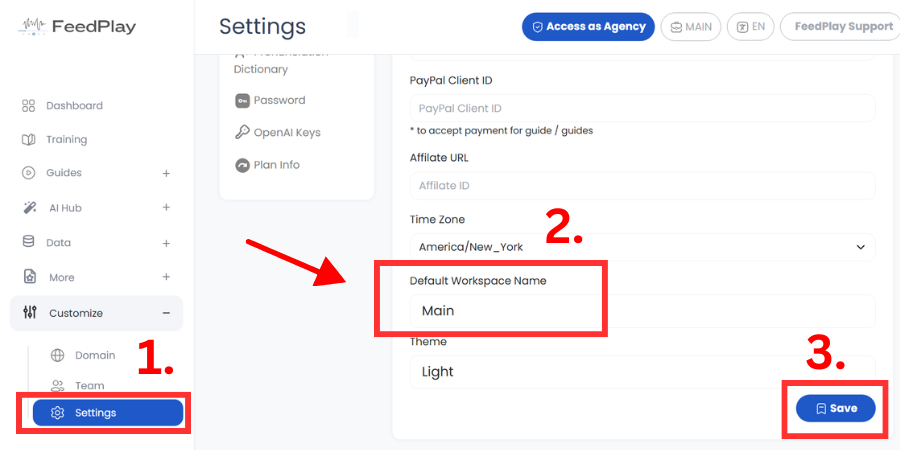
- Go to “Settings” under the “Customize” dropdown.
- Scroll to “Default Workspace Name” to change the word “Main” to something more specific (e.g., “My Workspace,” “Client A,” etc.).
- Click “Save” to apply your changes.
3. Switch Between Workspaces
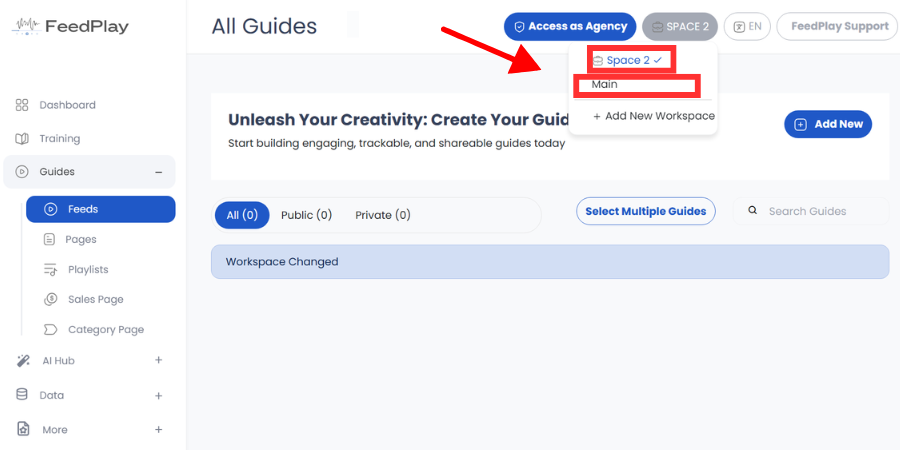
- After creating multiple workspaces, simply click on the current workspace name at the top-right of your screen and select a different workspace from the dropdown to switch over.
4. Add a User (Team Member) to a Workspace
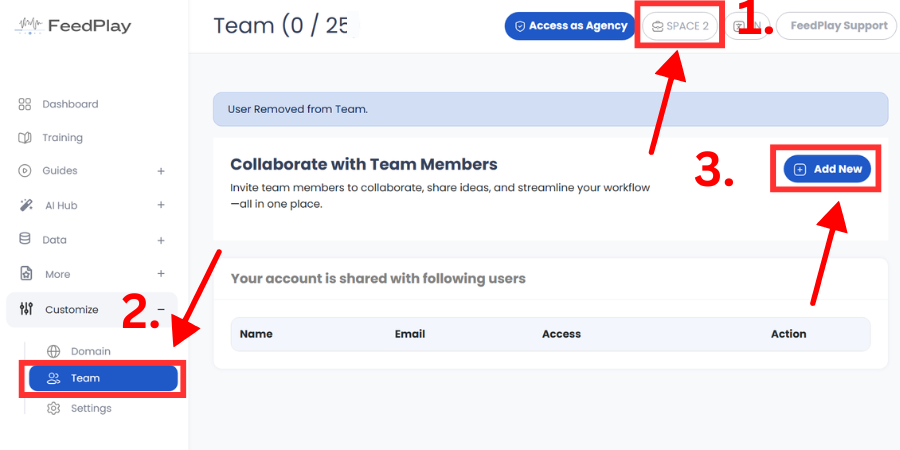
- Go to “Team” under the “Customize” dropdown in the relevant workspace.
- Click “Add New” to invite a teammate.
- For detailed instructions on assigning permissions and roles, refer to the “Team” guide here.
5. Modify or Delete a Workspace
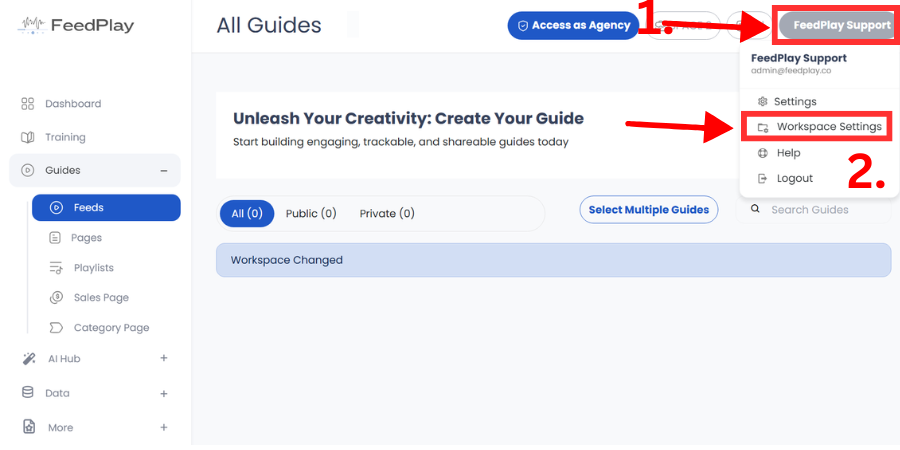
- Click on your name at the top-right corner.
- Select “Workspace Settings.”
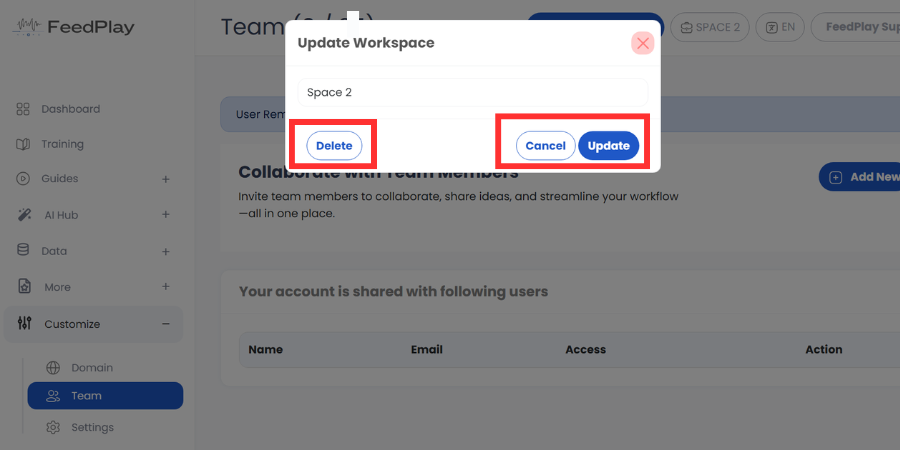
- From here, you can edit the workspace details or delete it entirely if it’s no longer needed.
Was this article helpful?
That’s Great!
Thank you for your feedback
Sorry! We couldn't be helpful
Thank you for your feedback
Feedback sent
We appreciate your effort and will try to fix the article