Adding Tracking to Your FeedPlay Guides
FeedPlay allows you to integrate tracking pixels or analytics codes—either globally for all guides or on an individual guide basis. Follow the steps below to get started.
1. Add a Global Analytics Code
Access Settings
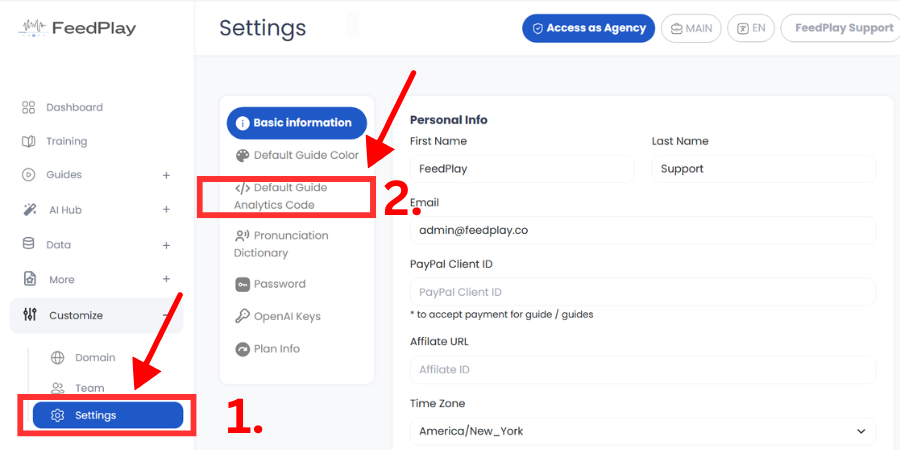
- In your FeedPlay dashboard, go to the “Customize” dropdown and select “Settings.”
Add Default Guide Analytics Code
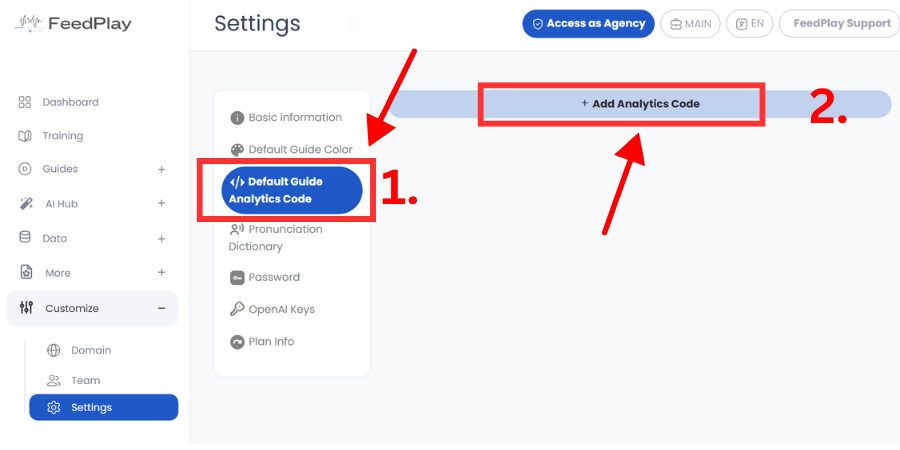
- Scroll to “Default Guide Analytics Code.”
- Click “Add Analytics Code.”
Enter Code Details
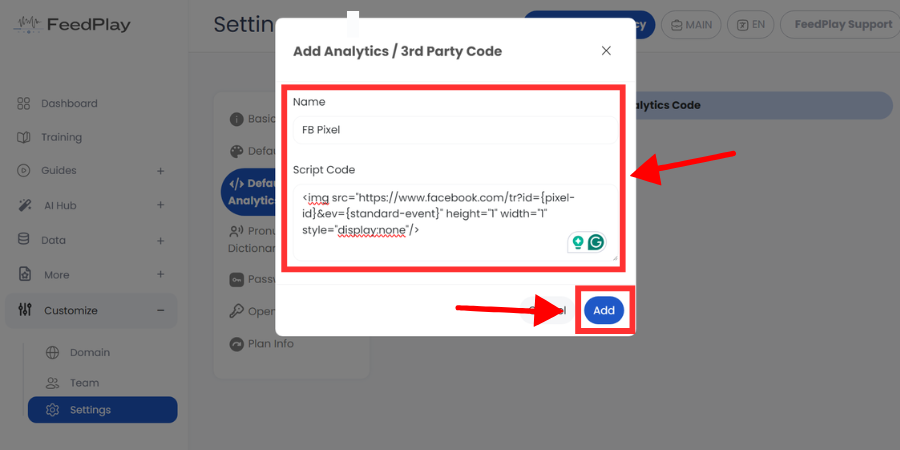
- Name your script (e.g., “Facebook Pixel” or “Google Analytics”).
- Paste your tracking or analytics code into the script field.
- Click “Add.”
Note: Once added, this code will appear in all existing and future FeedPlay guides unless you remove it.
2. Add Analytics Code to an Individual Guide
Locate or Create a Guide
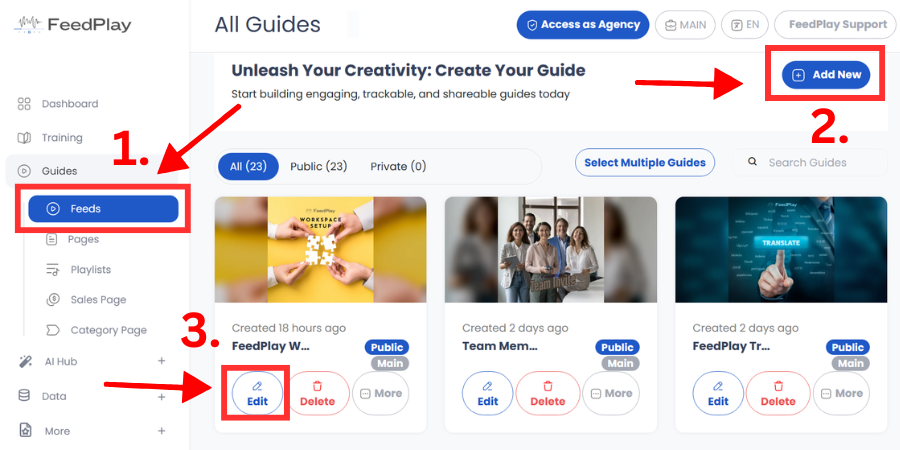
- Go to “Feeds” under “Guides.”
- Either create a new guide or edit an existing one.
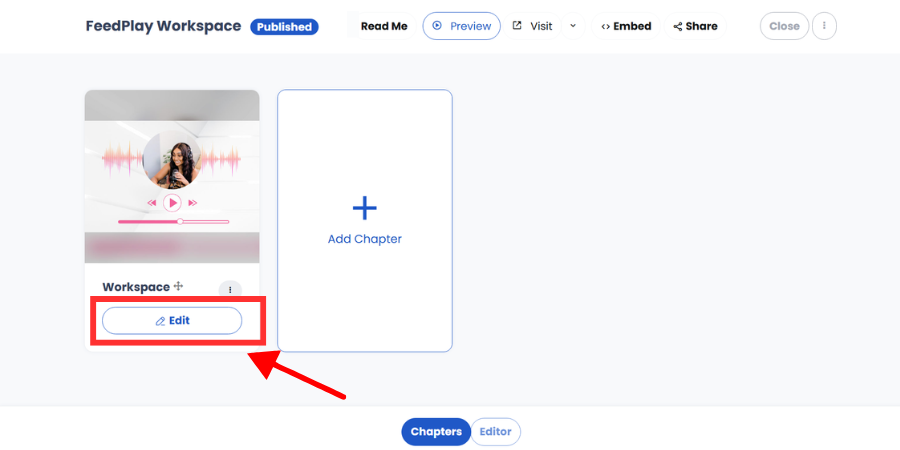
Edit the Chapter
- Select the chapter you want to track and click “Edit.”
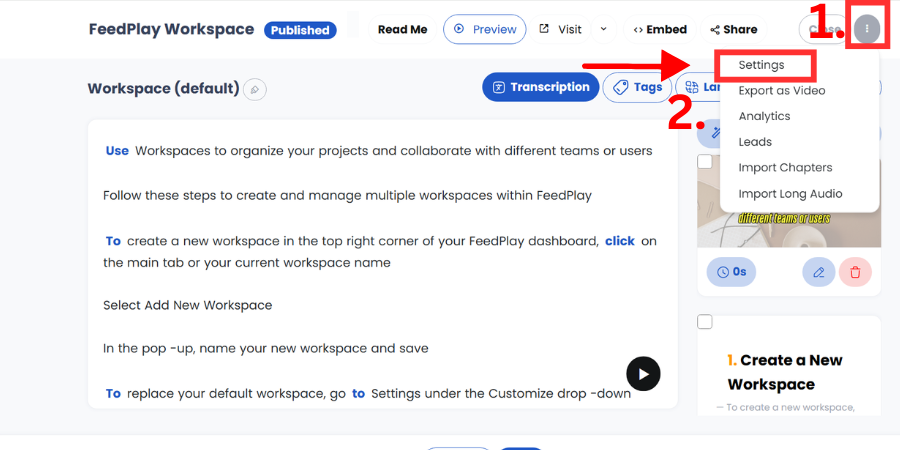
- In the chapter editor, look for the three-dot icon in the top-right corner.
- Click “Settings.”
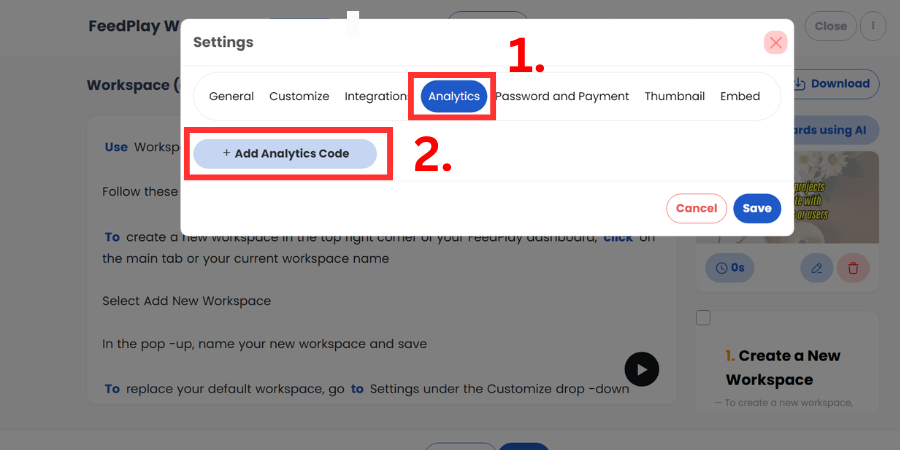
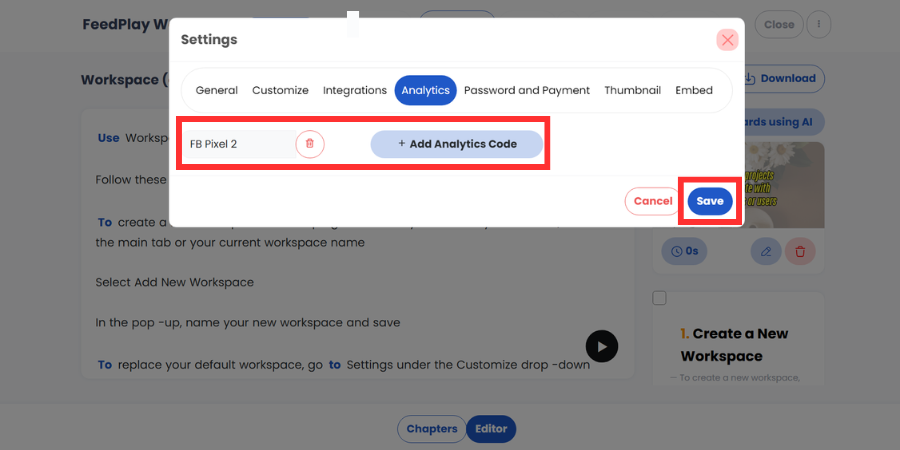
Add Analytics Code
- Under the “Analytics” section, click “Add Analytics Code.”
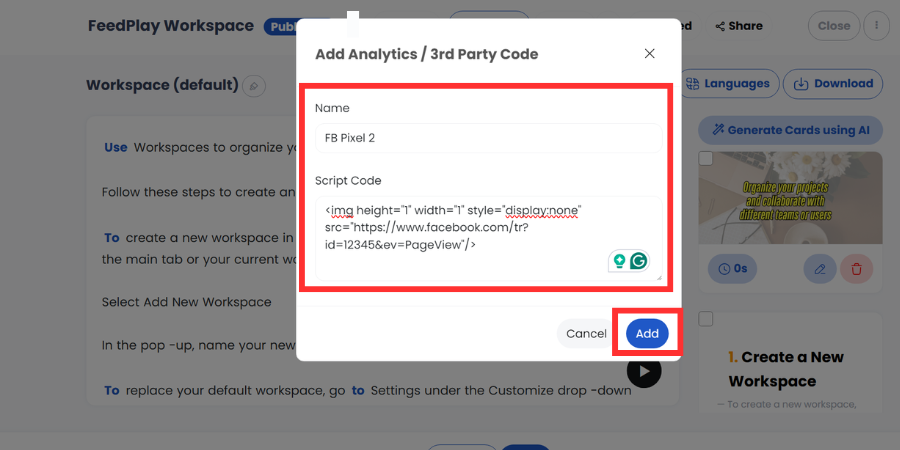
- In the popup, give the code a Name and paste your tracking script.
- Click “Add.”
Manage Your Codes
- You can delete codes, add more codes, or modify existing ones as needed.
3. Verifying Your Tracking
- Once the code is in place, use your tracking platform (e.g., Facebook Ads Manager or Google Analytics) to verify that data is being collected.
- For further adjustments or troubleshooting, return to either the global settings or the individual guide’s settings to manage your codes.
Was this article helpful?
That’s Great!
Thank you for your feedback
Sorry! We couldn't be helpful
Thank you for your feedback
Feedback sent
We appreciate your effort and will try to fix the article