Hello and welcome! In this guide, I’ll show you how FeedPlay works, why it’s useful, and how to navigate the main features. FeedPlay helps you transform audio or video content into interactive guides with chapters, polls, and other rich elements—all in one place.
Dashboard Basics
Plans & Breakdown
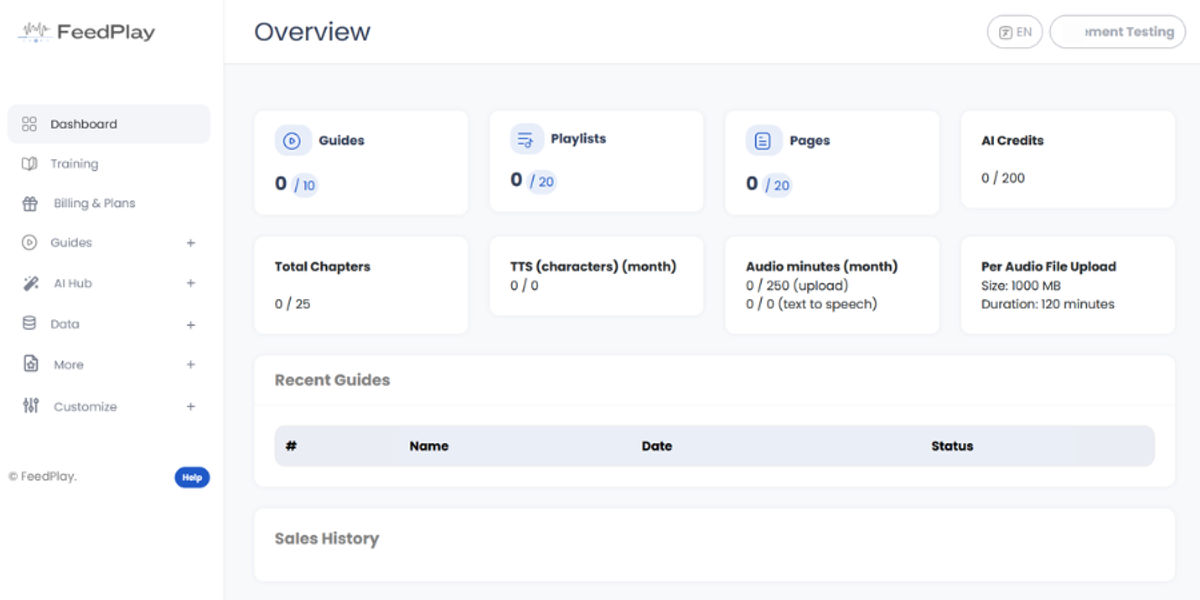
After logging in, you’ll see your FeedPlayplan details and usage limits.
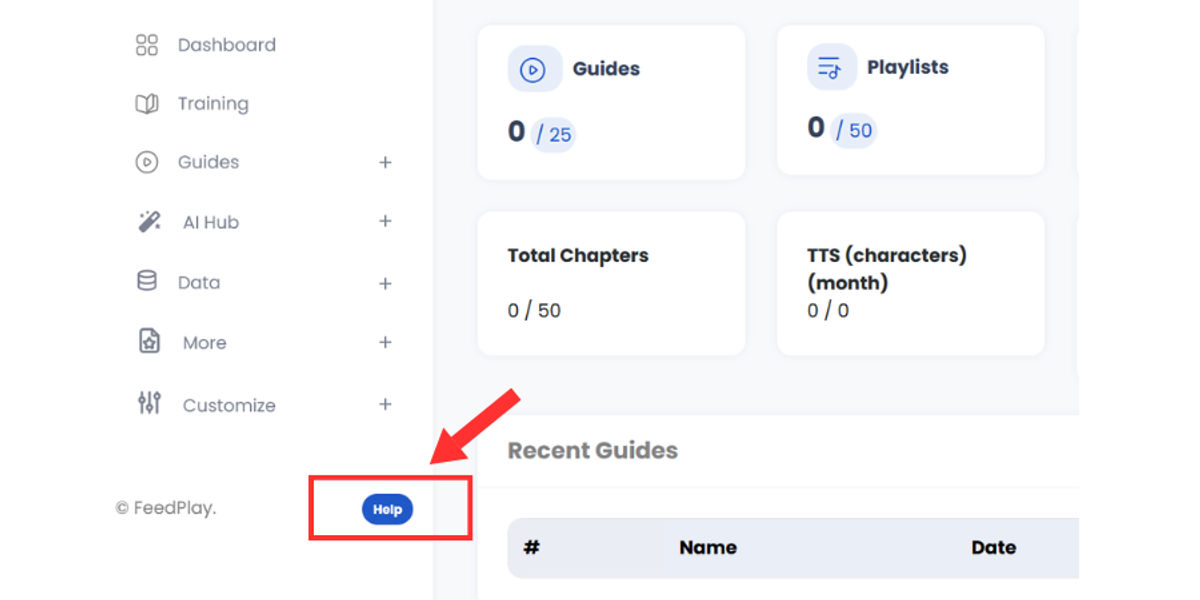
Access support by clicking on the help link to open a ticket.
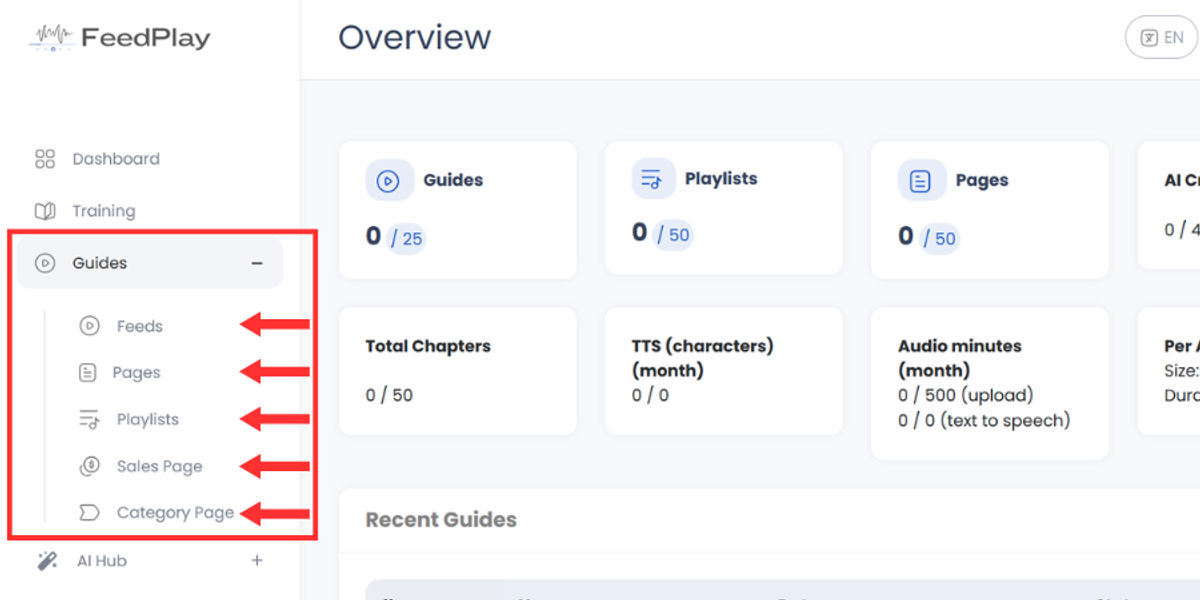
Main Navigation
- Guides: Create and manage interactive FeedPlay guides.
- Pages: Compile multiple guides into a single page or “hub.”
- Playlists: Group different guides into playlist formats.
- Sales Pages: Build pages designed for selling content.
- Categories: Organize your guides and pages into specific topics.
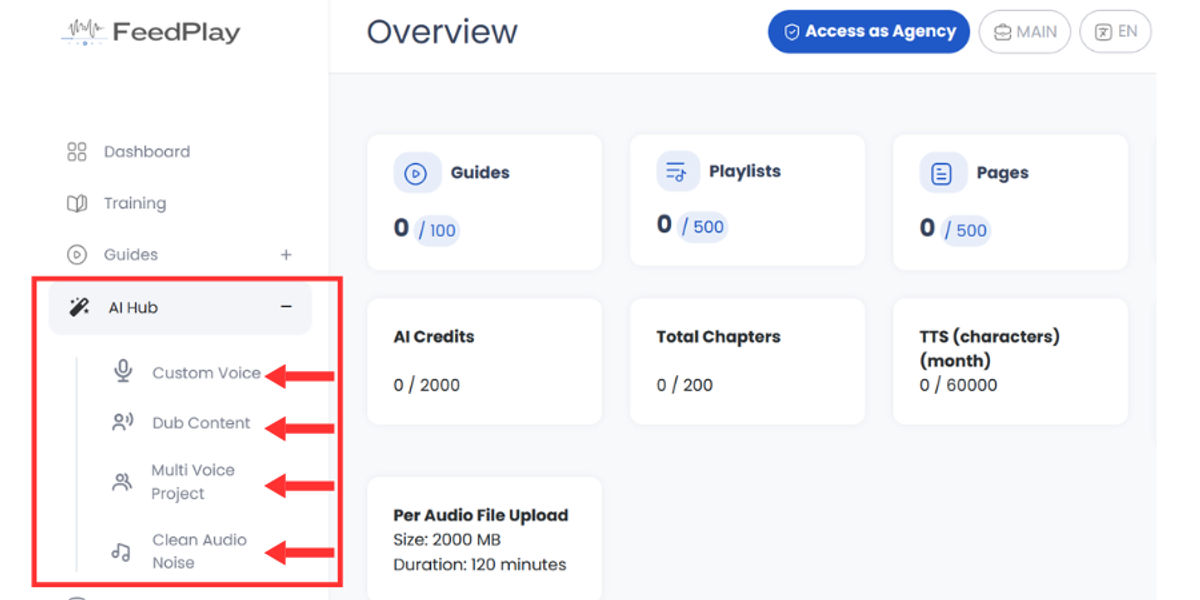
AI Hub
- Custom Voice: Clone your voice or create a unique AI voice.
- Dub Content: Translate and dub existing audio/video into other languages.
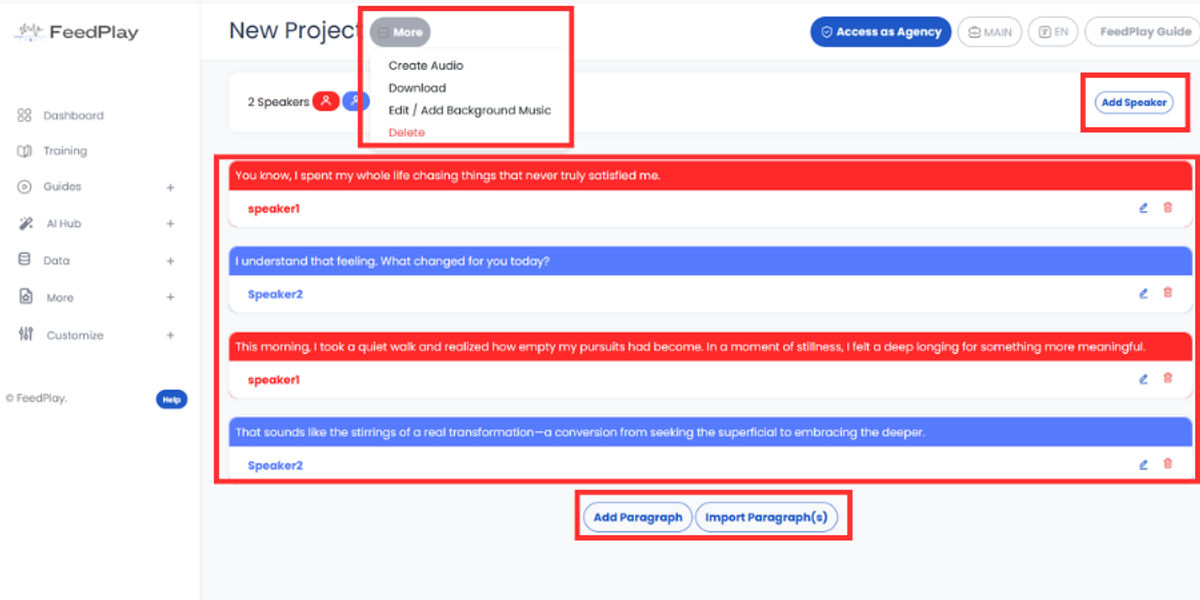
- Multi-Voice Projects: Produce podcast-style recordings with multiple speakers.
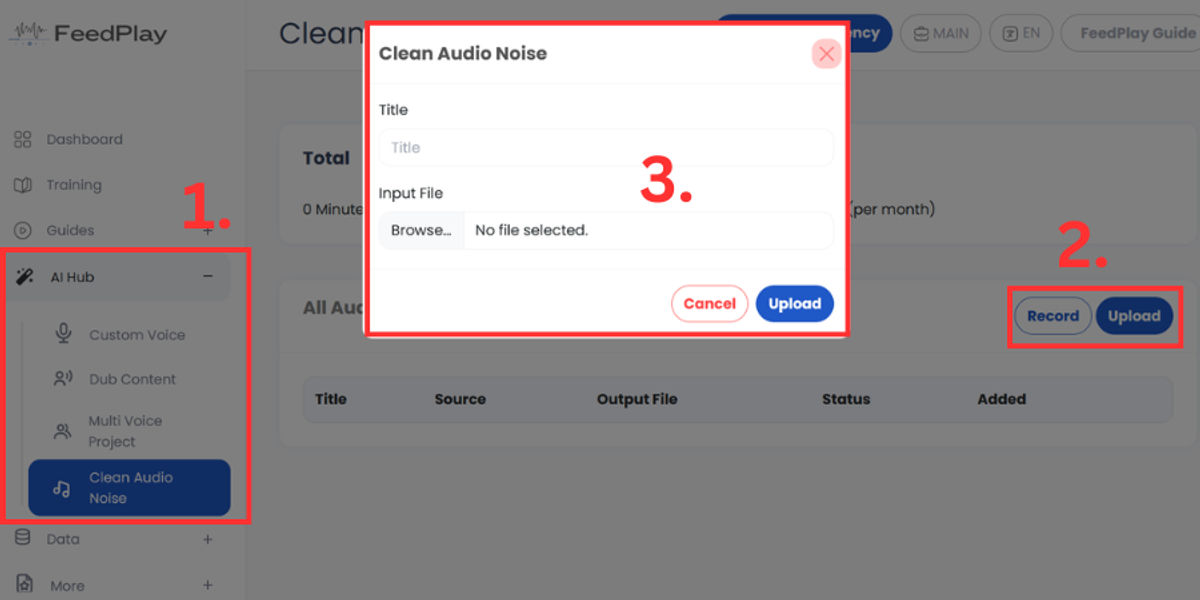
- Clean Audio: Remove background noise from your recordings.
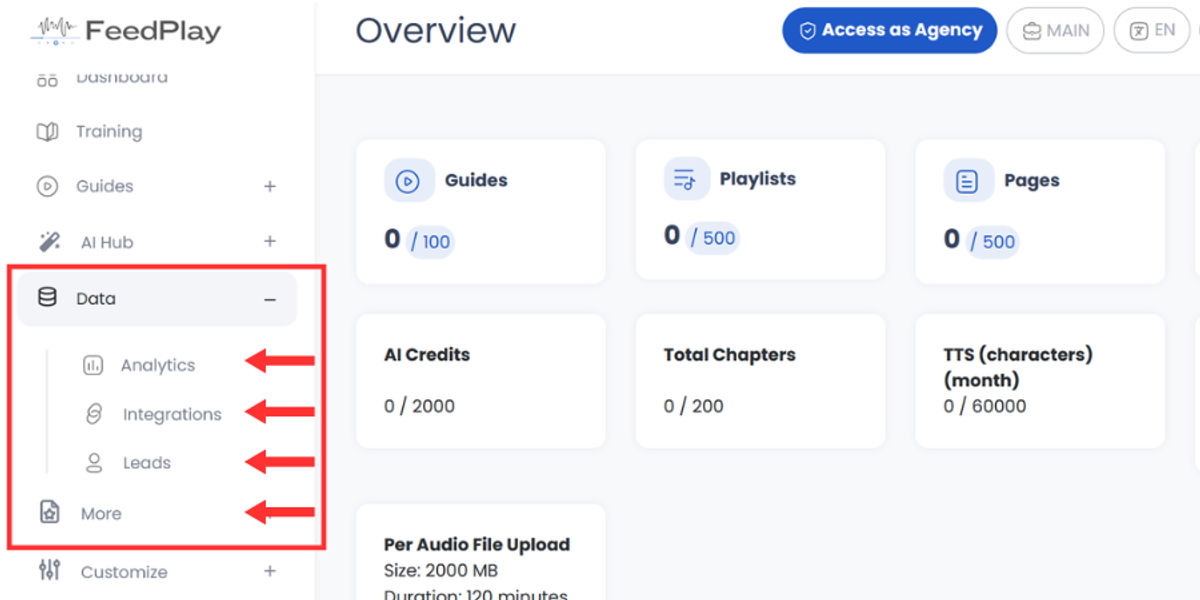
Data Section
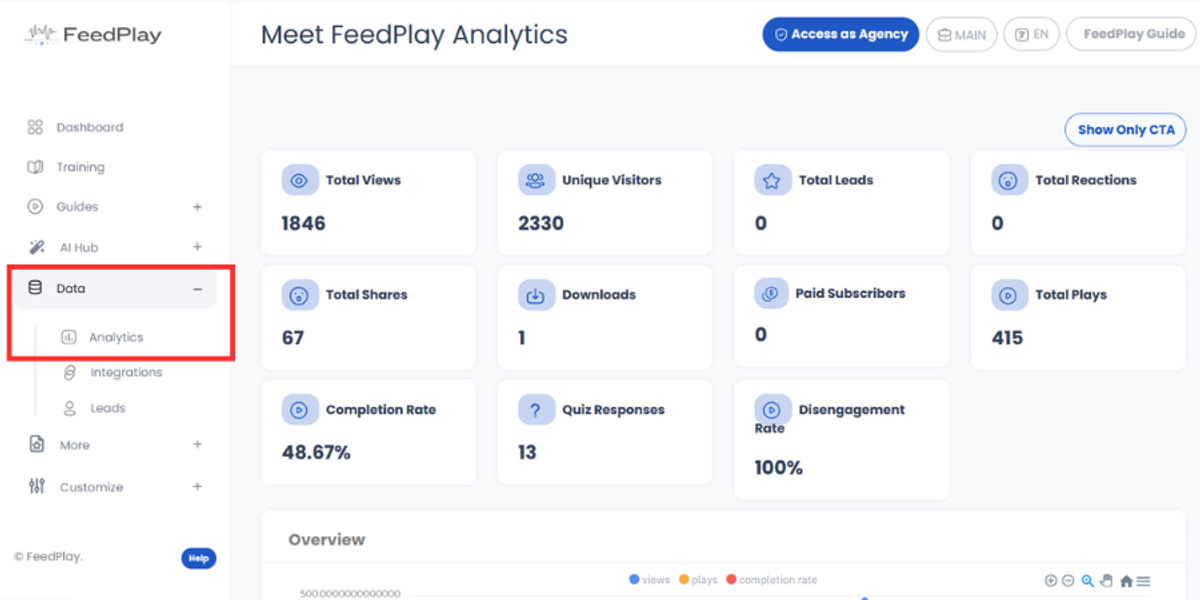
- Analytics: Track clicks, bounce rates, and guide performance.
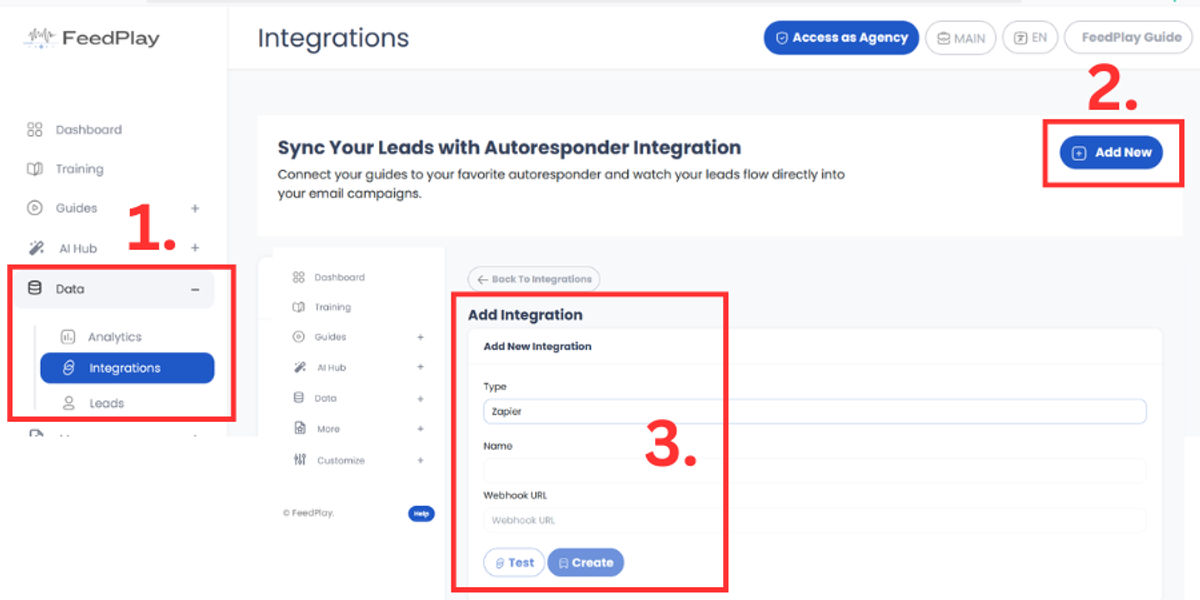
- Integrations: Connect your autoresponder (30+ supported) or CRM.
- Leads: Manage the contacts you’ve collected inside your guides.
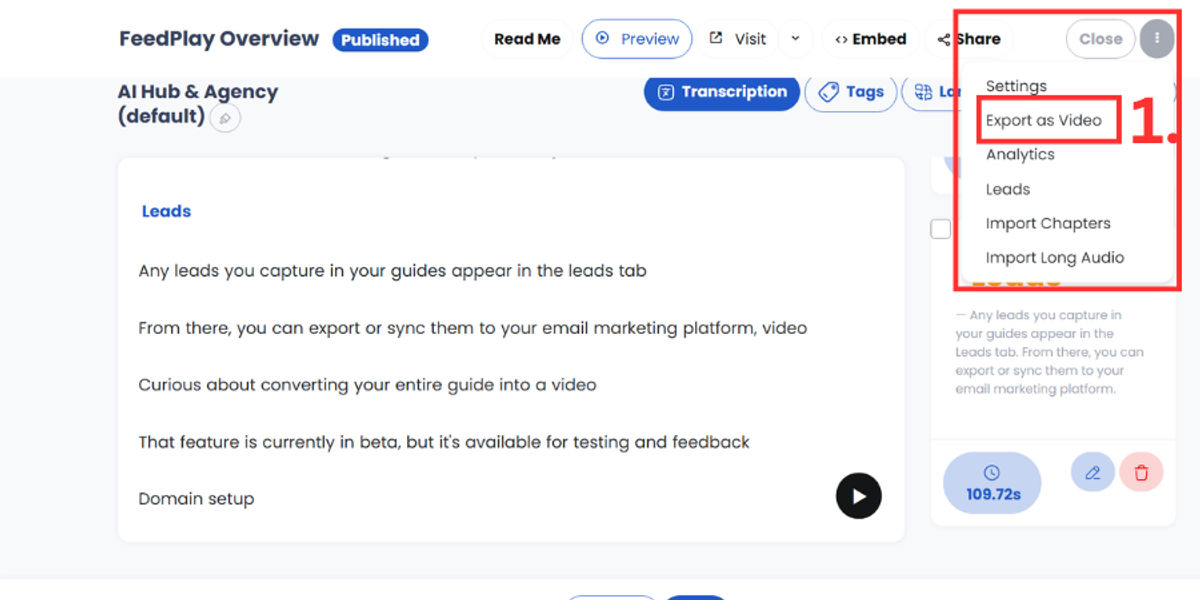
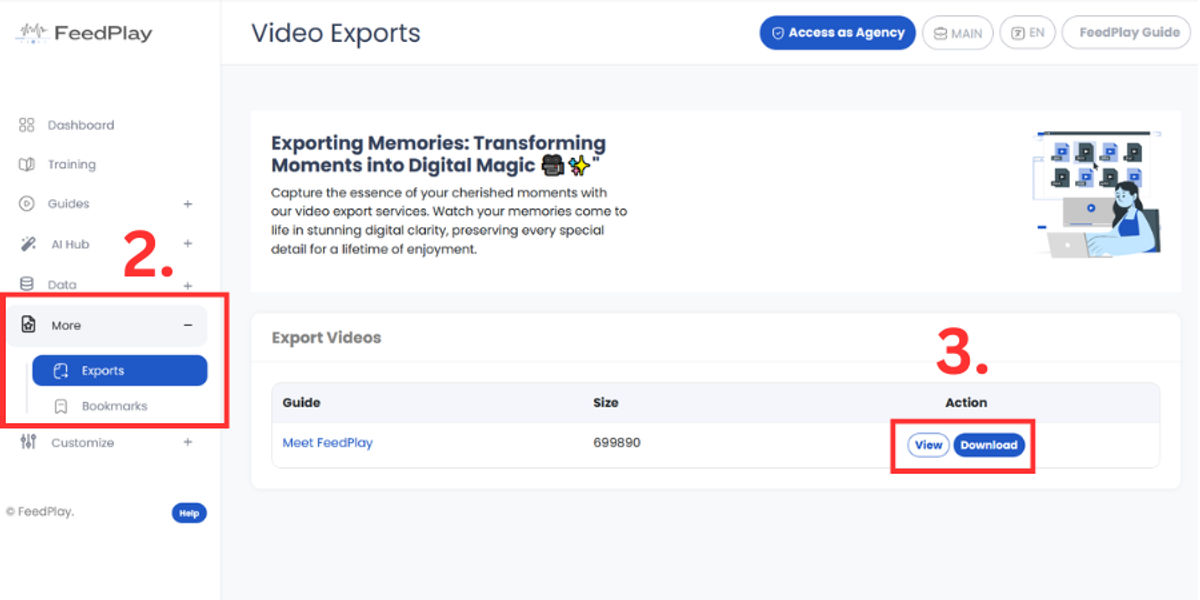
- Video Exports (Beta): Convert guides to video (still in beta).
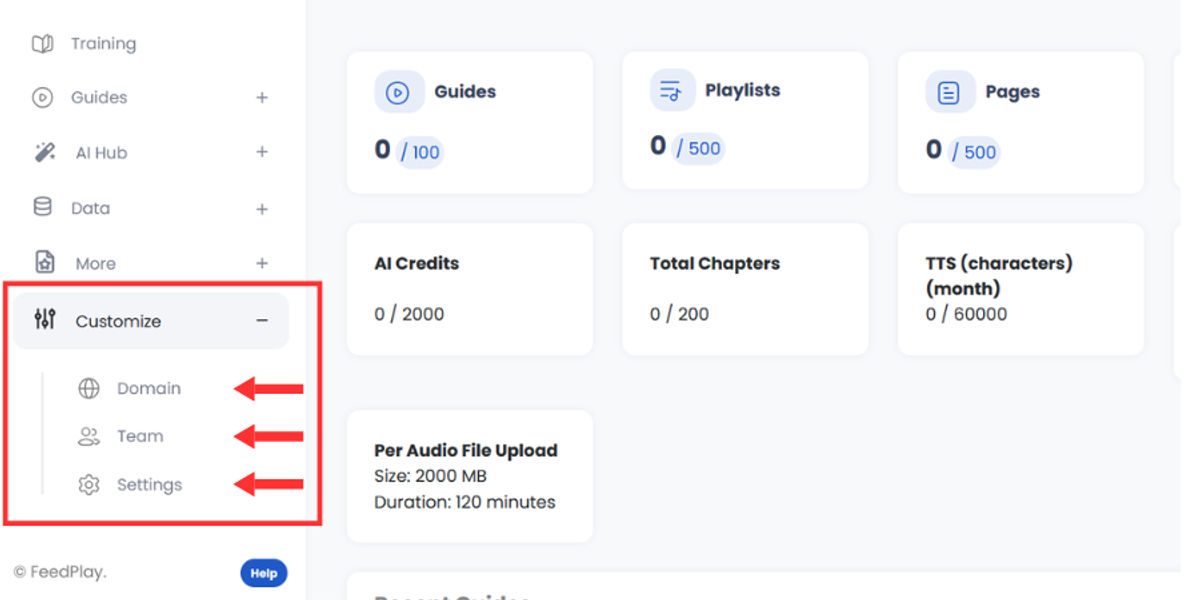
Customize
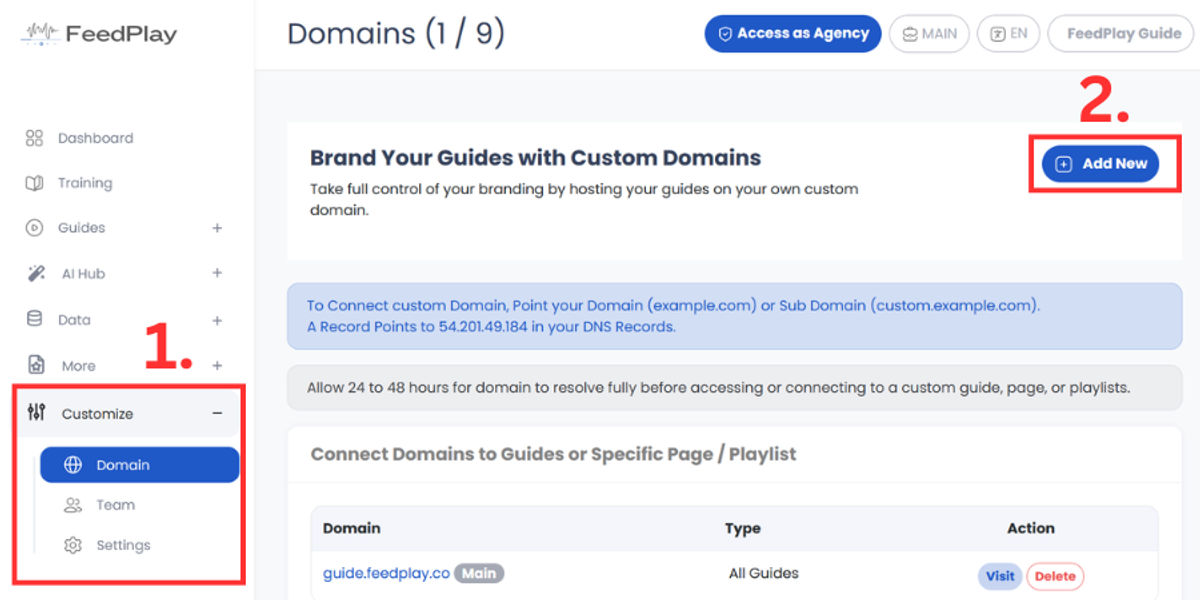
- Domain: Point FeedPlay to your own custom domain.
- Team: Add or manage team members.
- Settings: Adjust account preferences (language, plan breakdown, etc.).
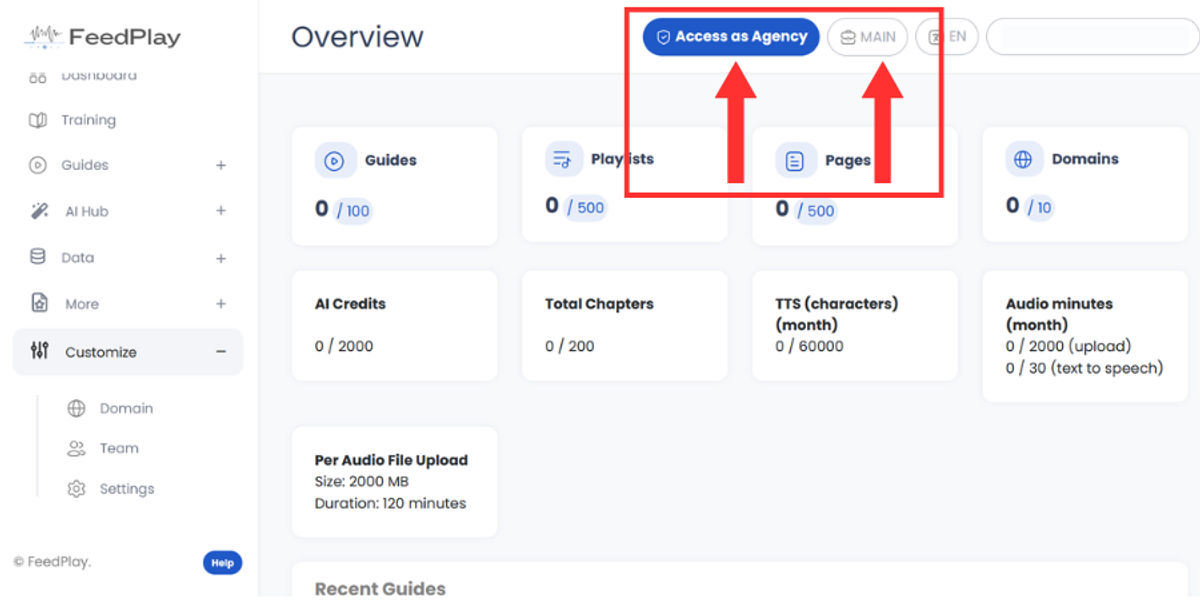
Agency Mode & Workspaces
- Agency Access: Whitelabel the platform for your clients, manage usage limits, and onboard new accounts under your own branding.
- Workspaces: Separate projects or collaborate with different teams.
Creating a Guide
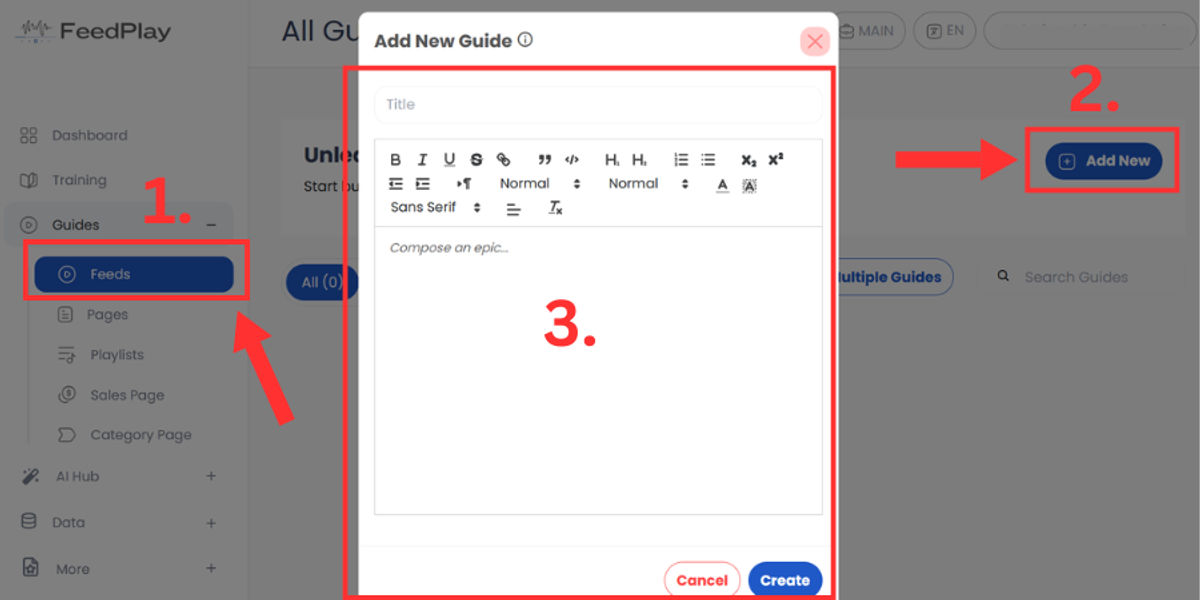
Feeds
- Click “Guides” and then “Feeds” to start.
- Select “Add New” to create a guide, giving it a title and description.
Chapters
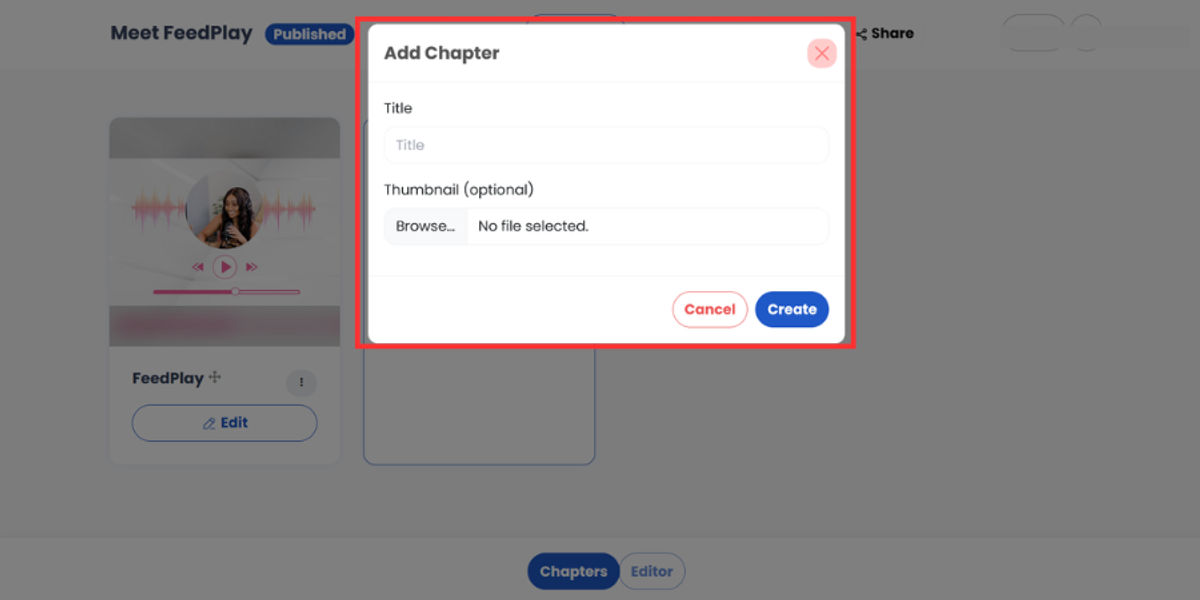
- Once you’ve named your guide, add chapters by clicking “Add Chapter.”
- Each chapter can have its own thumbnail and text description.
Editing a Chapter
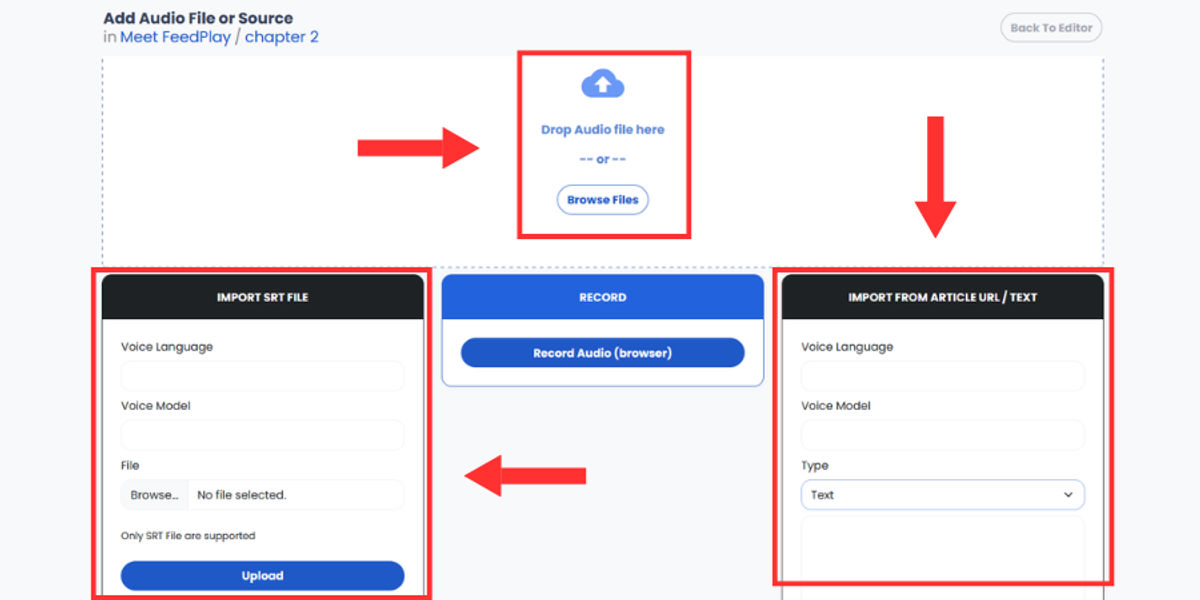
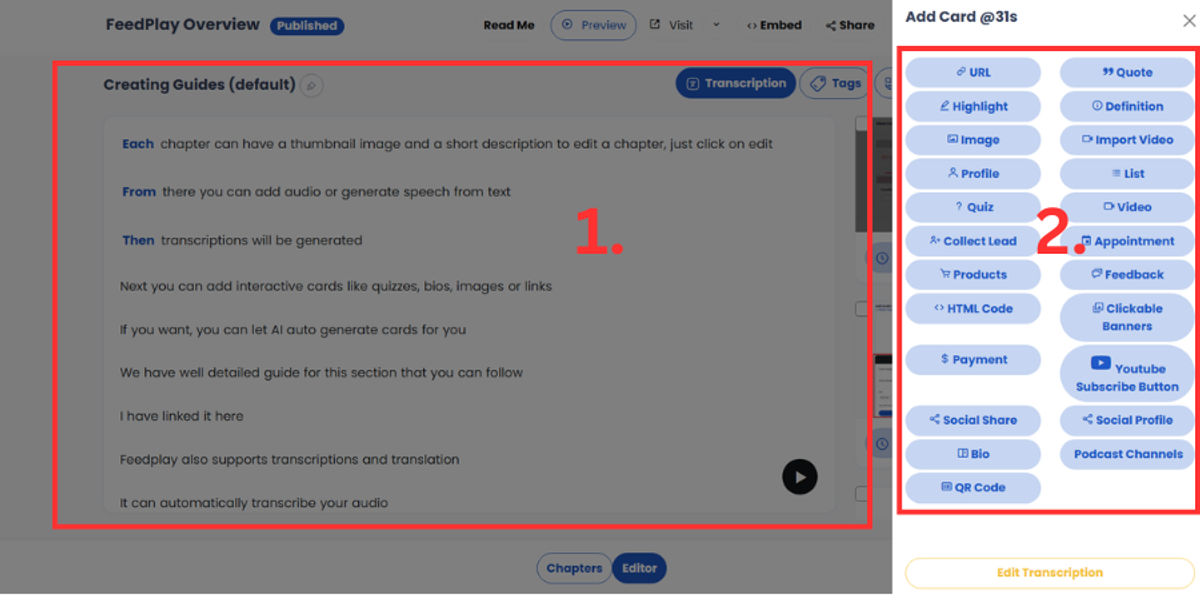
- Click “Edit” on a chapter to add audio/video, transcriptions, and interactive “cards” such as quizzes, polls, images, or links.
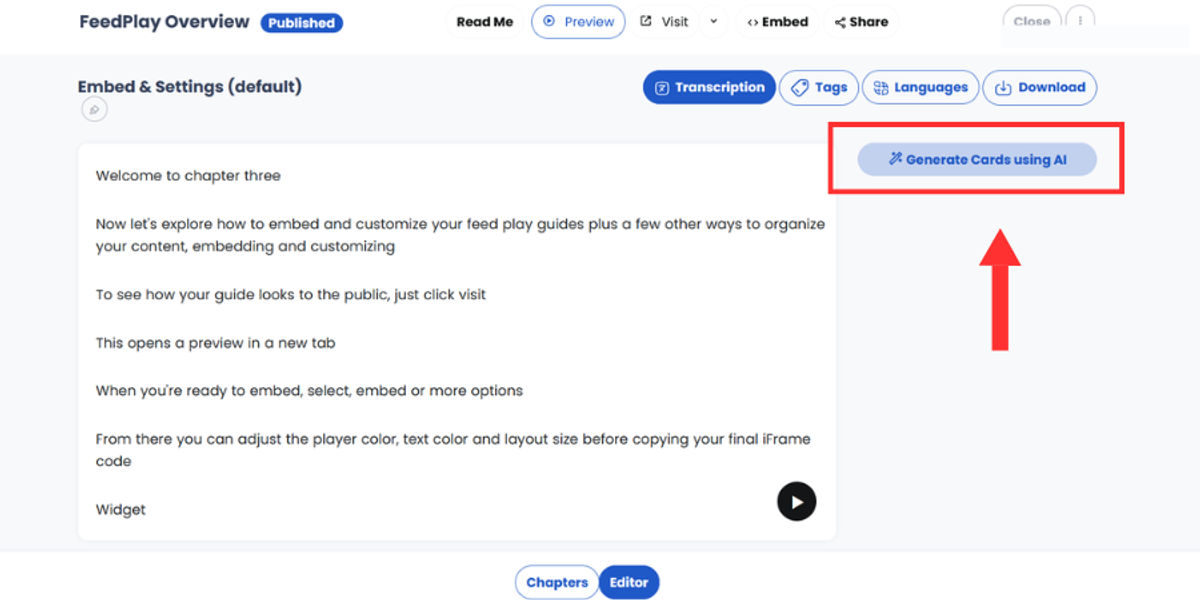
- You can also let AI auto-generate cards.
To explore more guide creation, see more here!
Transcriptions & Translation
- FeedPlay can auto-transcribe your audio.
- To translate a guide, go to the “Languages” tab and add a new language. FeedPlay can dub or clone voices for these translations.
Learn more about FeedPlay's advanced translation here!
Downloading & Sharing
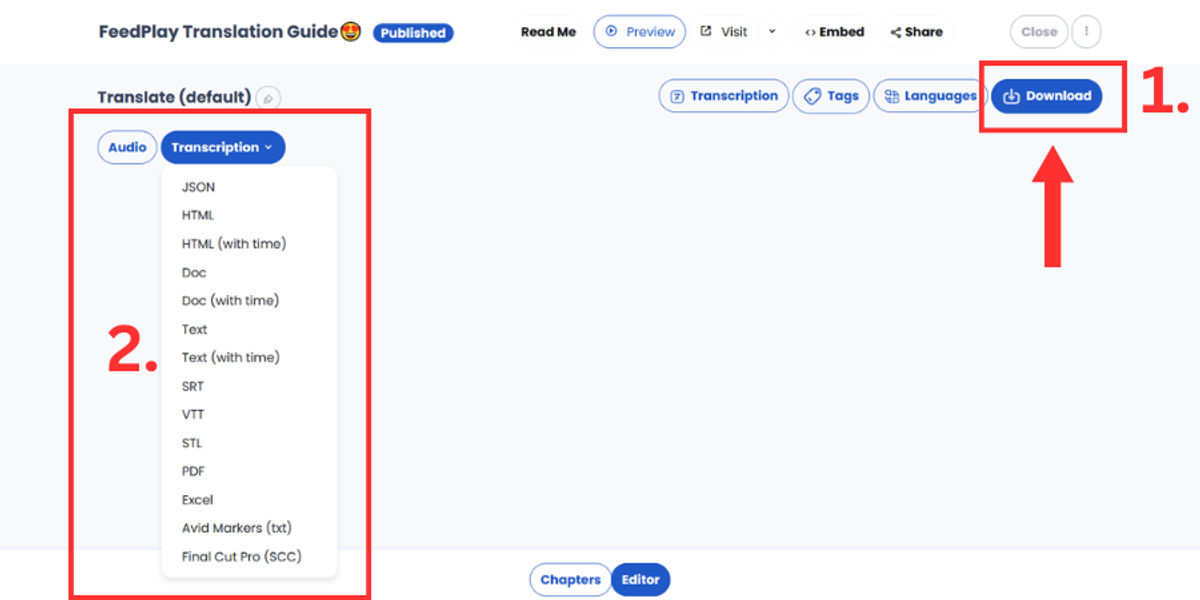
- Download the audio, transcripts, or other outputs depending on your plan.
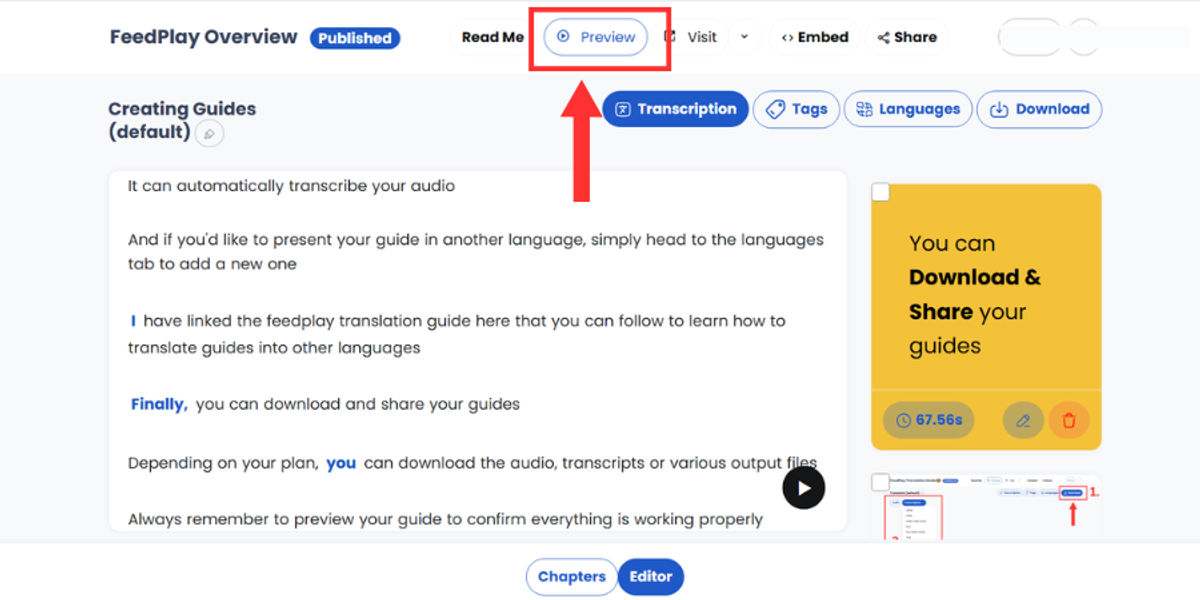
- Preview your guide to ensure everything looks right and clear browser cache if you have issues hearing audio.
Important:
As the admin, you might encounter caching issues when previewing your guide. Don not worry—your viewers would not experience this.
To clear your cache:
1. Click on View Site Information in your browser.
2. Select Site Settings. hyperlink this to open in a new tab on #2

3. Under Privacy and Security, choose Delete Data. hyperlink on #3

4. Refresh your link to see the latest changes.
Embedding & Customizing
Preview and Embed
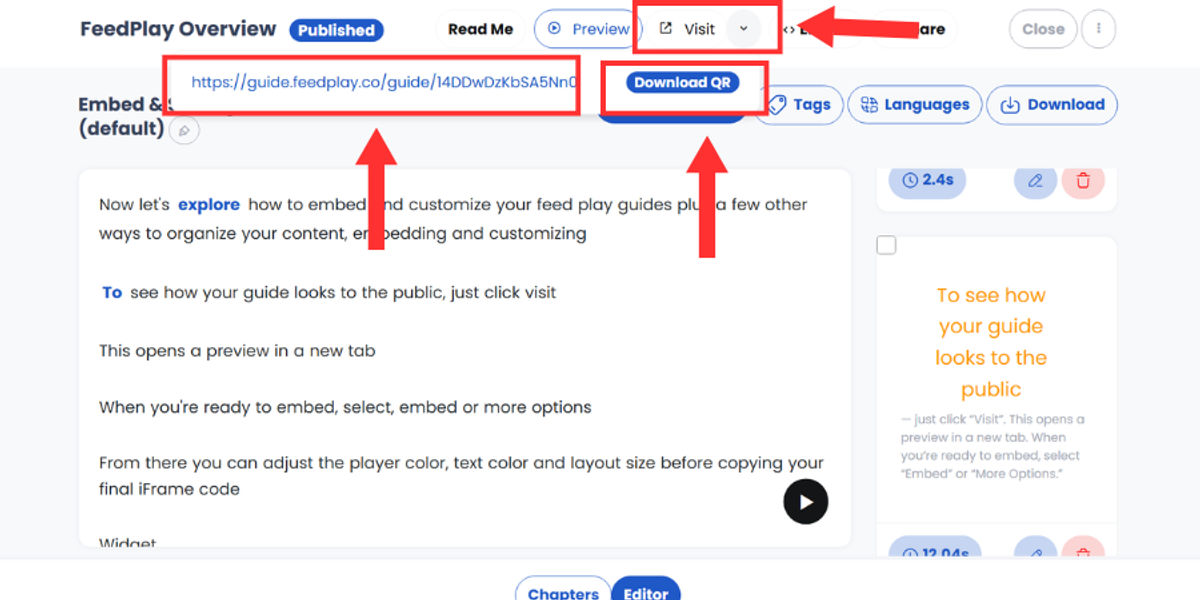
- Click “Visit” (or the globe icon) to see how your guide appears publicly.
- Embed Codes can be copied by selecting “Embed” or “More Options.”
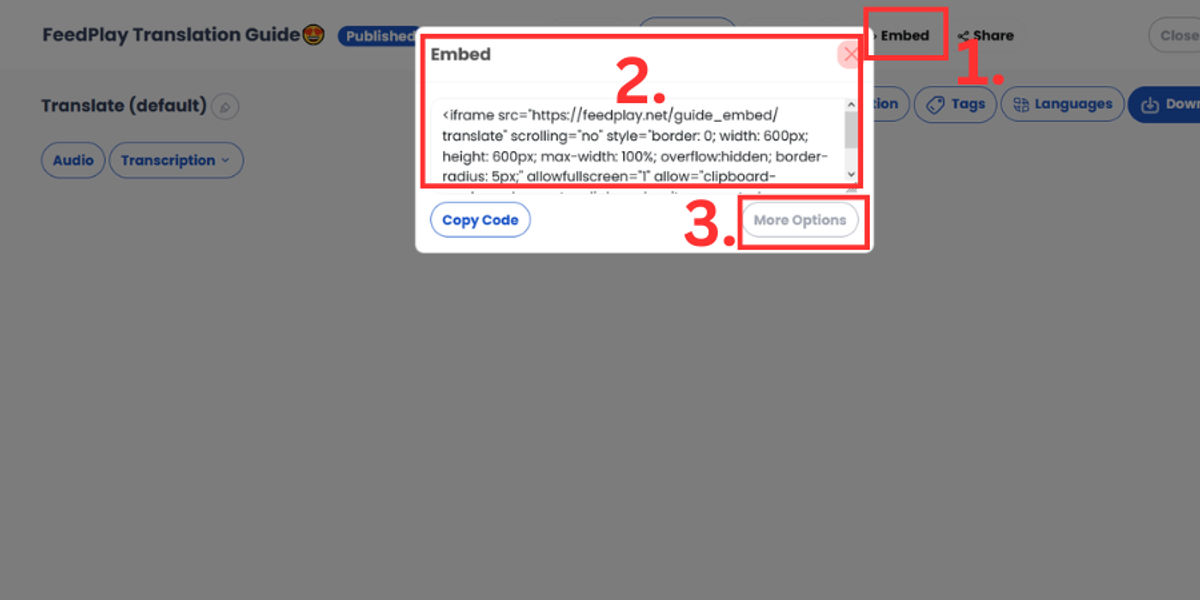
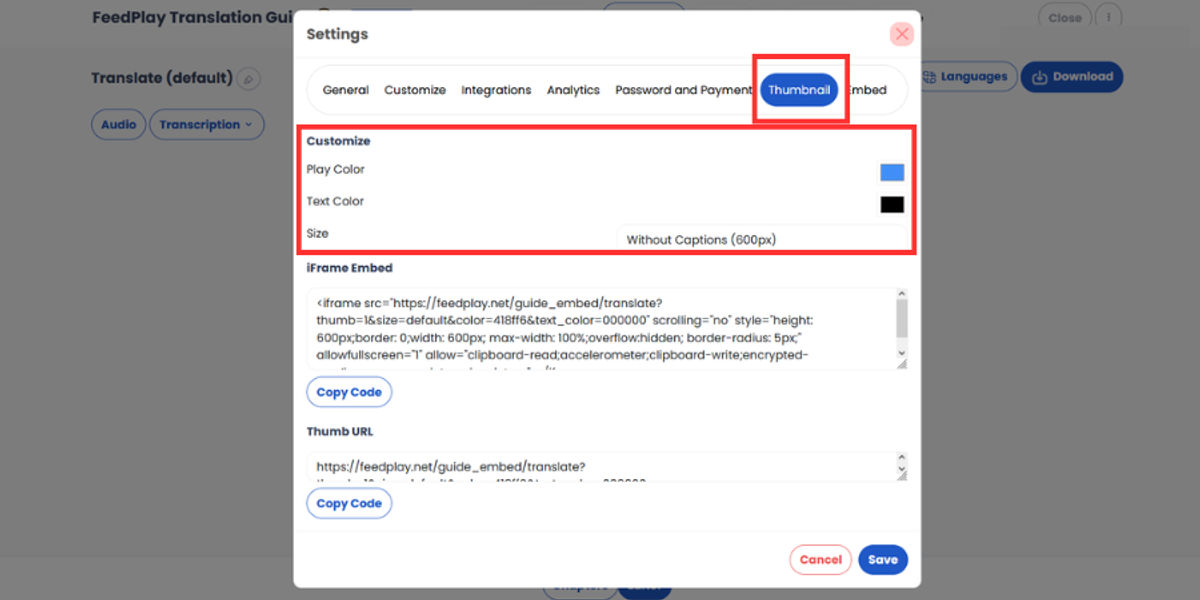
- You can adjust player color, text color, and layout size before copying the final iFrame code.
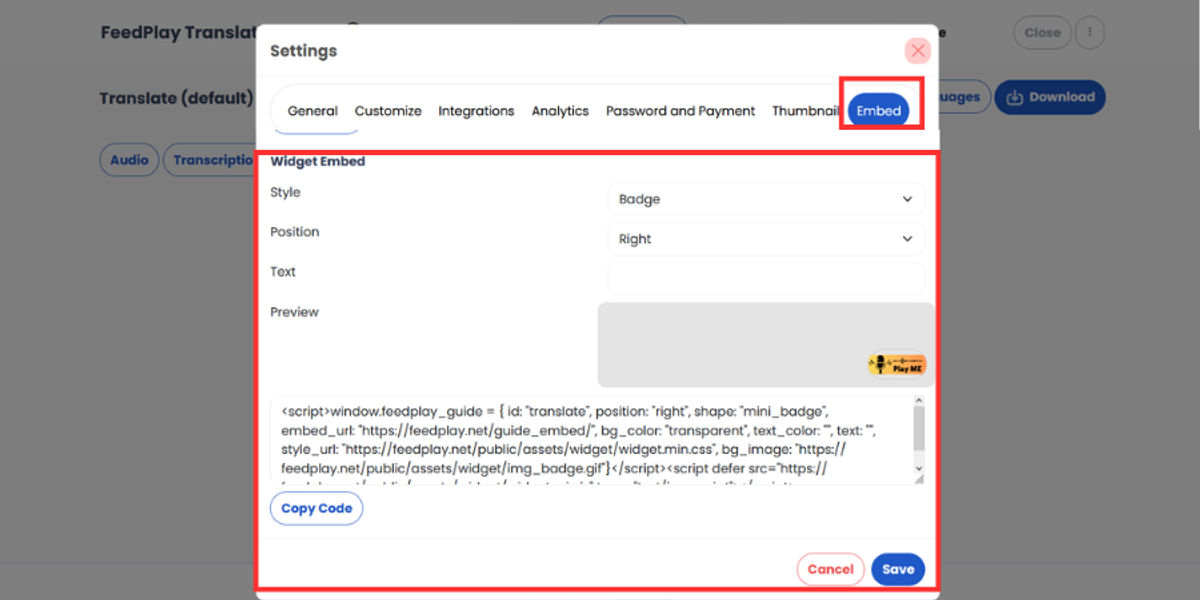
Widget Embed
- Create a popup guide for your website.
- Choose different banner styles, then copy/paste the code.
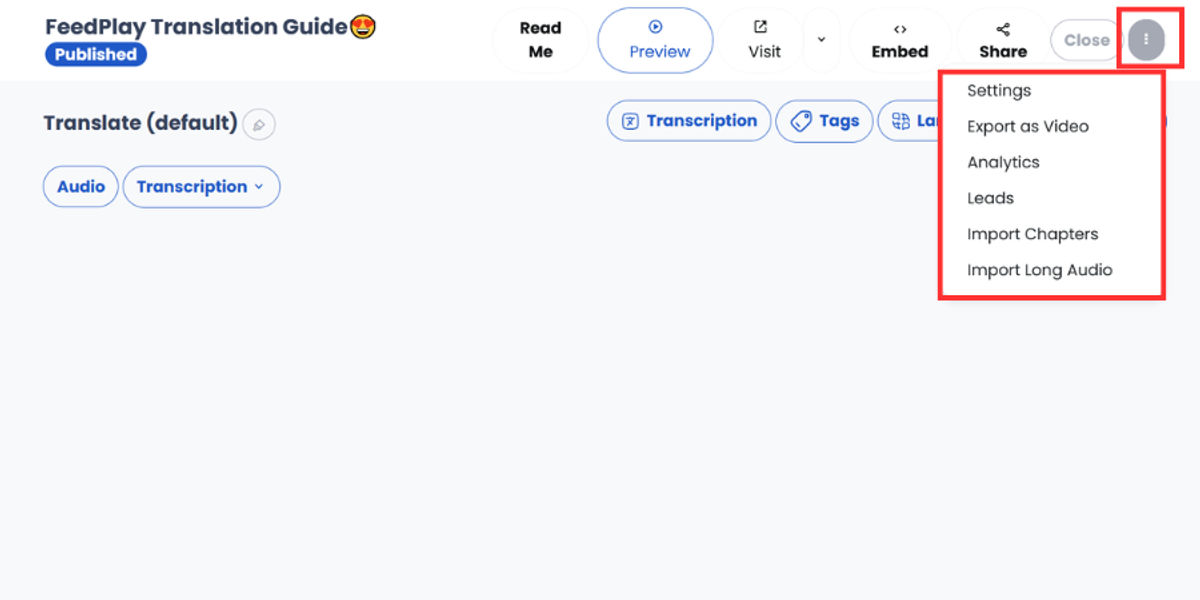
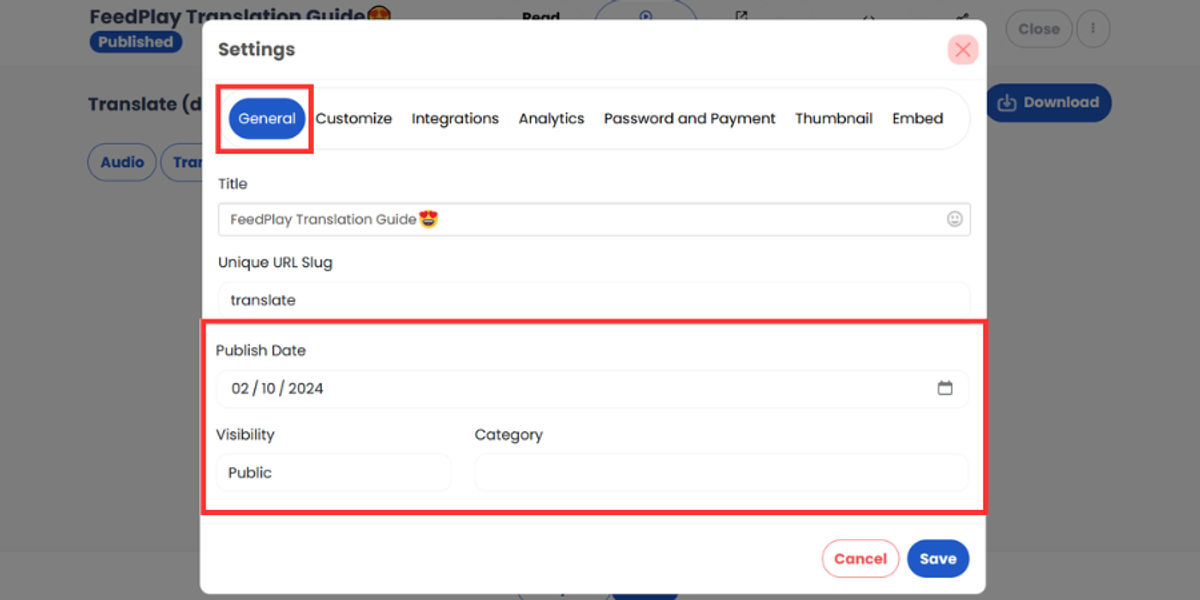
Settings (Three Dots Menu)
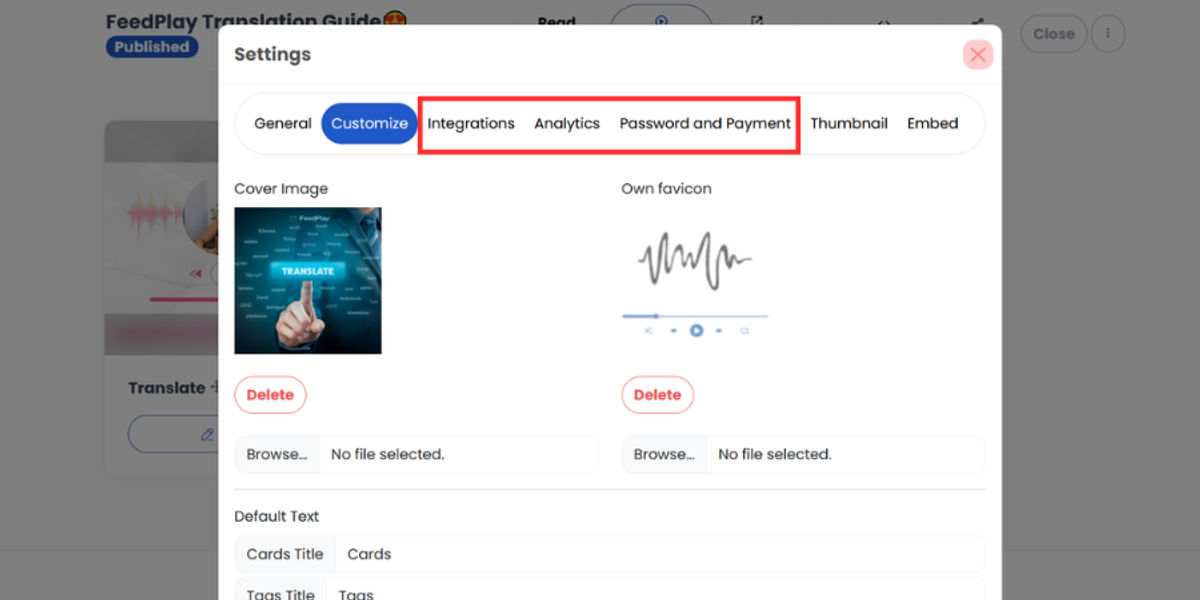
- Guide Settings: Set visibility (public, unlisted, private), show publish date, or protect your guide with a password.
- Integration: Sync a specific autoresponder to this guide so collected leads go directly to your email platform.
- Analytics: Insert tracking codes (e.g., Google Analytics) for more detailed insights.
Importing Chapters & Long Audio
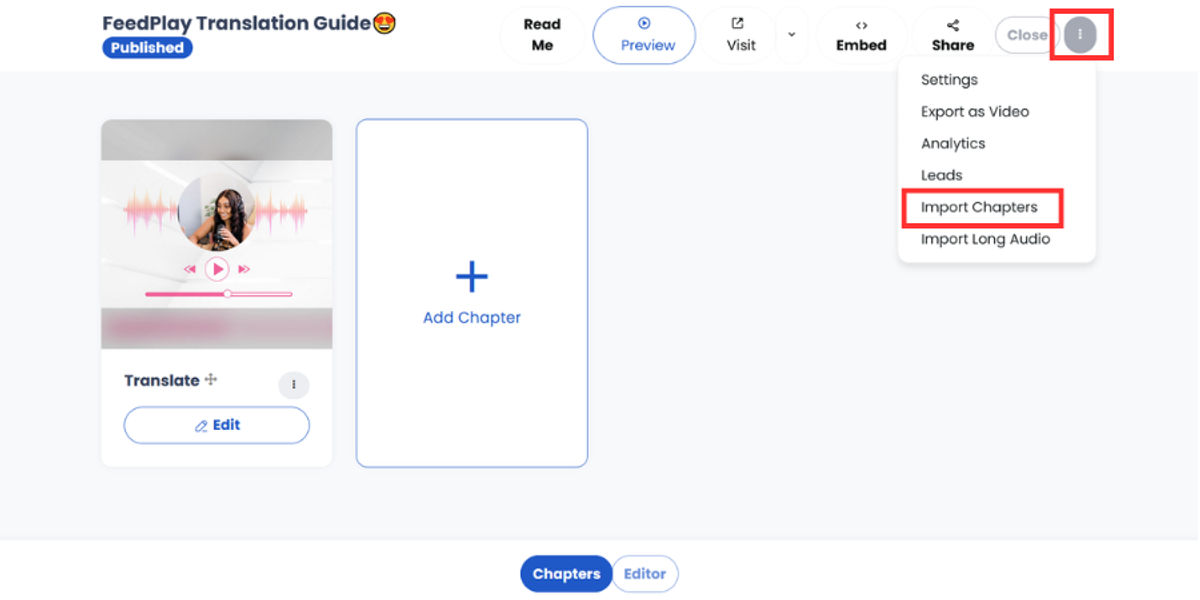
Import Chapters
- Merge chapters from other guides or external files into your current guide.
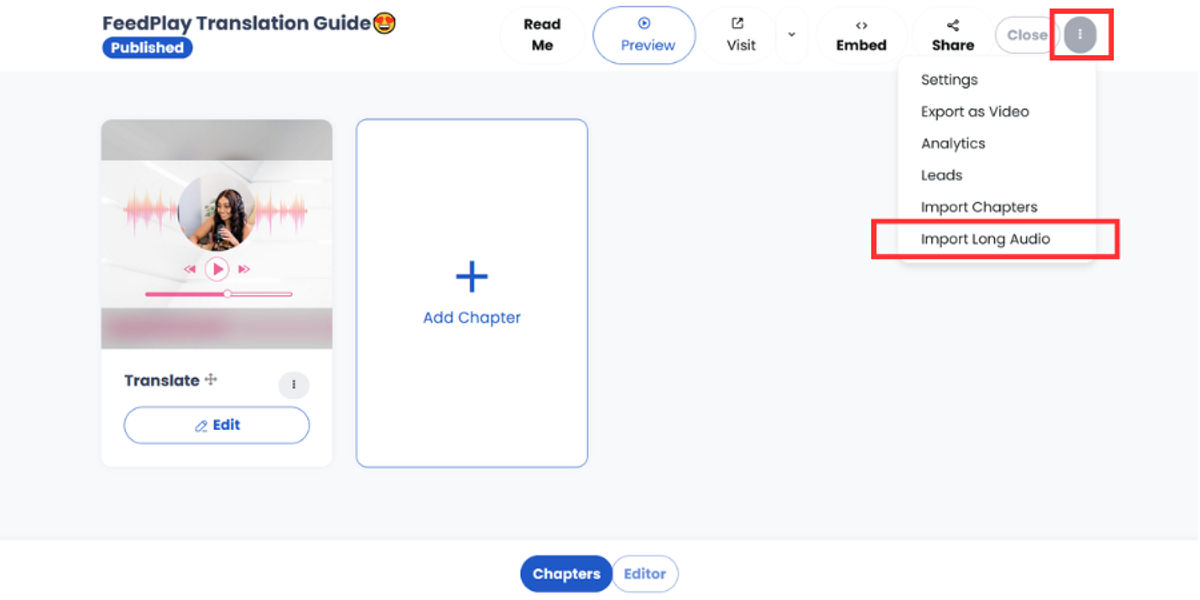
Long Audio Splits
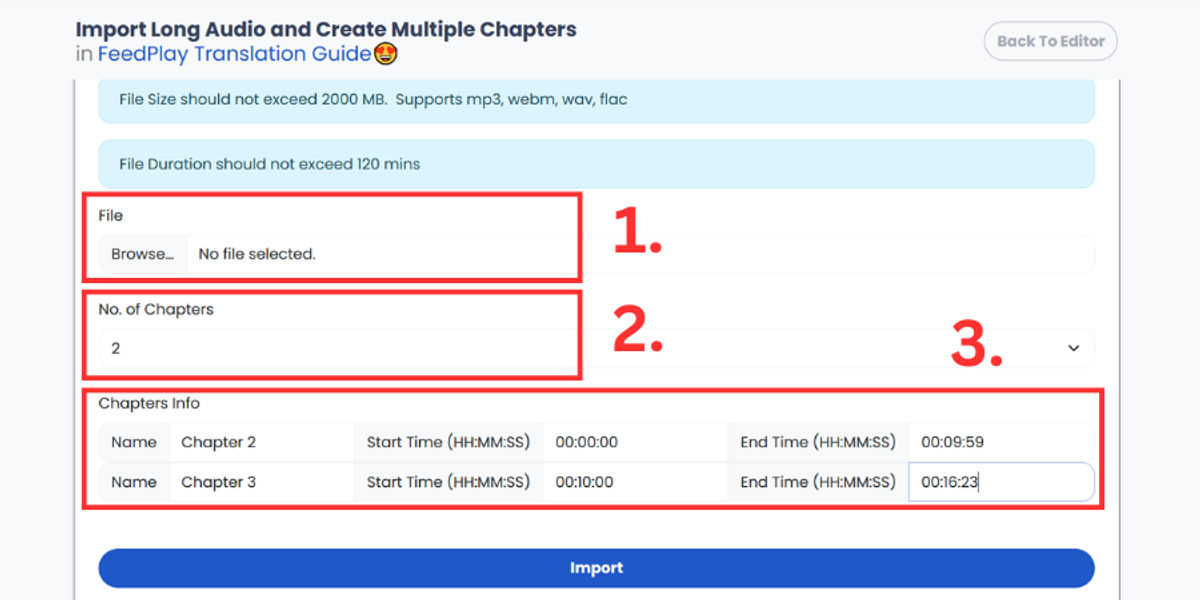
- Upload a long audio file and break it into multiple chapters.
- For example, if you have a 15-minute track, you can split it into three or more segments, each becoming its own chapter.
Pages, Playlists & Sales Pages
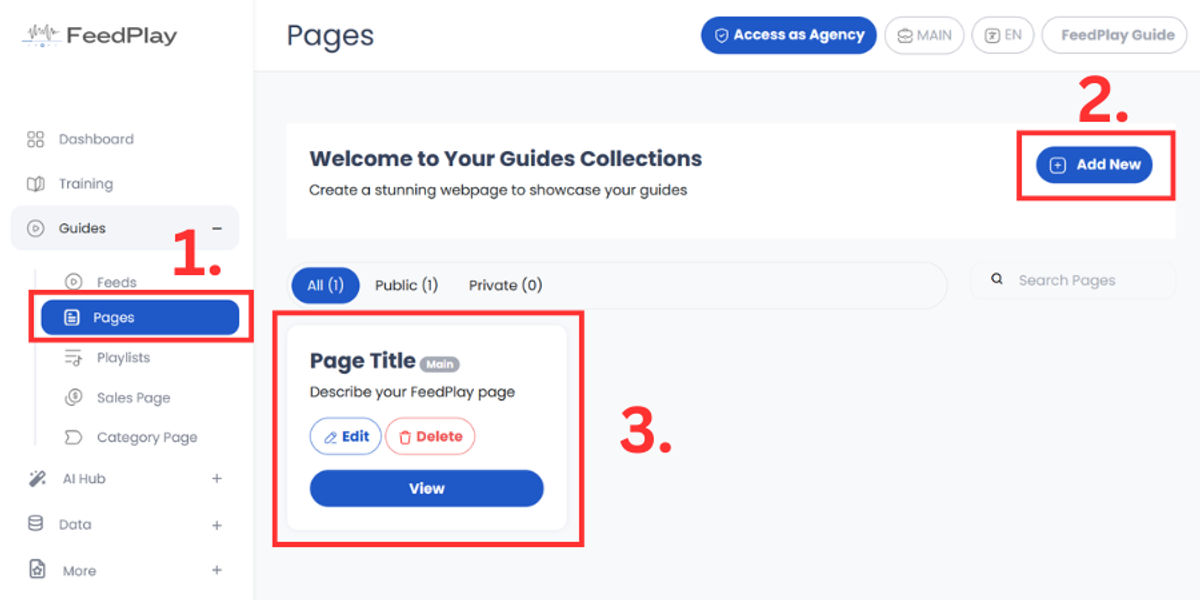
Pages
- Organize multiple guides on a single page.
- Add text or design elements around them for branding.
- Playlists
- Group related guides into a playlist for easy sequential viewing.
- Sales Pages
- Use a similar process to create pages specifically for selling content.
Detailed Pages & Playlist guide and how to set them up here!
AI Hub Details
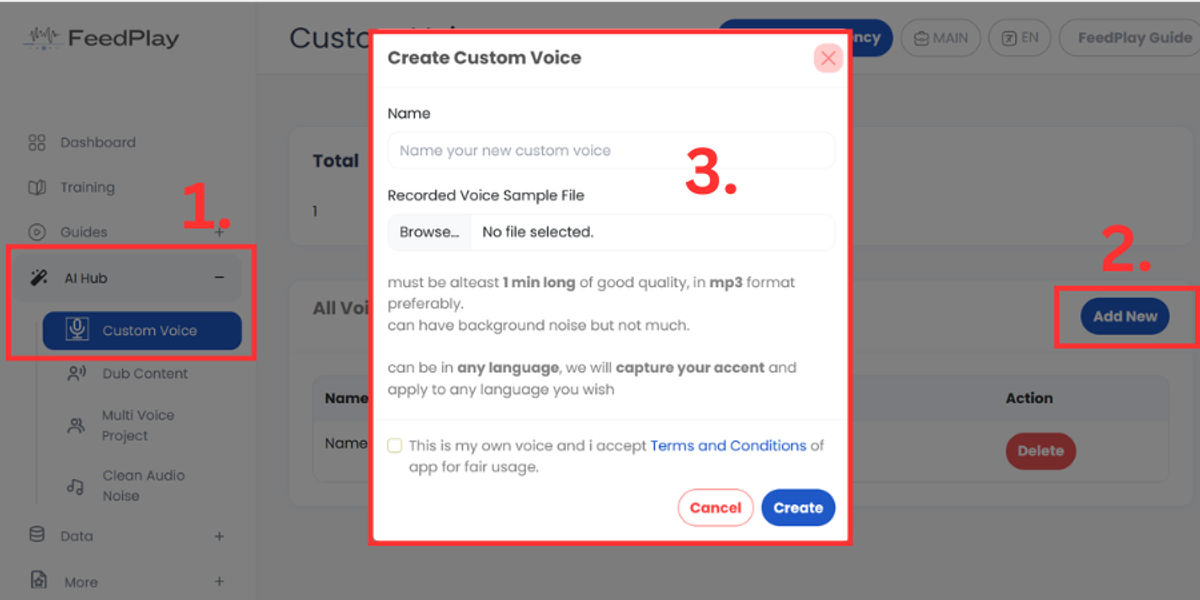
Custom Voice Clone (Learn more here)
- Upload at least 1 minute of clear audio to clone a voice.
- Once processed, you can use it in any guide or translation.
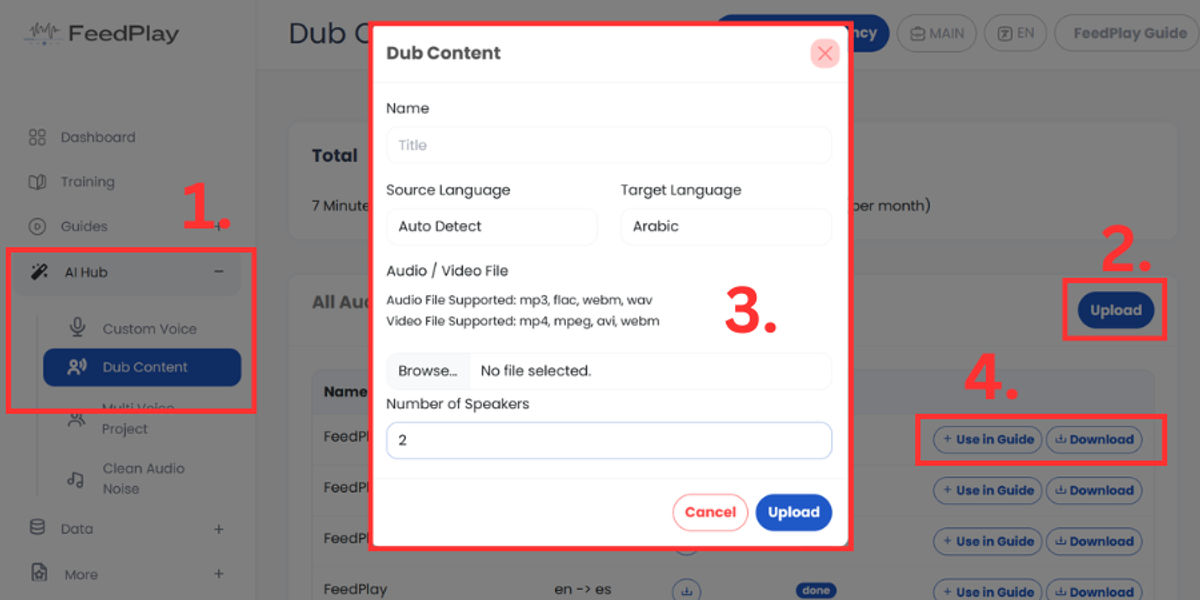
Dub Content (Learn more here)
- Quickly translate audio or video into other languages, preserving the speaker’s style with AI voice cloning.
- You can download dubbed files or incorporate them back into a guide.
Multi-Voice Projects (Learn more here)
- Create a “podcast-style” project by adding multiple speakers.
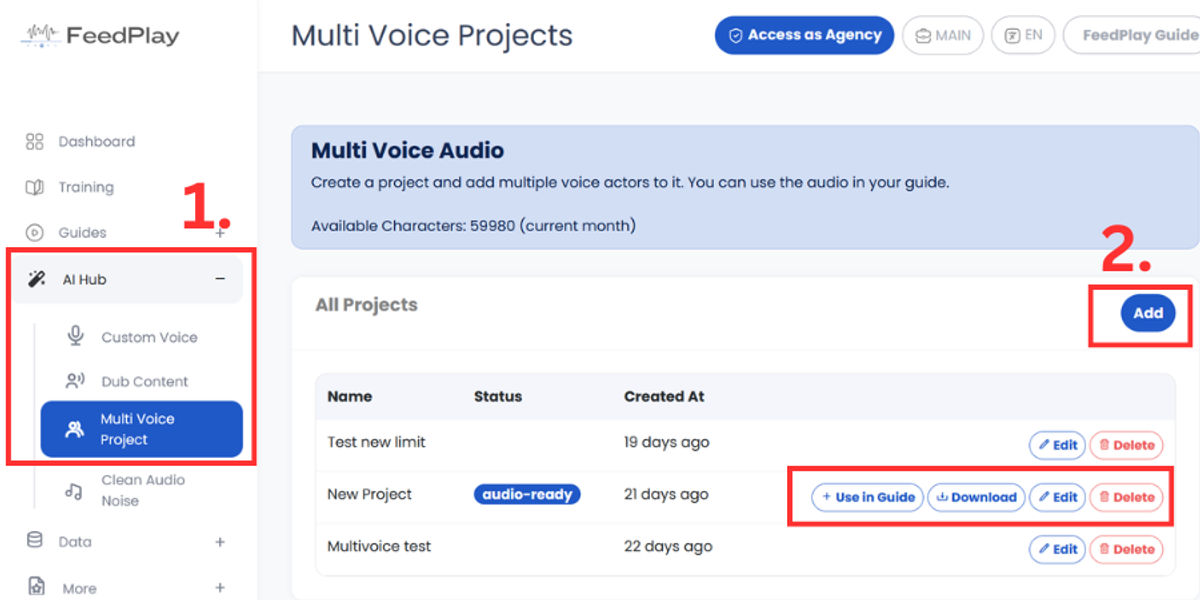
- Assign scripted lines to each speaker, choose AI voices, and even add background music.
Clean Audio (Learn more here)
- Remove hiss, hum, or background noise from your recordings before using them in a guide.
Data & Integrations
Analytics
- Review clicks, engagement time, bounce rates, and more.
- Monitor guide performance at a glance.
Integrations (Learn more here)
- Connect with popular autoresponders (over 30 options) or CRMs.
- Use a webhook if your tool isn’t directly supported.
Leads
- Check all collected leads in one place.
- Export or sync leads to your email marketing platform.
Video (Beta)
- Convert your guide into a video format (still in beta testing).
Custom Domains & Workspaces
Domain Setup (Learn more here)
- Point your domain to FeedPlay for a seamless, branded experience.
- Users will see your domain instead of feedplay.com links.
Workspaces
- Organize different projects or teams under distinct workspaces.
- If you’re running an agency, Workspaces help keep client accounts separate.
Agency Mode
- Whitelabel everything for your clients.
- Customize your subdomain, logo, and branding.
- Manage client usage and invite new users directly.
Getting More Help
We’ve created in-depth guides for:
- Create FeedPlay Guide
- FeedPlay Pages
- FeedPlay Playlist
- FeedPlay Embed & Widgets
- FeedPlay Custom Domain Setup
- Collect Leads with FeedPlay
- FeedPlay Voice Clone
- Dub Content with FeedPlay
- Multi Speaker Project
- Clean Audio Files w/ FeedPlay
- FeedPlay Translation
- Team Members
- Workspace Set-up
- Custom Pixel Code
If you have any questions, feel free to open a support ticket from the help link on your dashboard. We’re here to make sure FeedPlay works smoothly for you.
Conclusion
That’s a quick walkthrough of the main FeedPlay features. From creating interactive guides and chapters to dubbing content in multiple languages and embedding it on your site, everything is designed to be user-friendly. If you ever get stuck or want to explore an advanced feature, check our help resources or reach out to our support team.
Thank you, and enjoy using FeedPlay!
Was this article helpful?
That’s Great!
Thank you for your feedback
Sorry! We couldn't be helpful
Thank you for your feedback
Feedback sent
We appreciate your effort and will try to fix the article