FeedPlay Embeddable Codes & Popup Widget
How to embed your FeedPlay guides into a website or platform. Follow the steps below to learn how to access and customize your embed code.
1. Create a FeedPlay Guide
- Before you can embed anything, you need an existing FeedPlay guide. If you haven’t already created one, head to the “Guide” section in your dashboard and set up your guide first.
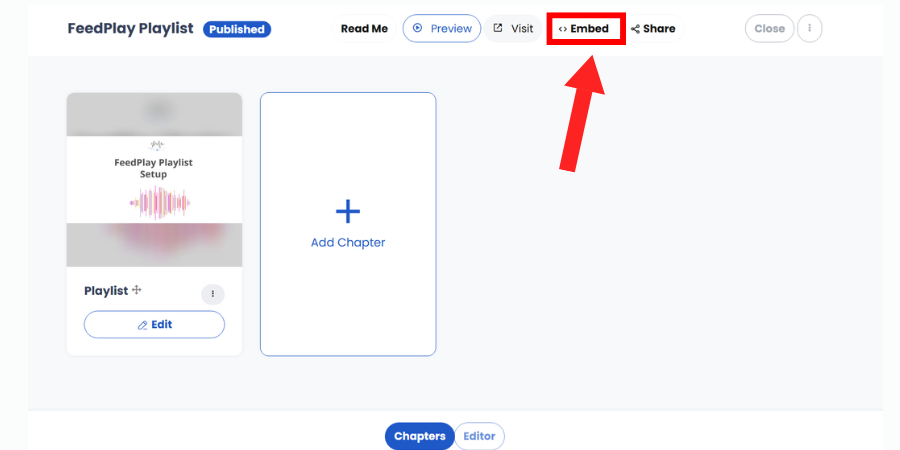
2. Access the Embed Tab
- In your chapter or editor view, look for the “Embed” tab. This is where you’ll find your embed codes and customization options.
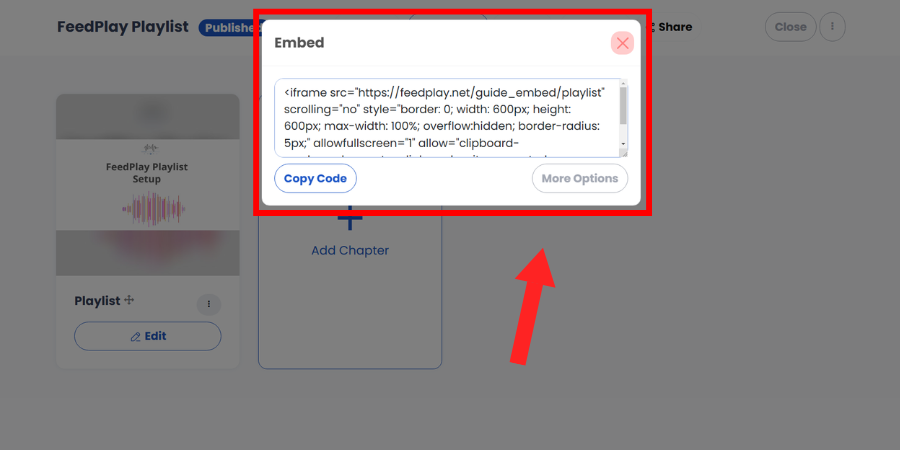
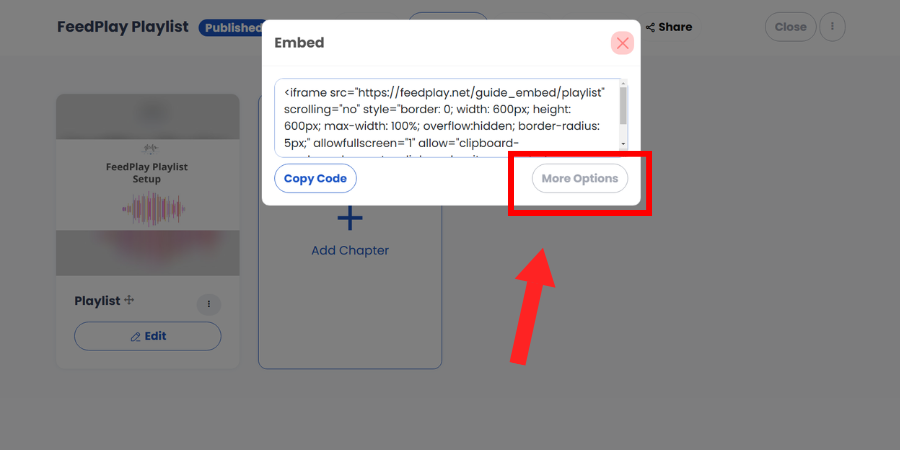
3. Explore Additional Embed Formats
- For more embed format options, click on the “More” option.
- You can also navigate to “Settings” (often represented by three dots or a dropdown arrow) for further customization.
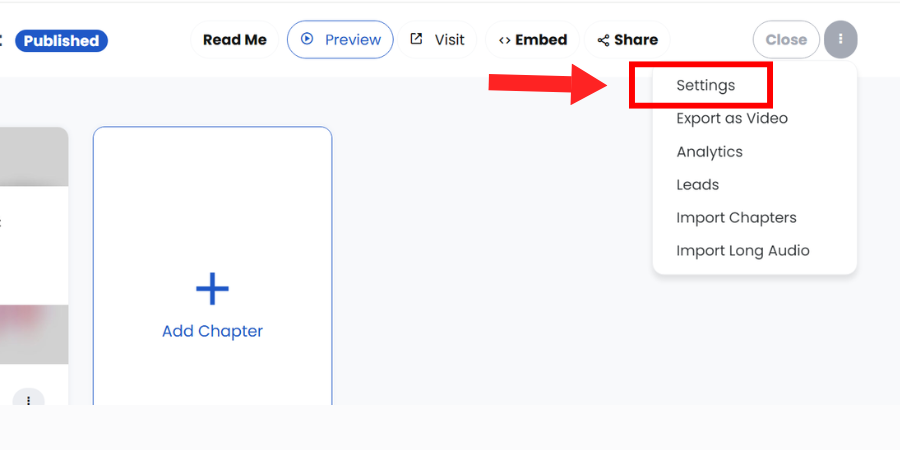
4. The “Settings” Dashboard
Once in Settings, you’ll see two main embed options:
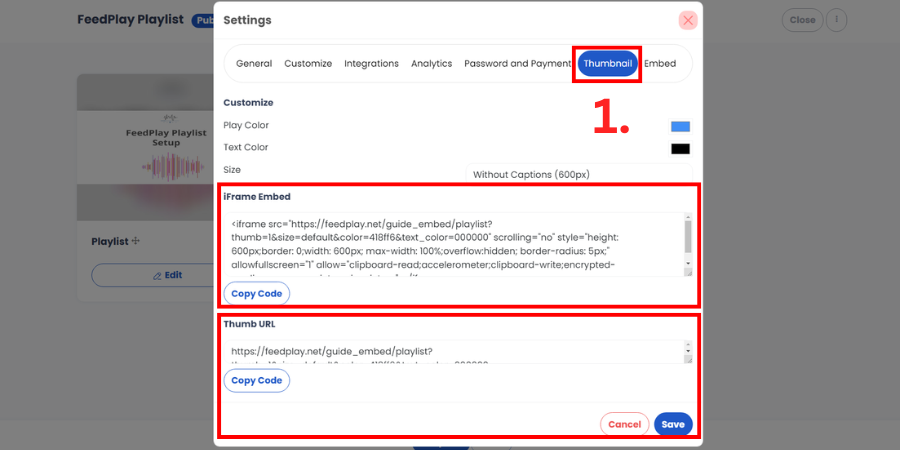
1. Thumbnail Tab
- Player Color & Text Color: Choose your preferred colors to match your brand or style.
- Size Options: Select 600×600 (no caption field) or 650×650 (includes caption and widgets).
- Copy iFrame Embed Code: After making your selections, copy the code to embed on your site.
- Thumb URL: You also have the option to copy a standalone thumb URL, which can be shared separately if needed.
2. General Embed
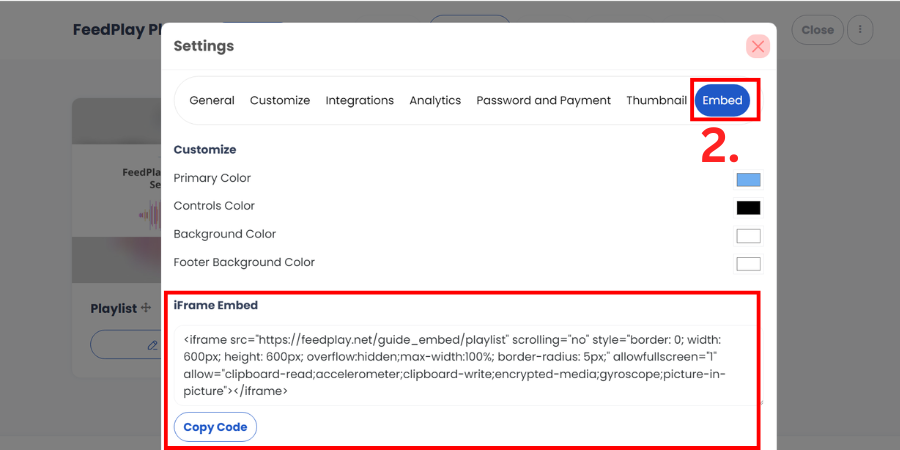
- Customization: Adjust the primary color, control color, background color, and footer background color of your player.
- Copy Embed Code: Once you’re satisfied with the look, copy your embed code here to add to your website or platform.
5. PopUp Widget Embed
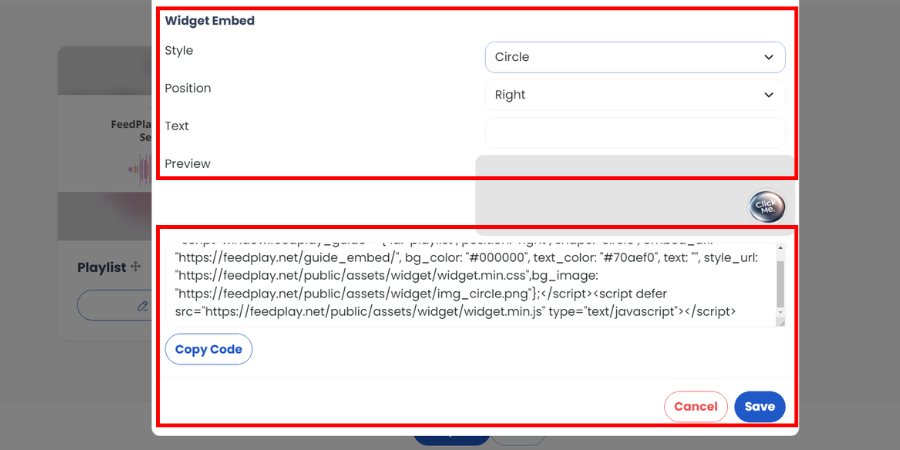
- In the “Widget Embed” section, you can customize a popup widget that users can click on your website.
- Ignore the text field—all four widget styles come with a clickable banner.
- If you want to use a custom GIF or PNG banner, simply replace the banner image link in the provided code with your own.
6. Apply Global Settings
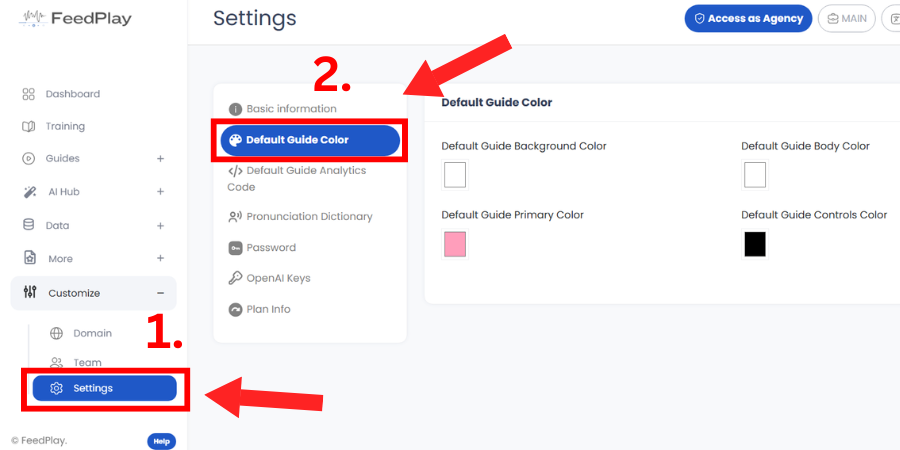
- To make global changes (such as default colors) that affect all your guides, go to your main account “Settings”.
- Under the “Customize” dropdown, click on “Settings” and then on "Default Guide Color". Any modifications here will automatically apply to every guide you've created.
That’s it! You now know how to embed and customize your FeedPlay guides and widgets.
If you need any additional help, refer back to this guide or check out our other training materials.
Happy embedding!
Was this article helpful?
That’s Great!
Thank you for your feedback
Sorry! We couldn't be helpful
Thank you for your feedback
Feedback sent
We appreciate your effort and will try to fix the article