FeedPlay Custom Domain: Setup Guide
This guide will show you how to connect and use your custom domain for your FeedPlay guides, pages, and playlists.
1. Access the Domain Settings
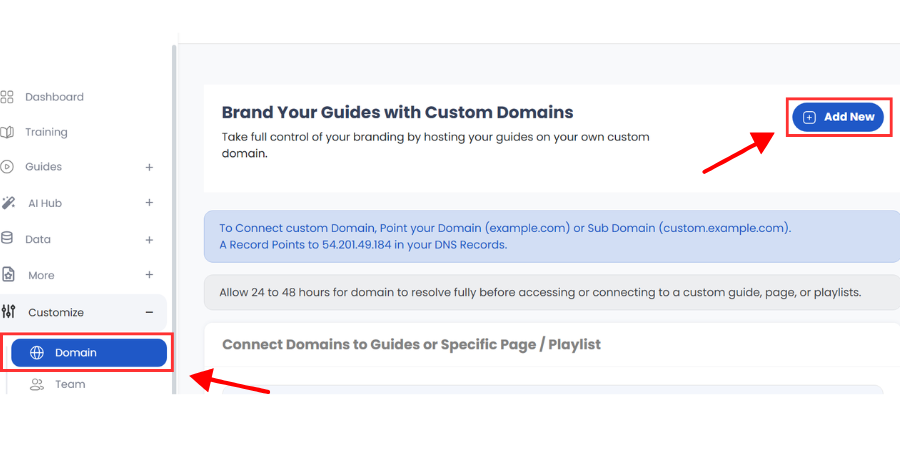
- In your FeedPlay dashboard, go to the “Customize” dropdown.
- Select “Domain” to open the domain management panel.
- Click on “Add New”.
2. Add a New Domain
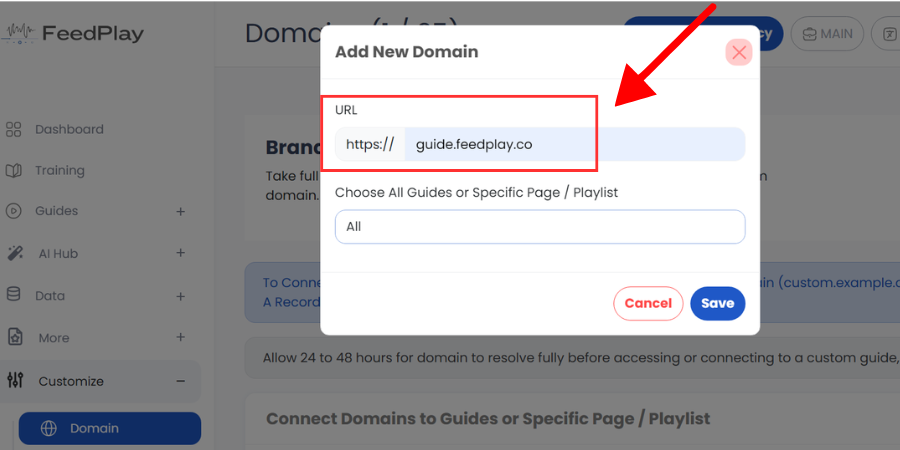
- In the popup, enter your domain—leave out any prefixes like
www.orhttps://; FeedPlay will handle those automatically. - Choose “All” if you want this domain to be used for all your guides, pages, and playlists.
3. Update Your DNS Records
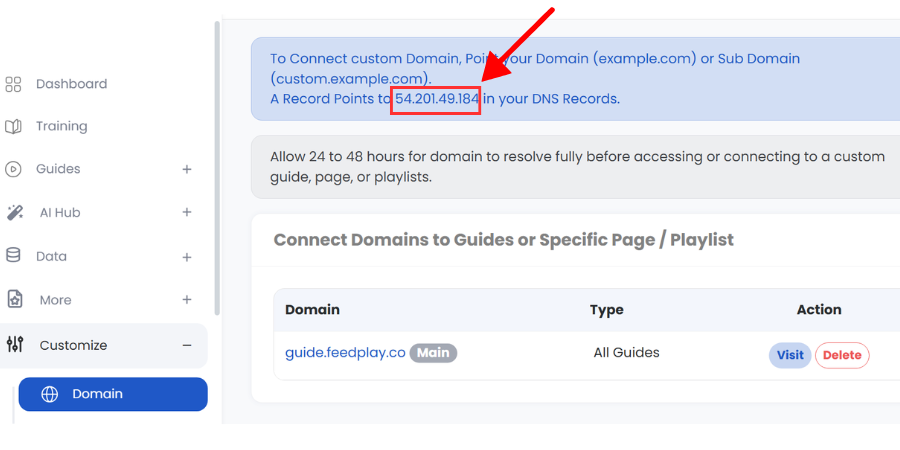
- Copy the IP address shown on your domain dashboard in FeedPlay.
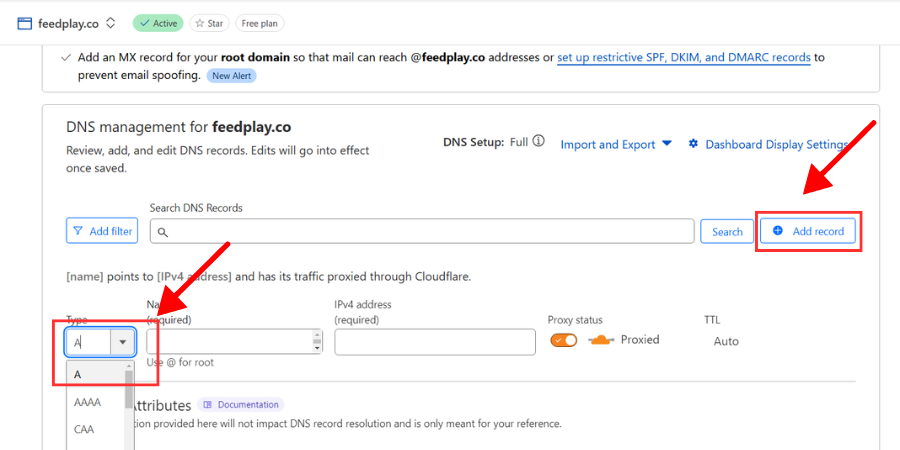
- Go to your domain registrar or DNS hosting (e.g., Cloudflare).
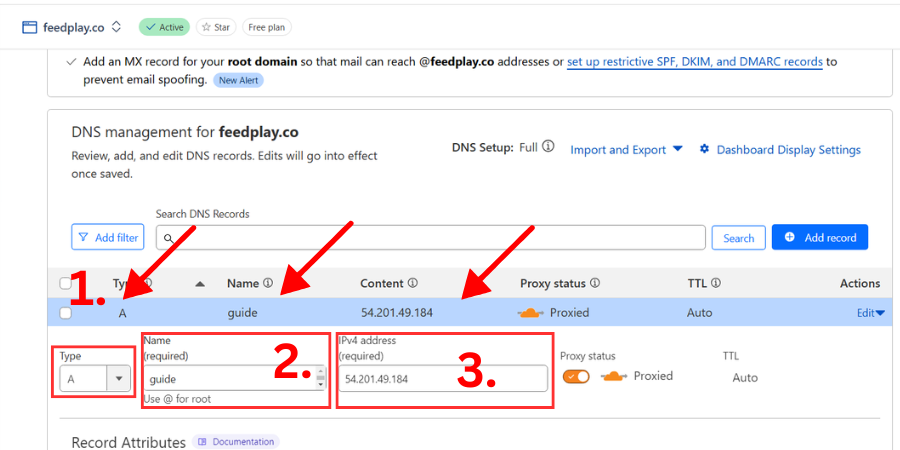
- Create a new A record that points to the copied IP address.
- Type: A
- Name: If you’re using a subdomain like
guide.yourdomain.com, the name would be "guide". - Value: Paste the IP address you got from FeedPlay.
- Save your new DNS record.
Example using Cloudflare:
- Click “Add record”.
- Set the Type to A.
- For Name, type your subdomain (e.g.,
guide). - For IPv4 address, paste the IP address from FeedPlay.
- Click “Save” to confirm.
4. Wait for SSL and DNS Propagation
- It may take up to 48 hours for DNS changes to fully propagate and for the SSL certificate to be issued and secured.
- After this propagation period, your custom domain should be fully functional with FeedPlay.
5. Test Your Domain Link
Once the domain is set up, test it with any of your existing guides:
- Go to “Feeds” under “Guides.”
- Select any guide and click “Edit.”
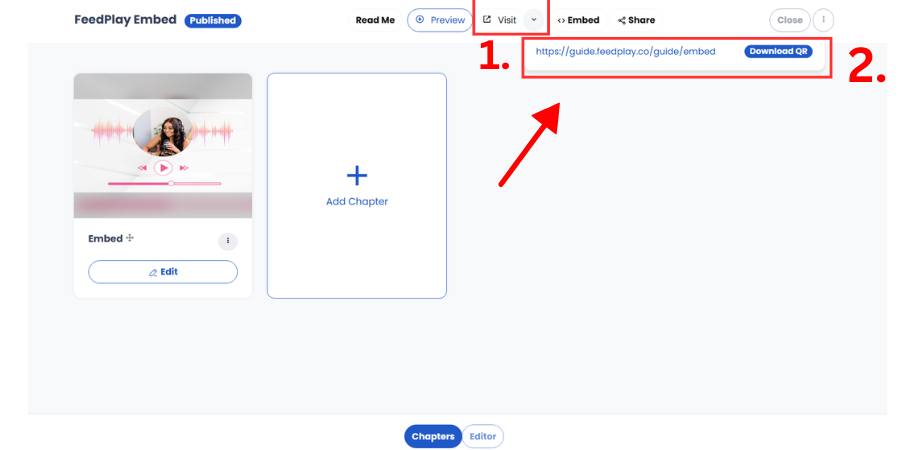
- In the chapter editor, click the “Visit” tab dropdown to see your guide URL.
- You can also download the QR code for quick access.
6. Use Your Custom Domain with Pages and Playlists
- Navigate to your “Pages” or “Playlists” tab.
- Create a new page or playlist, or edit an existing one.
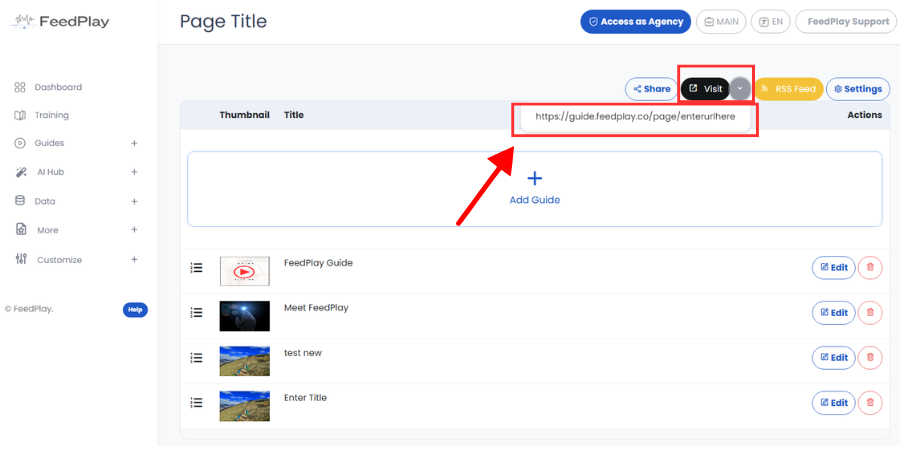
- Under the “Visit” tab dropdown, you’ll see the new custom domain link for that page or playlist.
That’s it! Your custom domain is now connected to FeedPlay. Enjoy a more personalized and professional look when sharing your guides, pages, and playlists. If you have any questions or need further assistance, refer back to this guide or check out our other FeedPlay resources.
Was this article helpful?
That’s Great!
Thank you for your feedback
Sorry! We couldn't be helpful
Thank you for your feedback
Feedback sent
We appreciate your effort and will try to fix the article