Setting Up FeedPlay Pages
I’ll guide you through the process of creating and managing a FeedPlay Page. By following these steps, you’ll be able to display your guides in a neat, shareable format. Let’s dive in!
1. Navigating to "Pages"
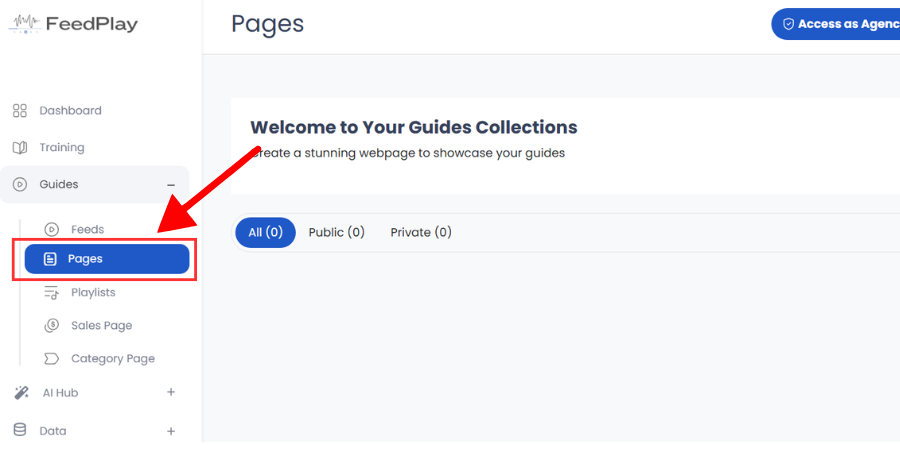
First, from your FeedPlay dashboard, click on the “Guide” tab. Under the Guide section, select “Pages.”
2. Add a New Page
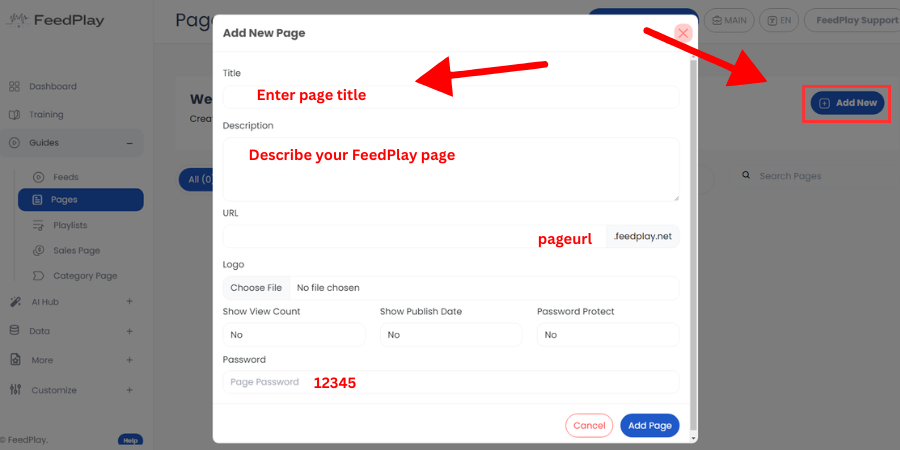
Once inside the Pages area, click the “Add New” button to create a fresh page.
3. Enter Page Details
A pop-up will appear, prompting you to fill in:
- Page Title – The name of your new page.
- Description – A brief summary or tagline for your page.
- URL Slug – A short, unique identifier without special characters that will form part of your page’s link.
You can also upload your page logo, decide whether you want to show your page view count and published date, and enable a password if you’d like extra security. When you’re ready, click “Add Page” to create your new page.
4. Begin Editing Your Page
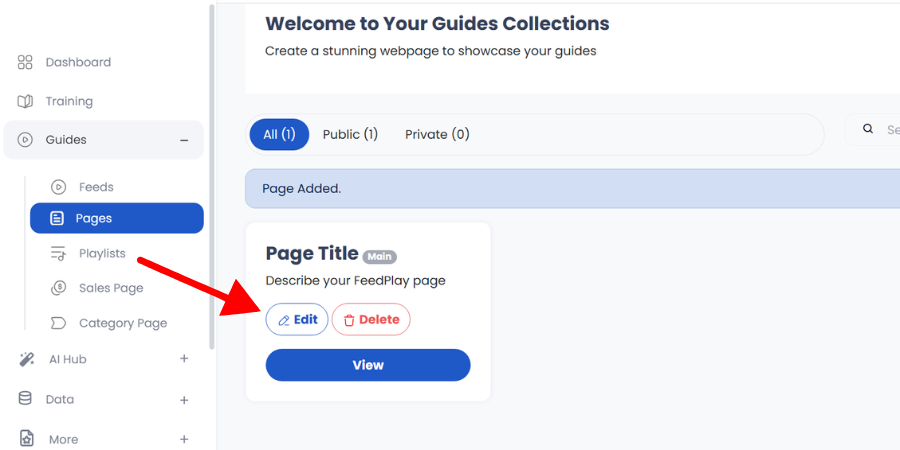
Now that your page is created, you’ll be taken to a welcome interface. Click the “Edit” button to start customizing by adding your guides.
5. Add Guides to Your Page
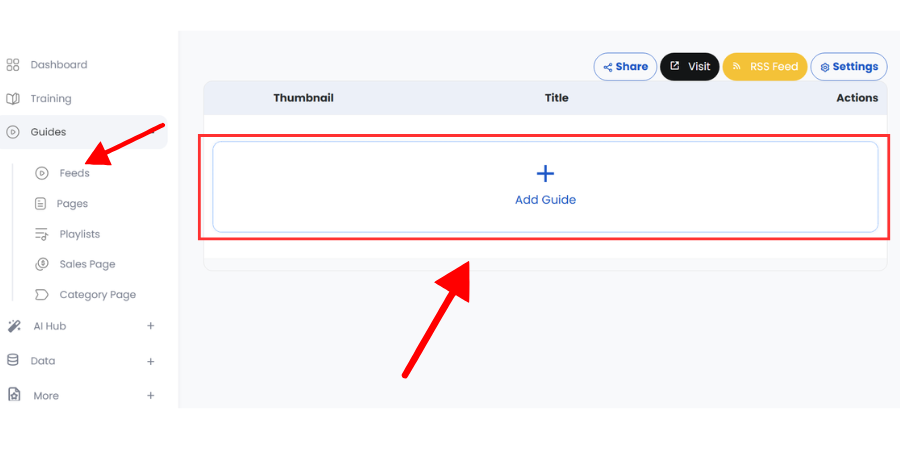
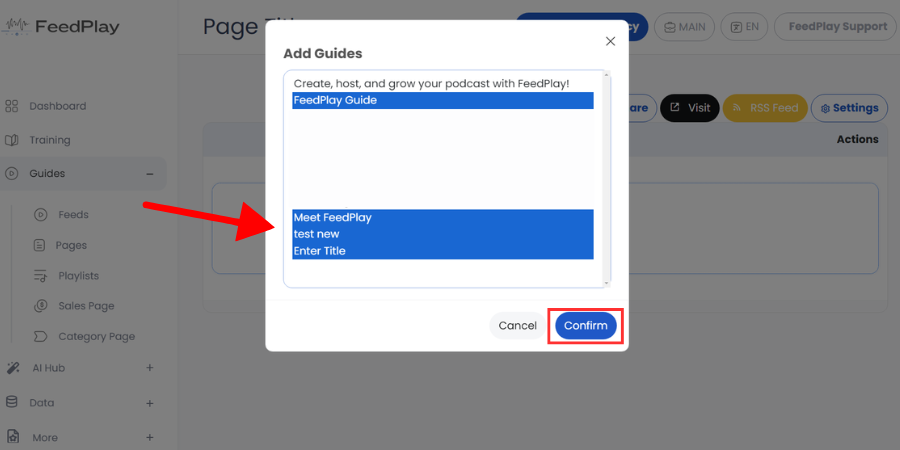
Select the “Add Guide” icon to import any guides you’ve previously created in the “Feed” tab. If you haven’t created any guides yet, head back to the Feed tab to do so before returning here.
Once your guides are ready, just select the ones you want and confirm to add them to your page.
6. Rearrange and Manage Guides
Within your new page layout, you can:
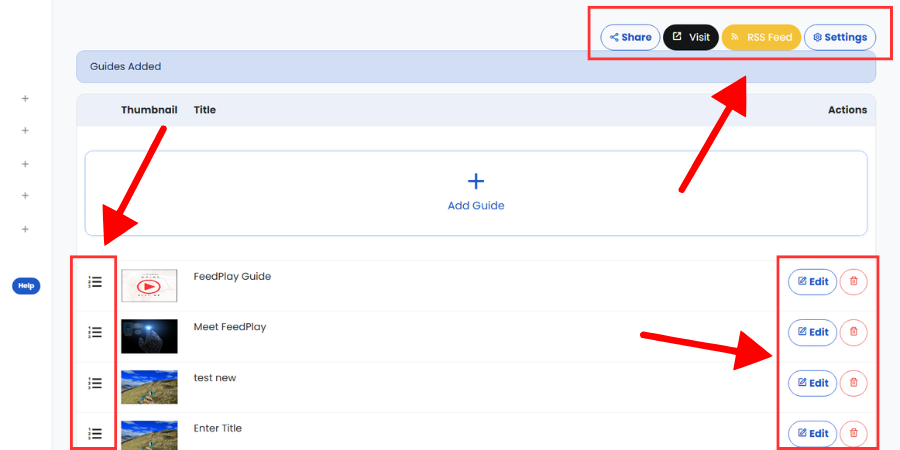
- Change guide positions by clicking and dragging the icon next to each guide.
- Delete a guide if needed.
- Edit a guide to make content changes.
From this interface, you can also share your page, copy its URL, retrieve the RSS feed, and access your Settings button for more options.
7. Adjust Page Settings
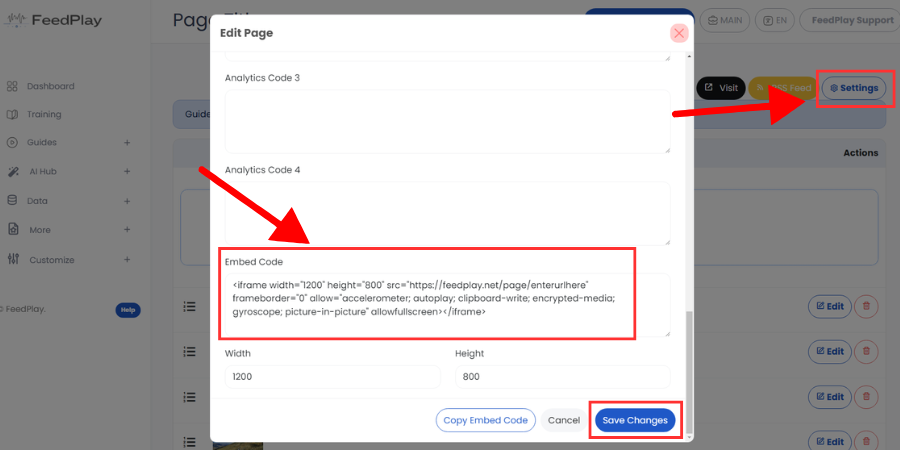
Click on the “Settings” tab to:
- Make the page premium—enabling payment requirements for access.
- Add analytics codes—for tracking and analysis.
- Copy your embed code—to embed the page on your own website or platform.
8. Assign a Guide to a Page via the Feed Dashboard
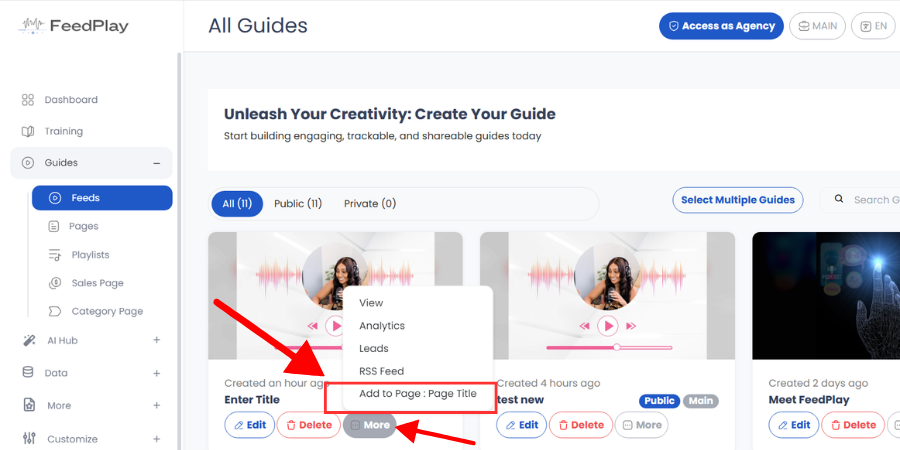
If you’ve already created your page but you’re just now making a guide, you can assign that new guide to your existing page directly from the Feed dashboard. Simply click on “More” next to the guide, and then select the page title on the pop-up that appears.
That’s it! You’ve successfully learned how to create, edit, and manage a FeedPlay Page. Feel free to revisit any step if you need a refresher.
Was this article helpful?
That’s Great!
Thank you for your feedback
Sorry! We couldn't be helpful
Thank you for your feedback
Feedback sent
We appreciate your effort and will try to fix the article