Steps To Create Multi-Voice Projects
Use the Multi Voice Project feature to create a podcast-like guide with multiple speakers. You can leverage FeedPlay’s custom voices—including your own cloned voice—to produce engaging, conversational audio content.
1. Access the Multi Voice Project
- Hover over “AI Hub” in your FeedPlay dashboard.
- Select “Multi Voice Project.”
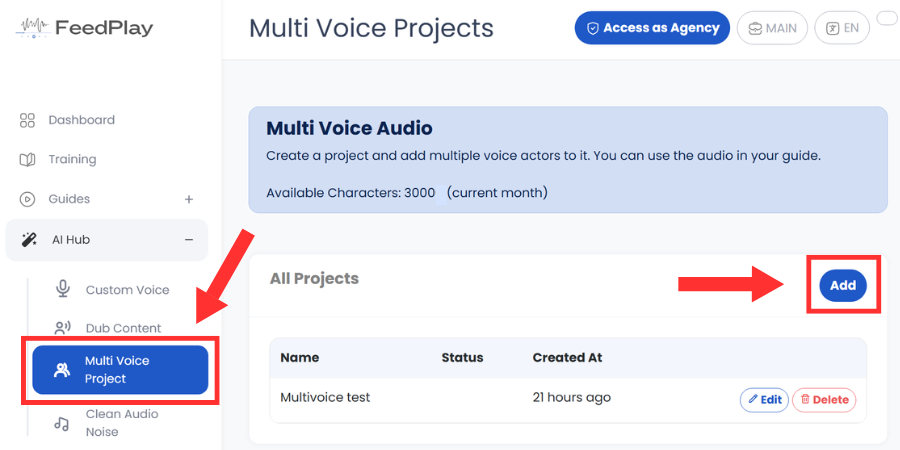
2. Create a New Project
- Click “Add” to start a new project.
- Enter your Project Title and a brief Description.
- Save or proceed to the next step.
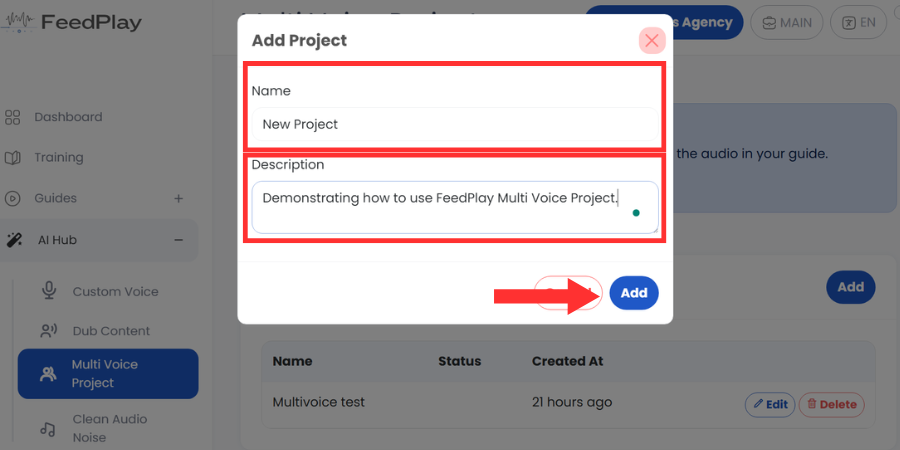
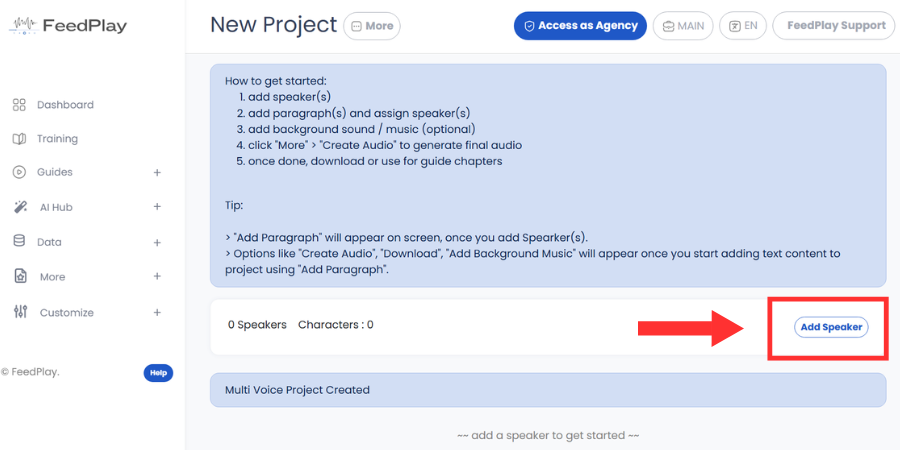
3. Add Speakers
- Click “Add Speakers” to open the speaker setup form.
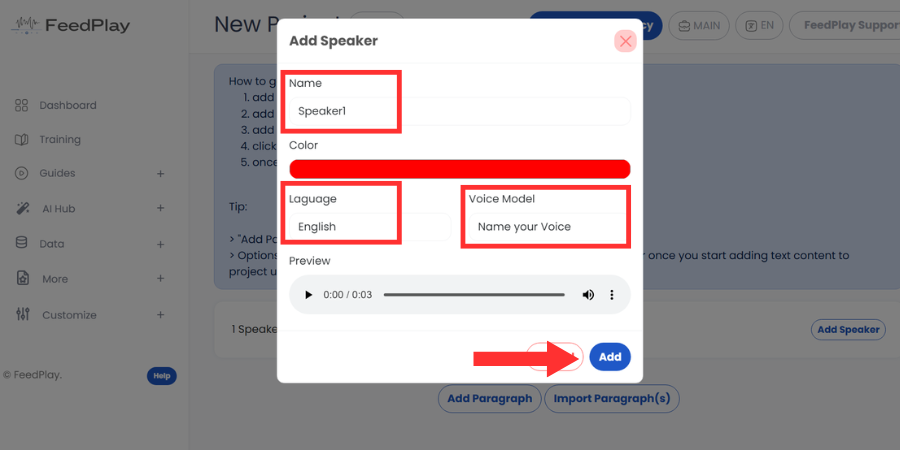
- Name the first speaker (e.g., “Speaker 1”).
- Pick a Color to visually identify this speaker’s lines.
- Select the Language for the speaker.
- Choose the Voice Model, which can be a default FeedPlay custom voice or one of your cloned voices.
- Click “Add” to finalize your first speaker.
- Repeat the above steps to add additional speakers.
4. Add Paragraphs for Each Speaker
You can create the script for each speaker in two ways:
Option A: Manually Add Paragraphs
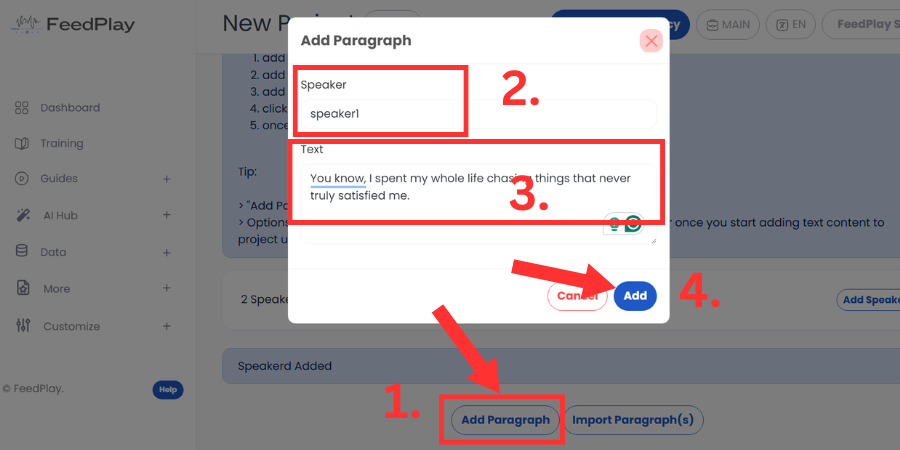
- Click “Add Paragraph.”
- From the Speaker dropdown, select the speaker who will be speaking.
- Enter the text or dialogue for that speaker.
- Click “Save.”
- Repeat for other speakers, creating a conversation-like structure.
Option B: Import Paragraphs
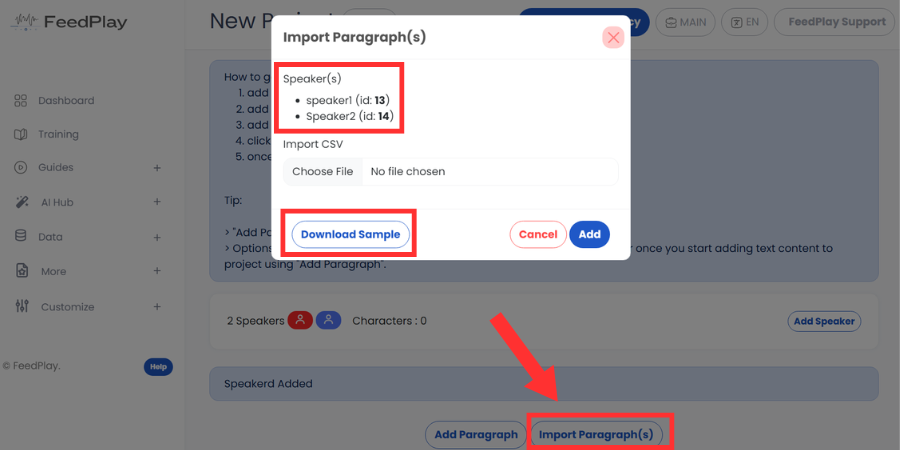
- Click “Import Paragraph.”
- Download the sample CSV file for reference.
- Each paragraph must be assigned a speaker ID (from the CSV’s instructions).
- Upload your modified CSV to bulk-import all paragraphs.
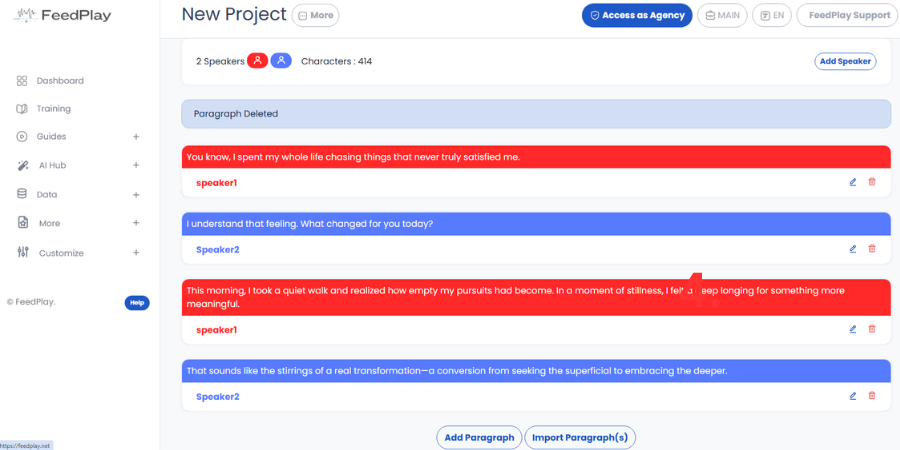
Tip: You can edit or delete any paragraph before publishing your final project.
5. (Optional) Add Background Music
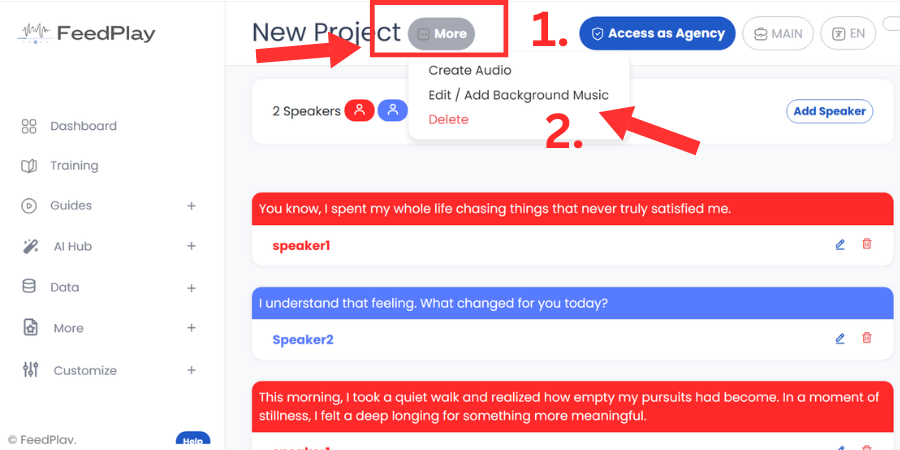
- In your Multi Voice Project list, locate the project and click “More.”
- Select “Add Background Music.”
- Upload your background music file (ensure it meets any format requirements).
- Save your changes.
6. Publish Your Project
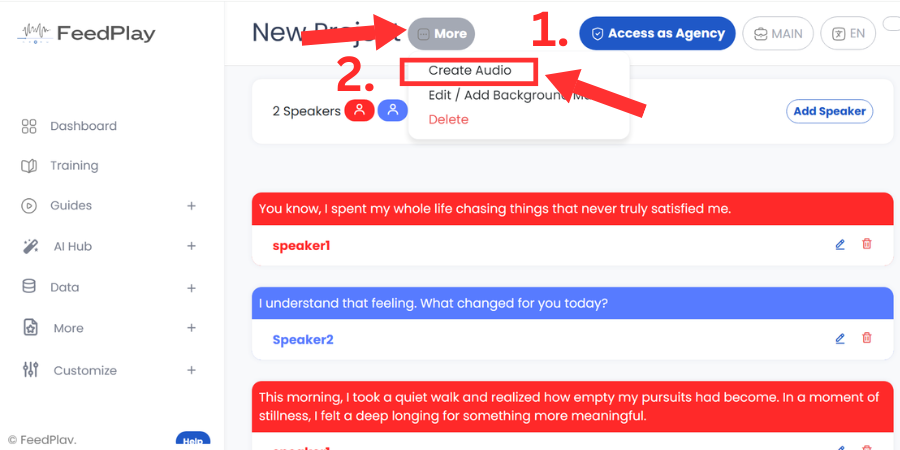
- Click “More” again next to your project.
- Choose “Create Audio” to generate the final audio with all assigned speakers and (if added) background music.
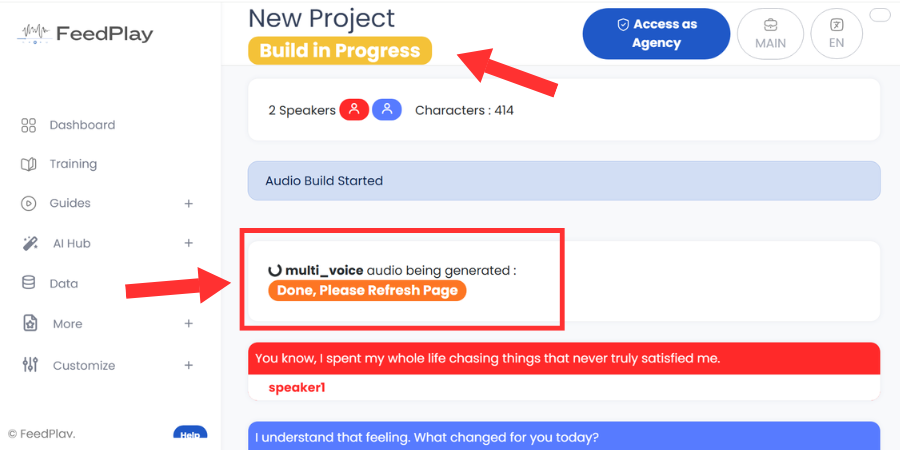
Refresh your browser to see the updated status and newly created audio.
7. Download or Use the Multi Voice Project in a Guide
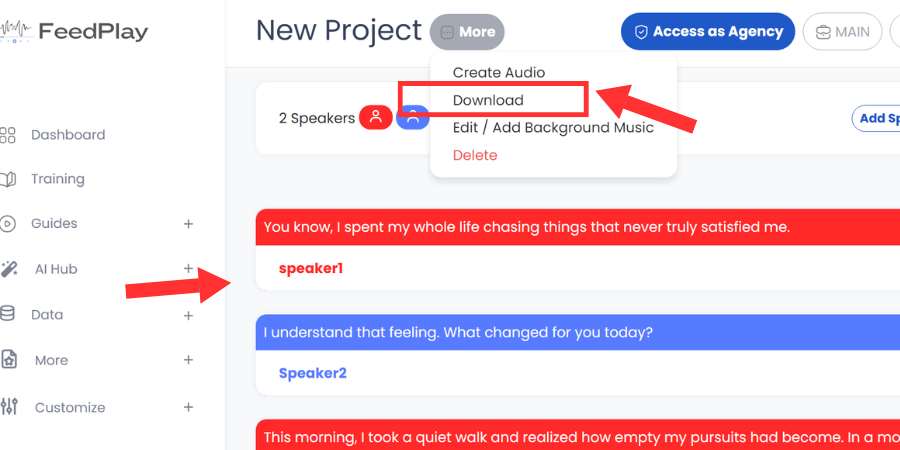
From the “More” dropdown, you’ll see an option to “Download” your new project audio.
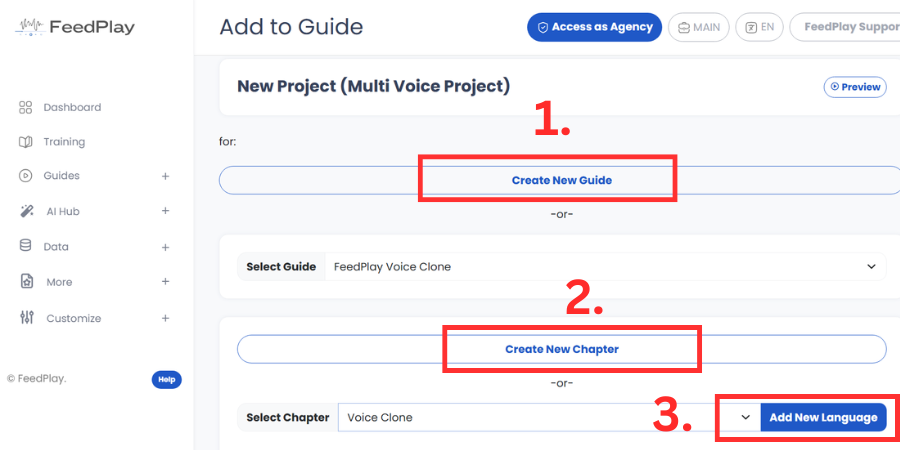
If you want to integrate the audio into a FeedPlay guide, select “Use in Guide.”
- New Guide – Create an entirely new guide with this audio.
- Add as Chapter – Insert the audio as a new chapter in an existing guide.
- Add as New Language – Use this audio as an alternate language version of an existing chapter.
Experiment with different voices, languages, and background music to produce professional, conversational-style audio content. If you ever need to update your project, simply return to the Multi Voice Project dashboard, edit your speakers or paragraphs, and regenerate the audio.
Enjoy creating dynamic, multi-speaker guides in FeedPlay!
Was this article helpful?
That’s Great!
Thank you for your feedback
Sorry! We couldn't be helpful
Thank you for your feedback
Feedback sent
We appreciate your effort and will try to fix the article