Sync FeedPlay Leads To Your Autoresponder
Use this guide to collect leads, connect them to your autoresponder, and automatically sync new subscribers with your mailing lists.
1. Set Up Your Autoresponder Integration
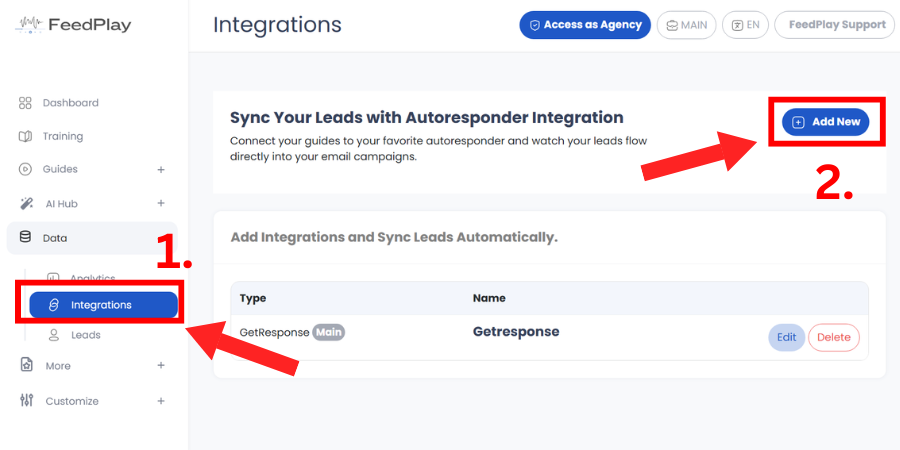
Go to “Data” in your FeedPlay dashboard and click on “Integrations.”
Click “Add New” to create a new integration.
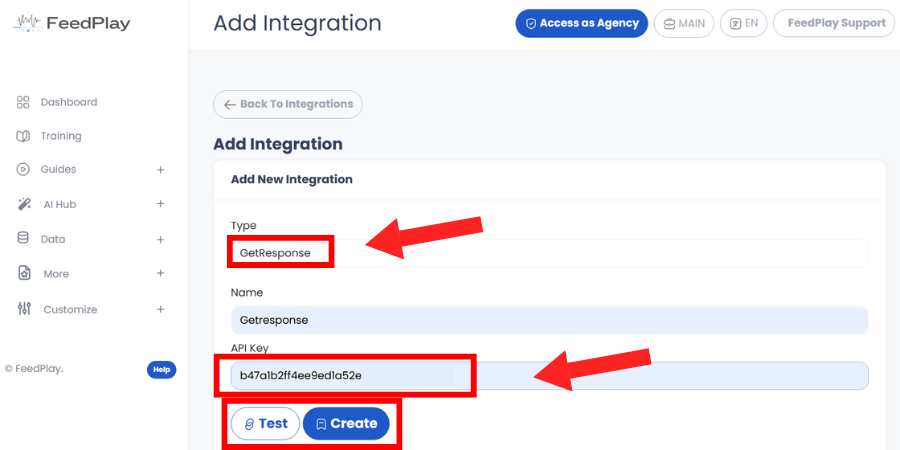
In the “Add Integration” pop-up:
- Select the Type of autoresponder you want to connect (e.g., Mailchimp, ActiveCampaign, etc.).
- Enter a Name for the integration.
- Provide your API key and Secret key if prompted.
- Test the connection, then Create the integration.
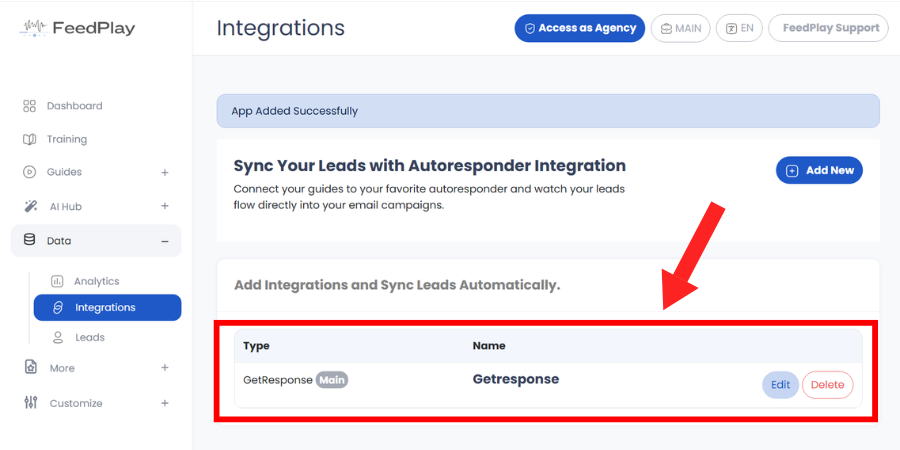
You should now see your connected autoresponder listed under “Integrations.”
2. Add a Lead-Capture Form to a Guide
Navigate to the “Feed” tab in your dashboard and choose a guide to edit.
Edit the chapter you want to collect leads from.
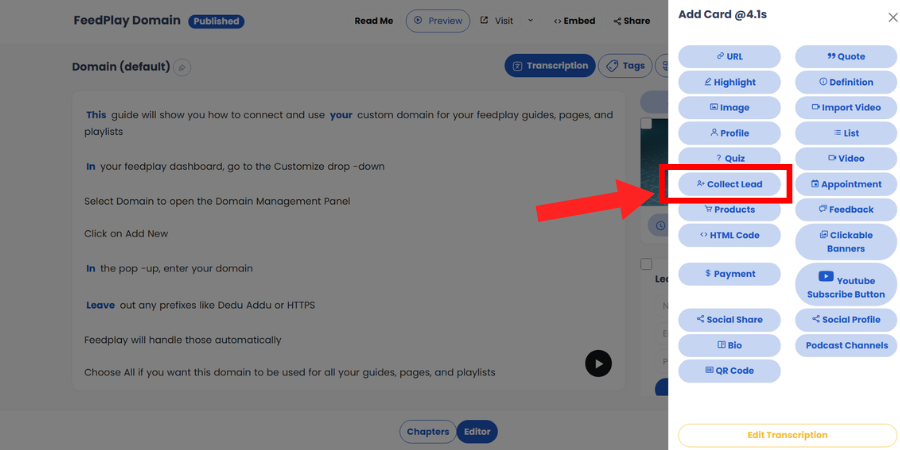
In the transcribed content section, click on any word to bring up the card pop-up.
Select “Collect Lead” from the card options.
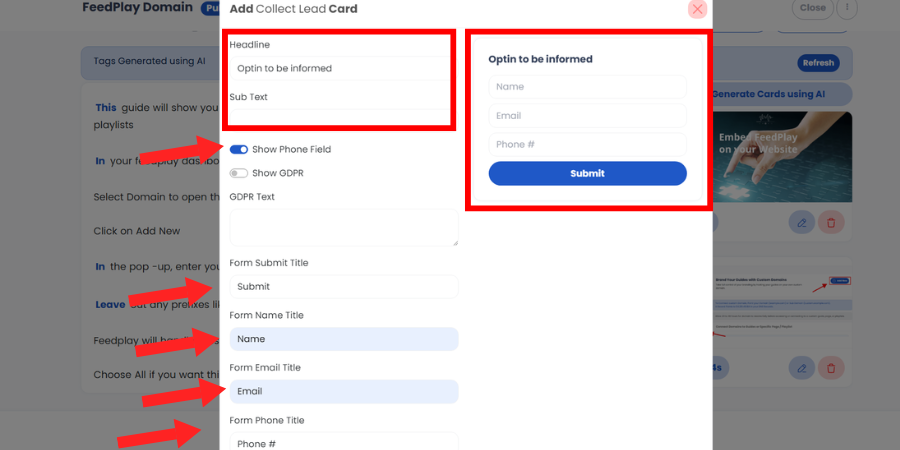
Customize your opt-in card:
- Headline – A short, attention-grabbing message for your form.
- Name and Email fields – Decide whether to include these fields.
- Show Phone Field – Enable or disable if you also want to collect phone numbers.
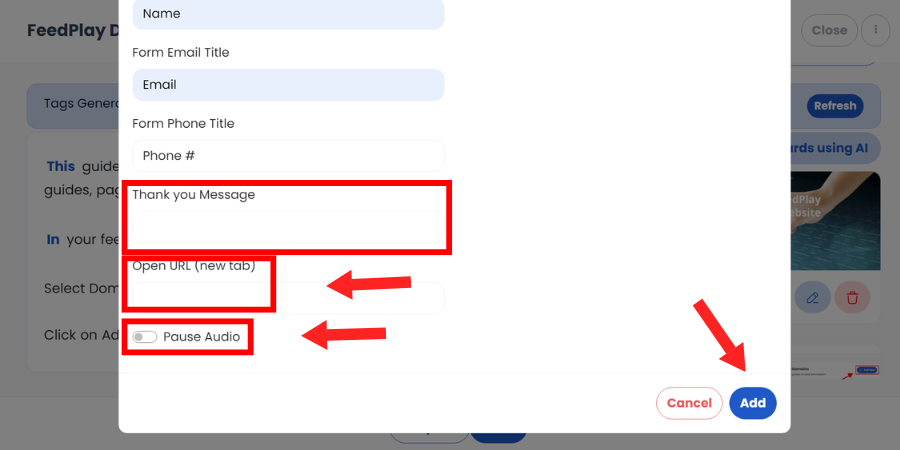
- Thank You Message – The message viewers see after submitting the form.
- Open URL – The webpage viewers are redirected to upon successful opt-in (optional).
- Pause Audio – Decide if you want to pause the guide until viewers opt in.
Add the form to your guide.
3. Connect Your Form to an Autoresponder List
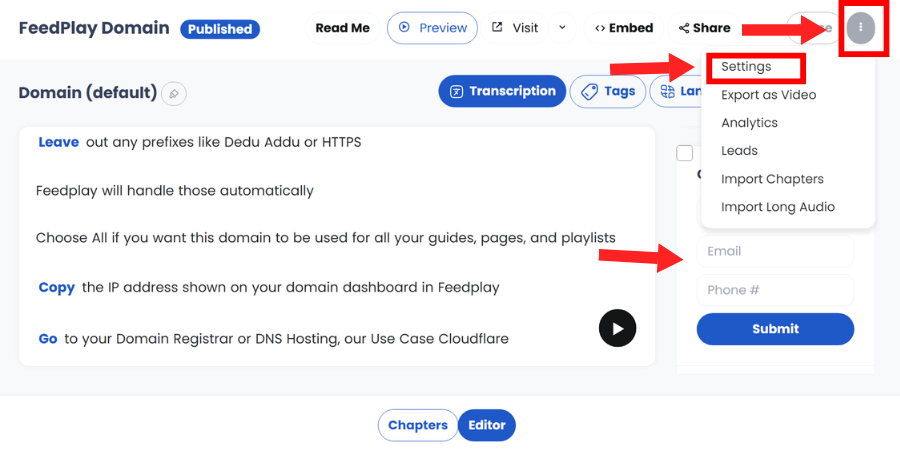
Inside your guide editor, click the three-dot icon near the close button and select “Settings.”
Go to the “Integrations” tab.
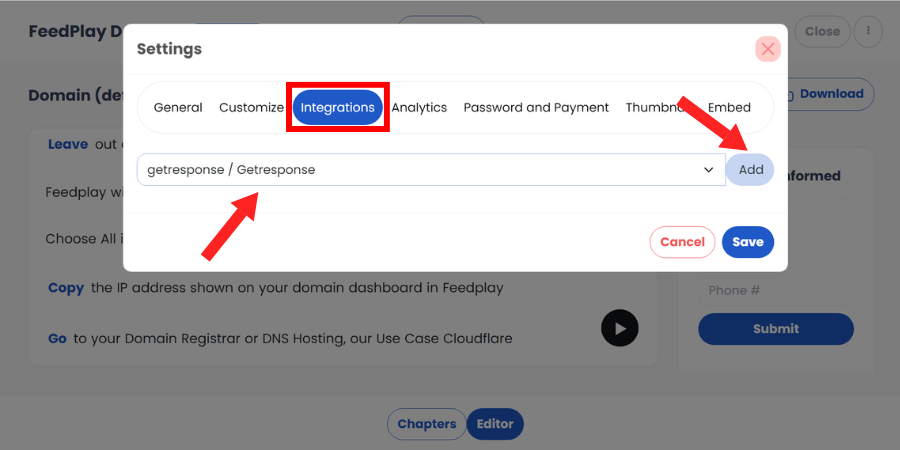
Find the autoresponder you previously added.
Click “Add” to select the email list from your autoresponder that you want to sync with.
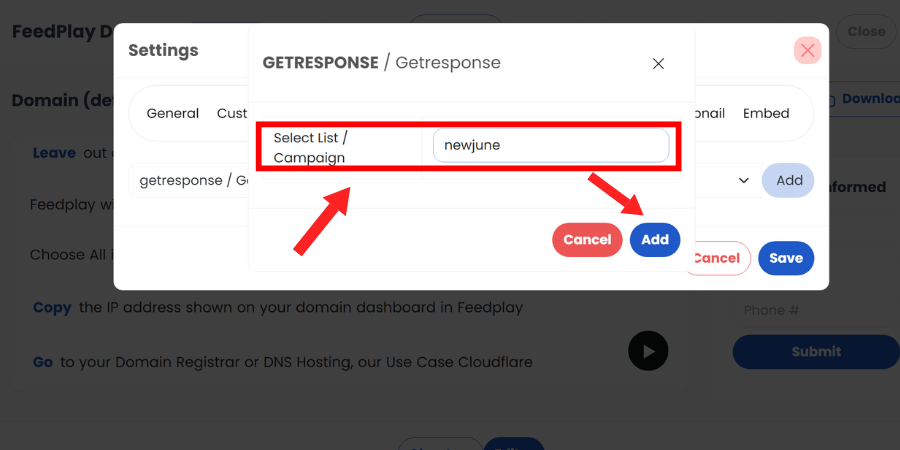
Any leads submitted through this guide will now be automatically sent to the connected list.
4. Viewing Collected Leads
- To see a record of your captured leads, go to the “Data” dropdown and click on “Leads.”
- Locate the guide in question and select “Details.”
- You’ll see all the contacts who have opted in. If everything is set up correctly, they are also synced to your autoresponder.
By following these steps, you can capture leads directly within your audio or video guides, keep your subscribers organized, and grow your email lists automatically.
Was this article helpful?
That’s Great!
Thank you for your feedback
Sorry! We couldn't be helpful
Thank you for your feedback
Feedback sent
We appreciate your effort and will try to fix the article