Voice Clone Step-by-Step Guide
Leverage FeedPlay’s Voice Clone feature to create custom AI voices from your own audio samples. Once set up, you can use your cloned voice in multi-voice projects, guides, or even language translations. Follow the steps below to get started.
1. Create a Custom Voice
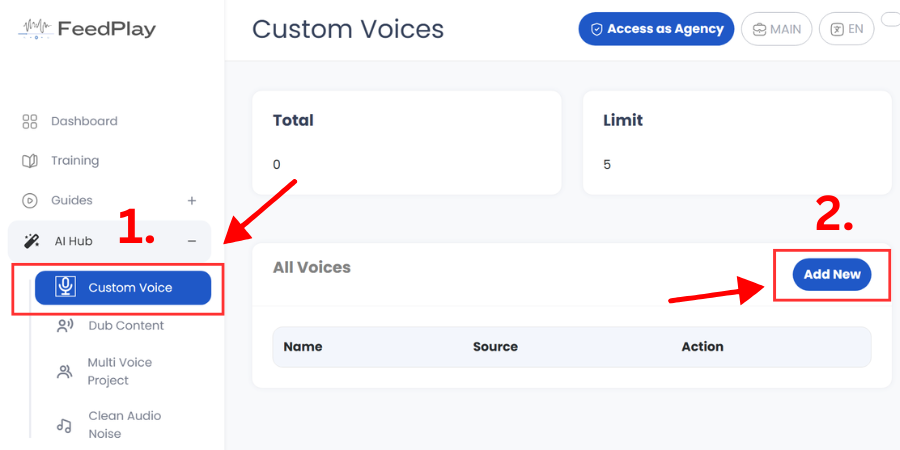
1) Access Custom Voice:
- From the “AI Hub” dropdown, select “Custom Voice.”
2) Add a New Voice:
- Click “Add New” or a similar button to create your new voice profile.
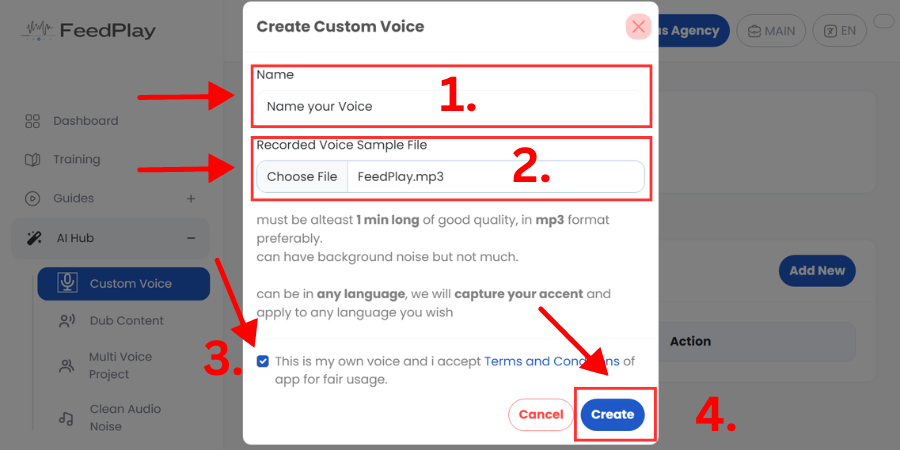
3) Name & Upload Sample:
- Give your voice clone a name.
- Upload an mp3 sample that’s at least 1 minute long and contains no background noise.
- The voice sample can be in any language—FeedPlay AI will capture the voice’s characteristics.
4) Agree & Create:
- Review and accept the terms.
- Click “Create” to finalize the custom voice.
5) Manage Your Custom Voice:
- Your newly cloned voice will now appear in the Custom Voice dashboard.
- From here, you can preview, delete, or replace the source if needed.
2. Use Your Custom Voice in a Multi-Voice Project
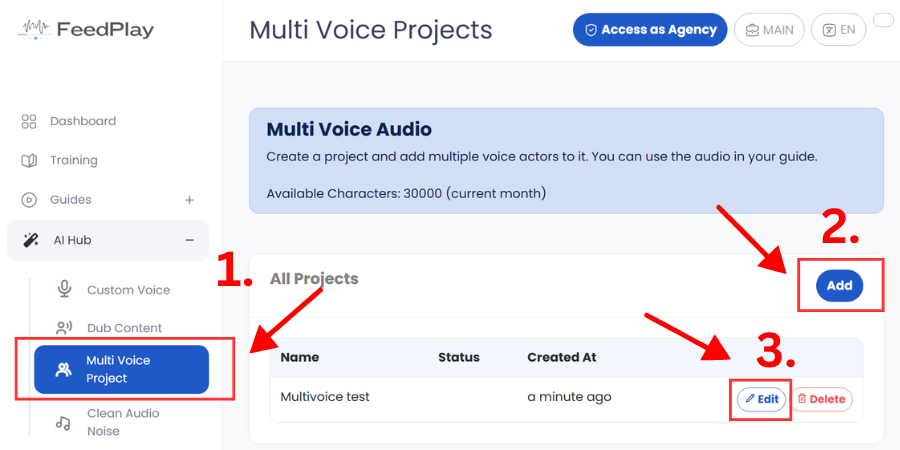
Go to Multi-Voice:
- Under the “AI Hub” dropdown, select “Multivoice.”
- Create a new project or edit an existing one.
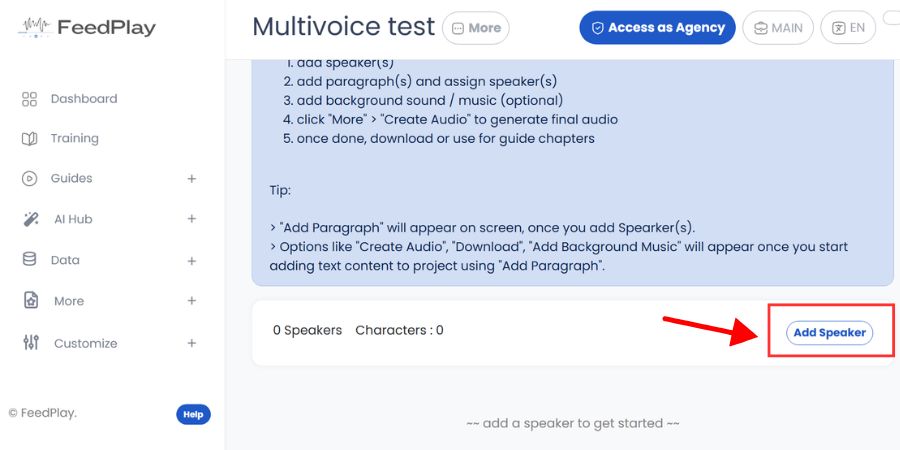
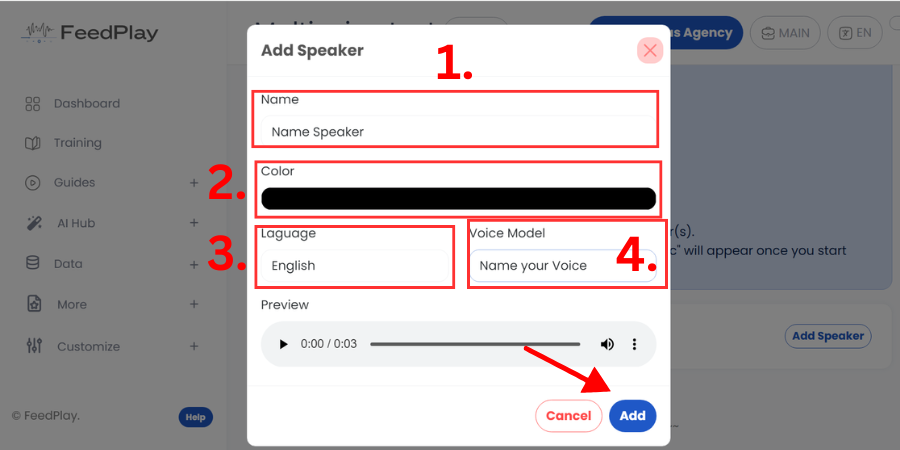
Add a Speaker:
- Click “Add Speaker.”
- Name the speaker, select a color, and choose the language.
Select the Voice Model:
- Under “Voice Model,” pick the custom voice you cloned earlier.
- Confirm to add the speaker to your project.
Generate Speech:
- Input the text for that speaker to read in your cloned voice.
- Repeat for any additional speakers or text segments.
3. Use Your Custom Voice in Guides
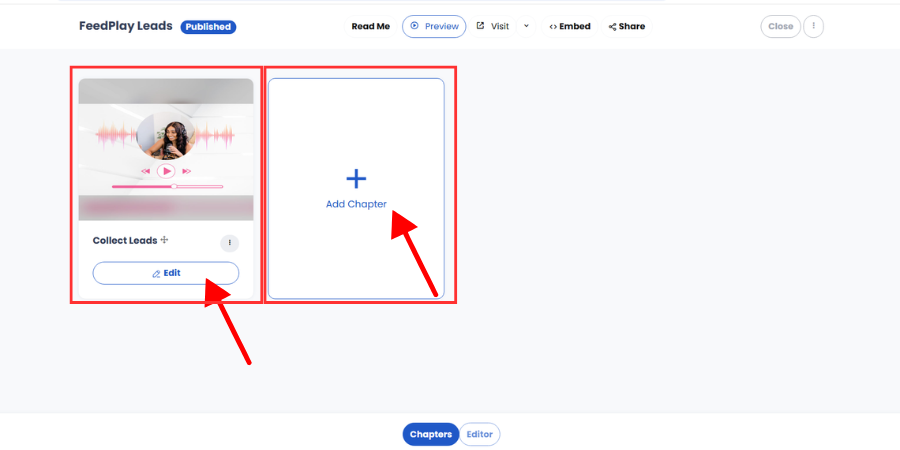
Create or Edit a Guide:
- Under the “Feeds” tab, create a new guide or new chapter, or edit an existing one.
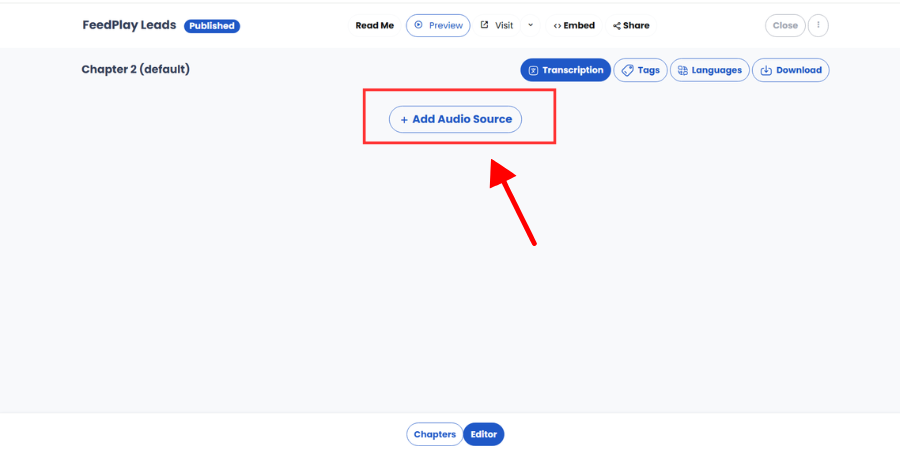
Add Audio Source:
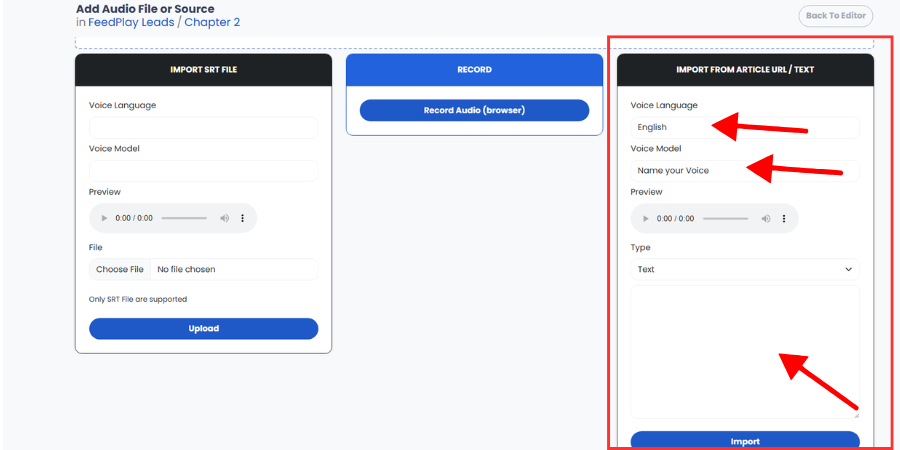
Select Language & Voice Model:
- Choose the language.
- In “Voice Model,” select your newly cloned voice.
Enter Text & Import:
- Paste or type in the text you want to be converted to audio.
- Click “Import” to generate the voiceover.
Save Your Guide:
- Once processed, the voiceover will be added to your guide’s audio track.
4. Use Your Custom Voice for Guide Translations
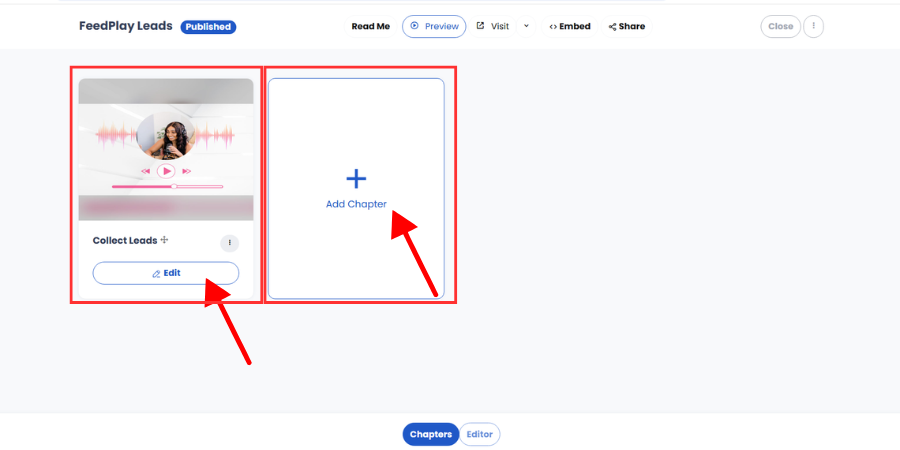
Locate the Guide:
- Go to your Feed dashboard and find the guide or chapter you want to translate.
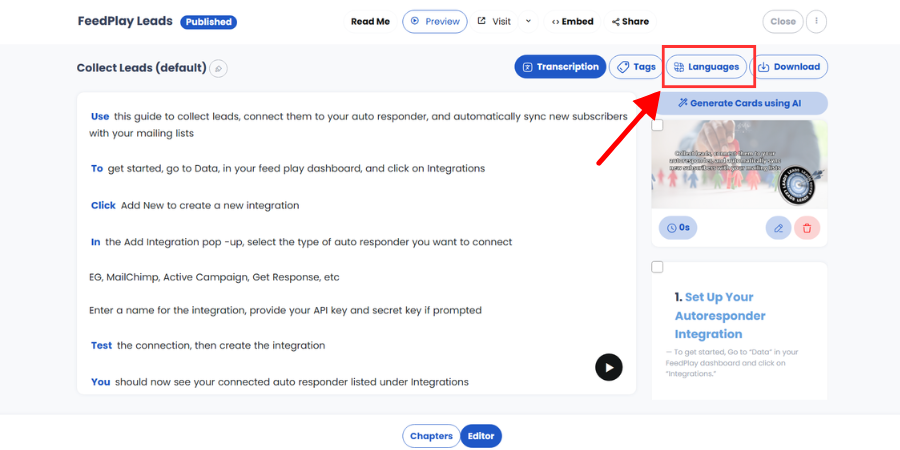
Open the Languages Tab:
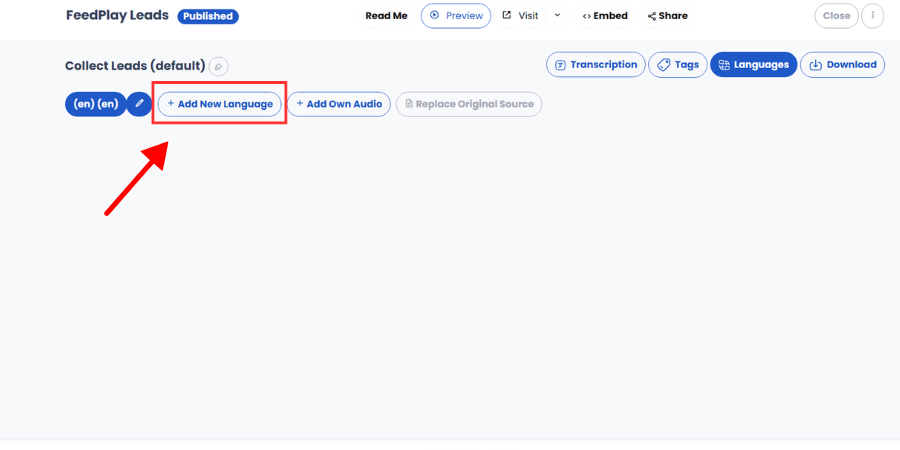
- Click on “Languages.”
- Select “Add New Language.”
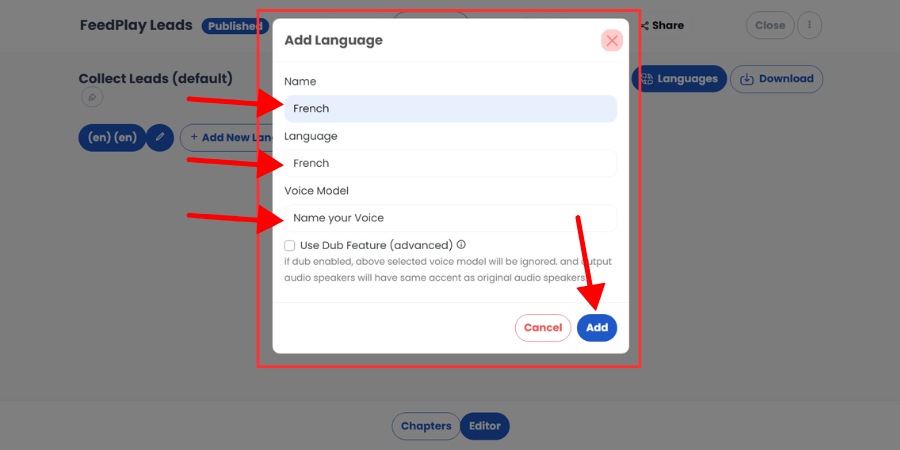
Set Translation Details:
- Name the language (e.g., “Spanish Version”).
- Select the target language you want to translate into.
- Under “Voice Model,” choose your cloned voice.
Add & Generate:
- Once you click “Add,” FeedPlay will automatically translate your guide’s text into the new language and create a voiceover using your clone.
That’s it! You’ve successfully cloned your voice and integrated it into various FeedPlay features. Now you can easily manage a variety of projects—multi-voice scripts, guides, and multilingual translations—featuring your custom AI voice.
Happy creating!
Was this article helpful?
That’s Great!
Thank you for your feedback
Sorry! We couldn't be helpful
Thank you for your feedback
Feedback sent
We appreciate your effort and will try to fix the article