FeedPlay Dub Content: Step-by-Step Guide
Use FeedPlay’s Dub Content feature to translate and dub your audio into multiple languages. You can then integrate the dubbed files back into your guides or chapters. Follow the steps below to get started:
1. Access the Dub Content Feature
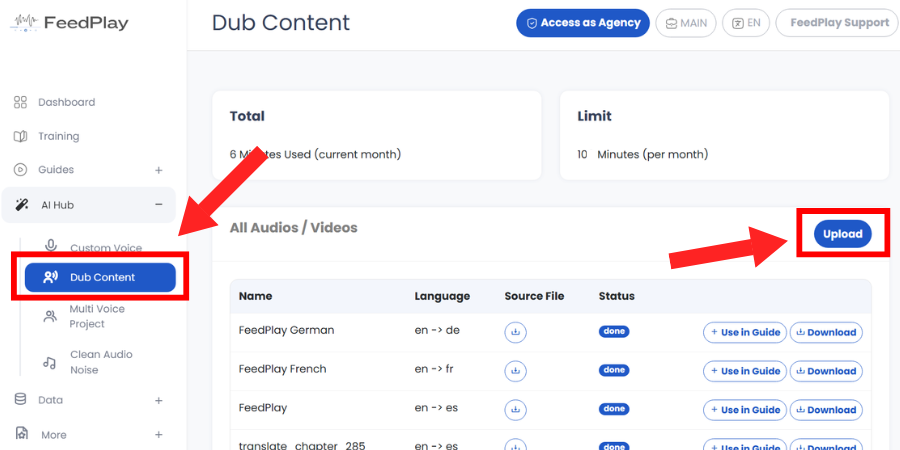
- From your FeedPlay dashboard, go to the “AI Hub” dropdown.
- Select “Dub Content.”
2. Upload Your Audio File
- Click “Upload.”
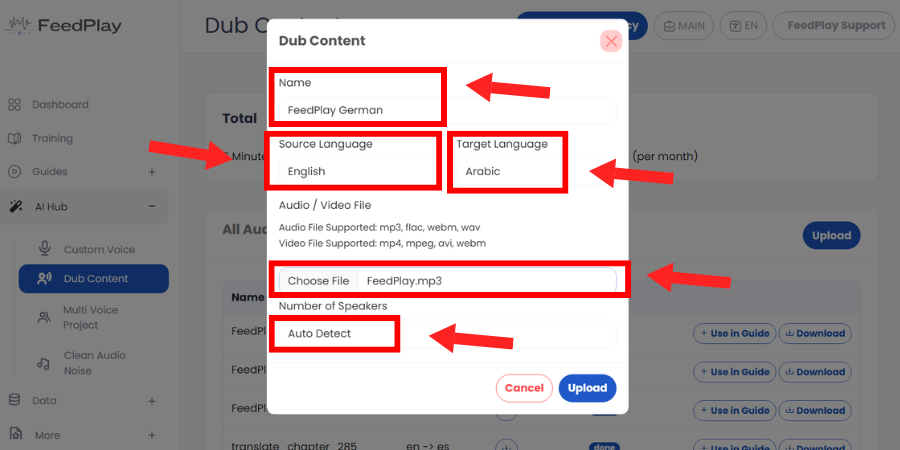
- Name your content and choose the source audio language (the original language of the file).
- Pick a target language (the language you want to dub into).
- Uploadyour audio file.
- Make sure your file format is supported (check the supported files list).
- If you know the number of speakers in the recording, select it.
- Click “Upload” to begin processing.
3. Check Dub Status
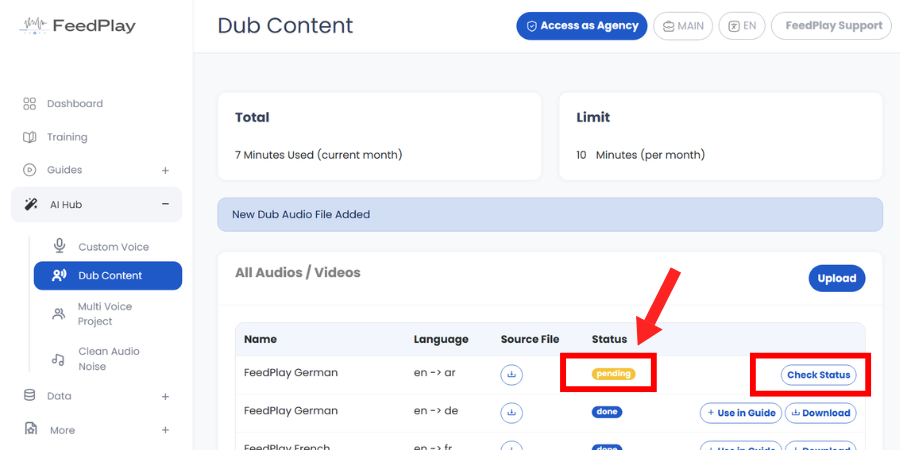
- Once you’ve uploaded a file, its status will appear as “Pending.”
- Click “Check Status” periodically to see if the dubbing has been completed.
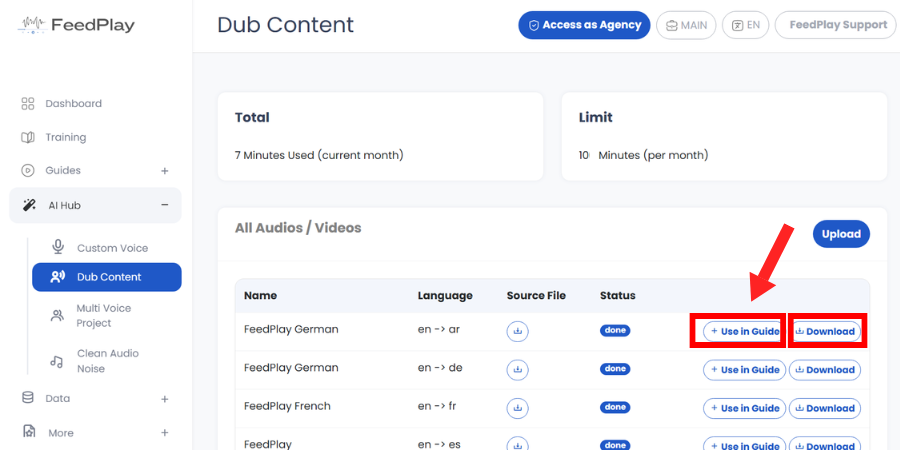
- When it’s finished, you can download the dubbed file to your computer or proceed to use it in a FeedPlay guide.
4. Use Your Dubbed File in a Guide
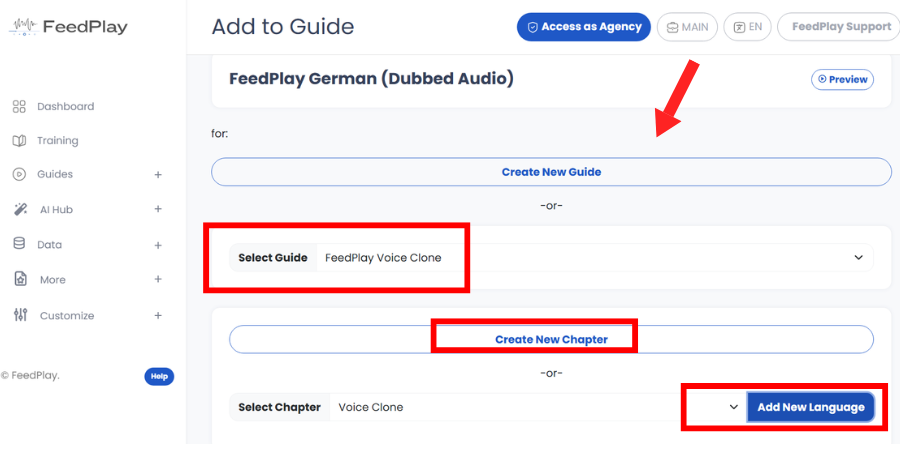
After your dub is complete, click “Use for Guide”. You’ll have three options:
Create a New Guide
- Directly start a new guide with your dubbed audio.
Add to an Existing Guide as a New Chapter
- In the dropdown, select “New Chapter” under an existing guide.
Add as a New Language to a Chapter
- If you want to create a multi-language guide, choose “New Language” for an existing chapter.
- Name the language, select the target language, and pick a voice model (this is just a placeholder; your dubbed audio will override it).
- Click “Create.”
5. Alternate Way: Using the “Dub Feature” in a Guide
You can also enable dubbing within an existing guide:
Open the chapter you want to translate.
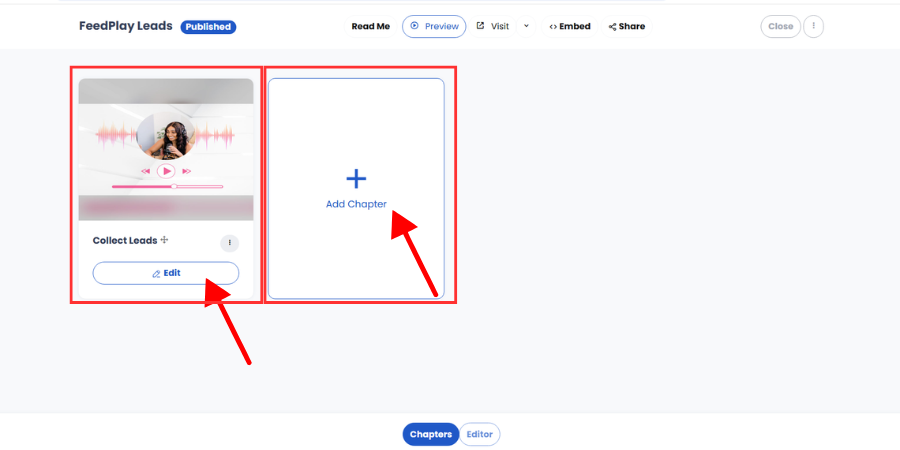
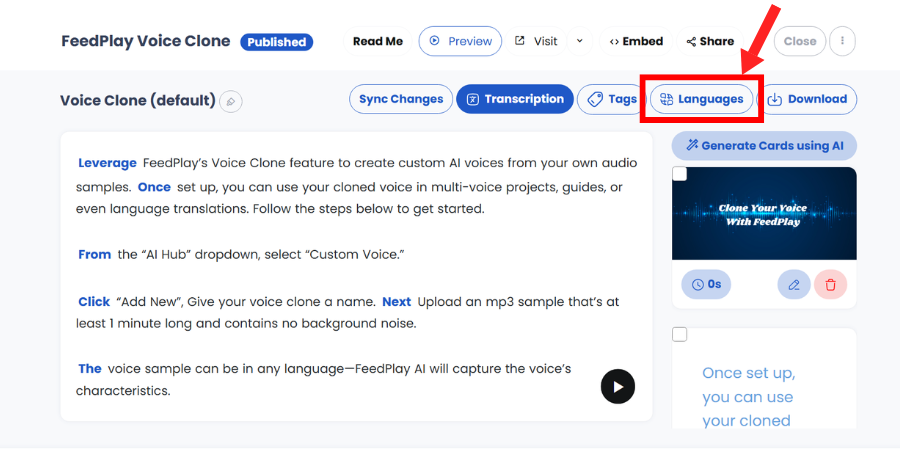
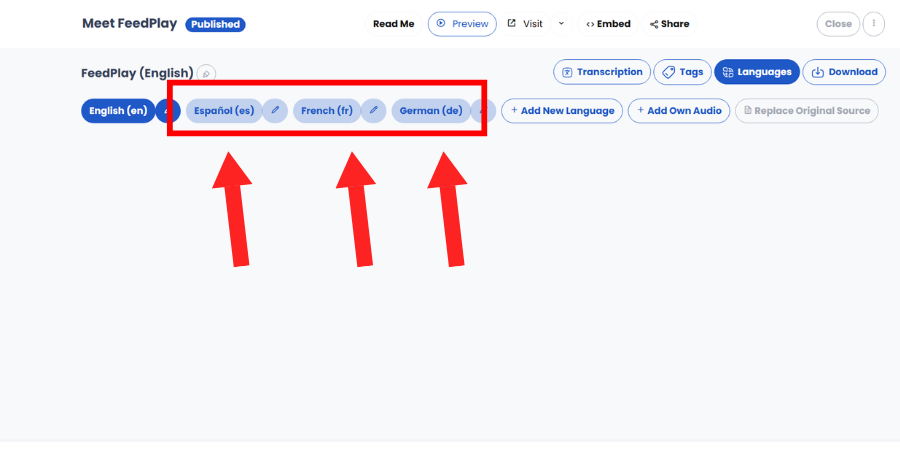
Go to the “Language” tab and click “Add New Language.”
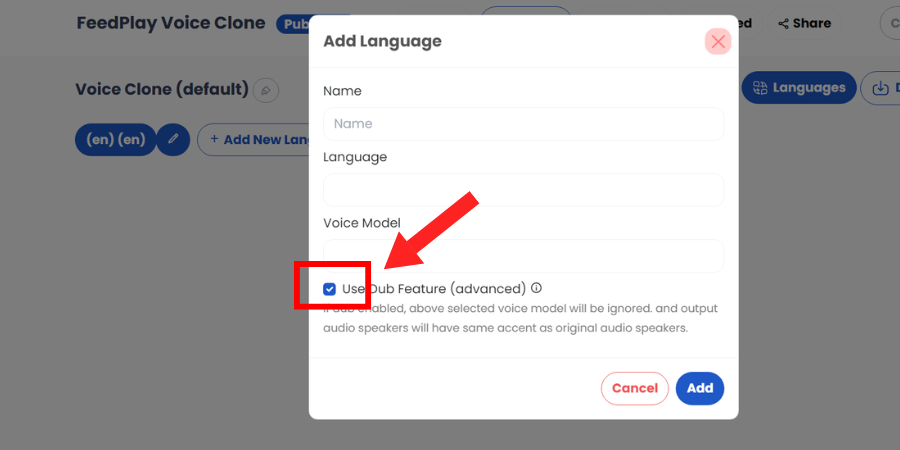
Provide the Language Name, select the Language, and optionally choose a Voice Model (this will be replaced by the dubbed audio).
Enable “Use Dub Feature” to let FeedPlay use the dubbed audio instead of the voice model.
Now you can find the new languages by navigating to the languages tab.
Was this article helpful?
That’s Great!
Thank you for your feedback
Sorry! We couldn't be helpful
Thank you for your feedback
Feedback sent
We appreciate your effort and will try to fix the article