FeedPlay Translation: Step-by-Step Guide
FeedPlay lets you translate or dub your content into multiple languages. Below are two methods for offering your guides in different languages, along with general tips to manage and customize translations.
1. Method One: FeedPlay Dubbing
If you have existing audio or video content, you can dub it into another language using the FeedPlay Dub Content feature.
- Reference Guide: Check the FeedPlay Dubbing Guide Here to learn how to take your original audio and automatically convert it into another language.
2. Method Two: Translate Your FeedPlay Chapter
2.1 Navigate to the Chapter
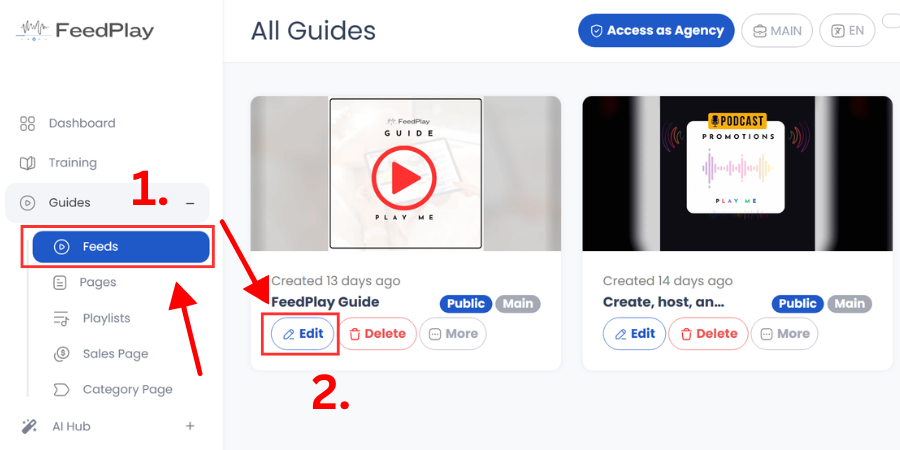
- Go to Feeds under the Guide tab in your dashboard.
- Locate the guide you wish to translate and click “Edit.”
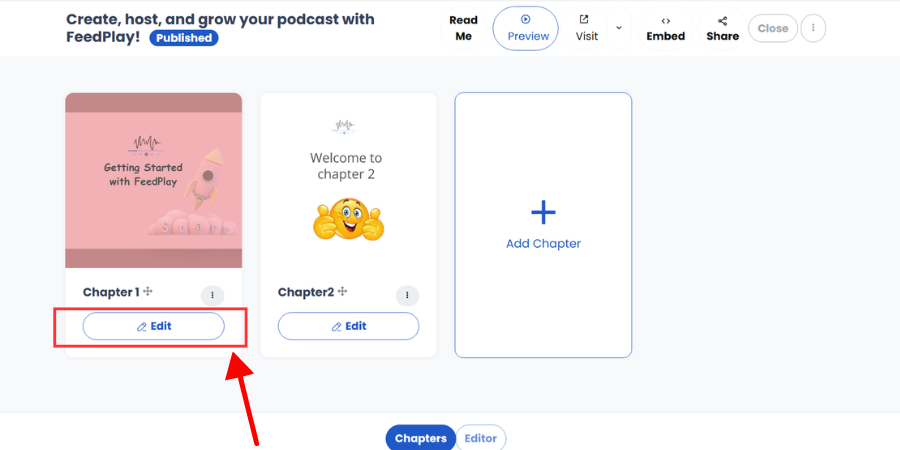
3. Select the chapter you want to translate and click “Edit.”
2.2 Open the Languages Tab
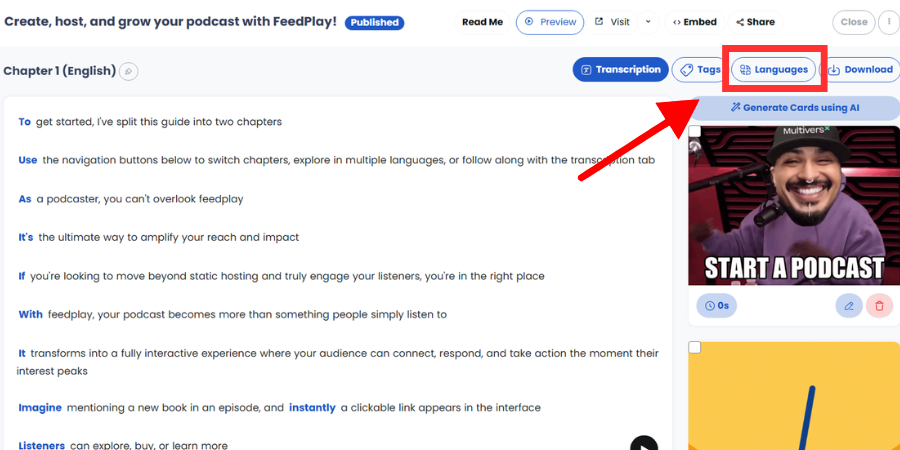
a. In the chapter editor, click on the “Languages” tab.
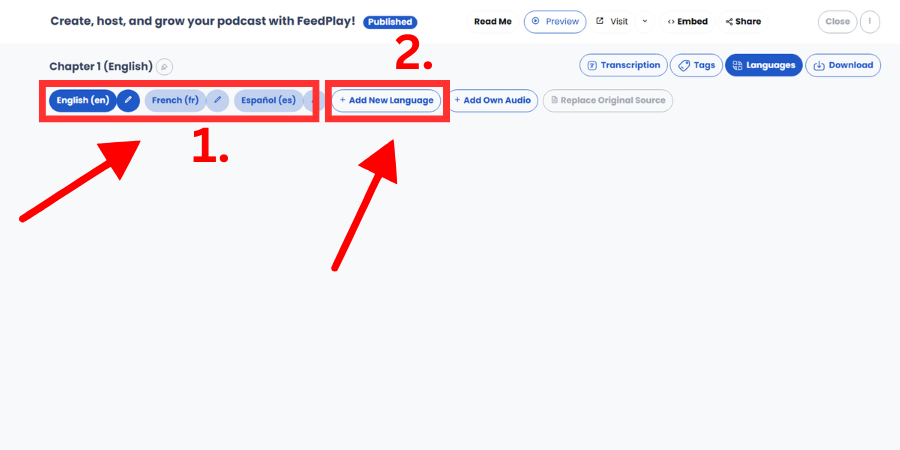
b. Here, you’ll see your default language and any additional languages you’ve already added.
c. You can modify the default language by clicking the radio button next to it.
d. Or, add a new language by selecting the “Add New Language” option.
2.3 Add a New Language
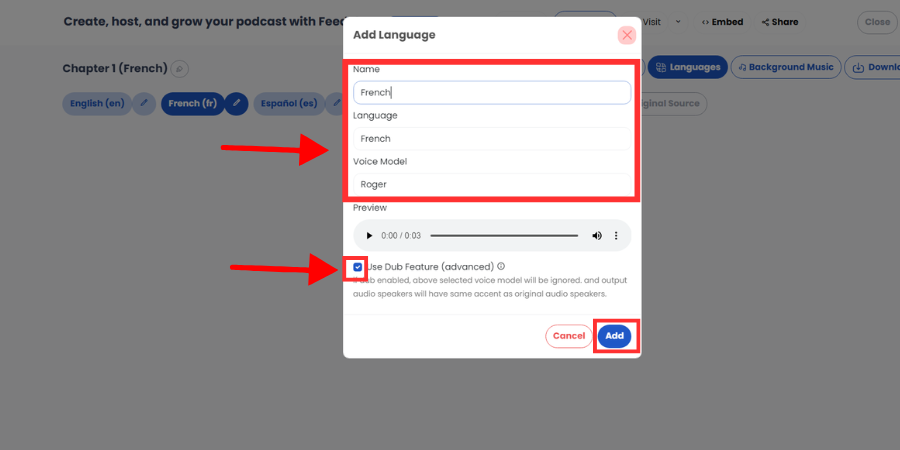
- In the “Add New Language” pop-up, enter a Language Name (e.g., “Spanish Version”).
- Select the Language you want FeedPlay to use for translation (e.g., Spanish, French, etc.).
- Choose a Voice Model—this is the text-to-speech voice that will narrate the translated version.
- If you prefer to dub the audio with the original speaker’s voice (using FeedPlay’s AI to replicate it), enable “Use Dub Feature.”
- Note that the selected voice model will be ignored when “Use Dub Feature” is checked.
- For best results with the Dub Feature, ensure the audio file is up to 1 minute long.
- If you prefer to dub the audio with the original speaker’s voice (using FeedPlay’s AI to replicate it), enable “Use Dub Feature.”
- Click “Add” to complete. FeedPlay will transcribe the new audio track and generate a translated voiceover automatically.
3. Working with Your New Translation
3.1 Explore the Navigation Tabs
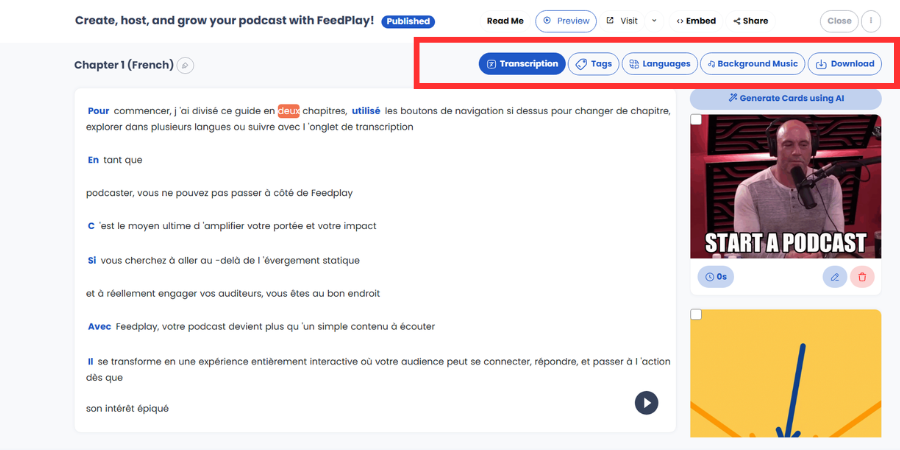
- Transcriptions: View or edit the transcribed text for each language.
- Tags: Create sub-chapters or tags to help viewers navigate the translated content.
- Languages: Quickly switch between the original and translated versions or add new ones.
- Background Music: Add a soundtrack or background music to your translated audio.
- Download: Export the content in various formats for offline or external use.
3.2 Replace Original Source (Optional)
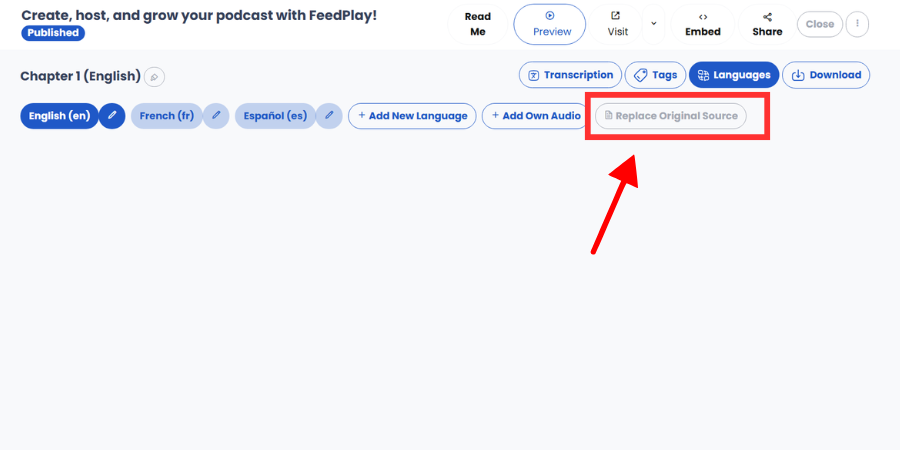
- If you want to change the audio file or replace the default language track (or any of the translated languages):
- Click the “Replace Original Source” button.
- Upload a new file or use Text-to-Speech to create a fresh audio track.
3.3 Set a Default Language
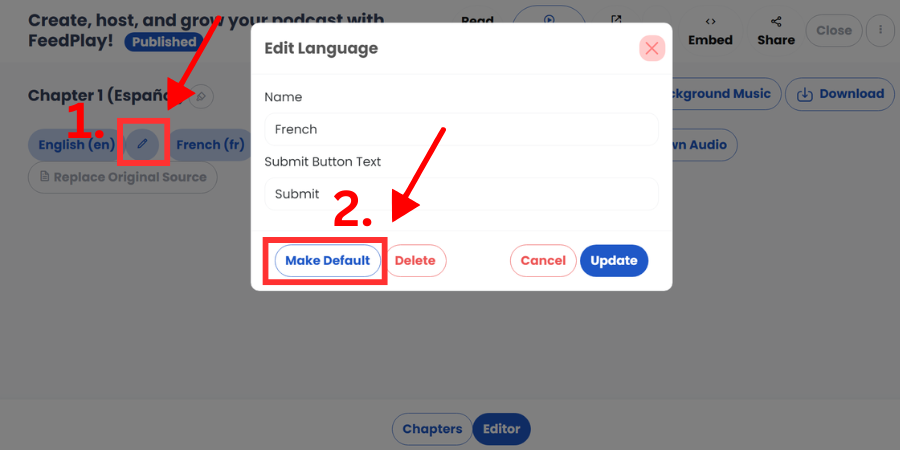
- If you want viewers to see a particular language version first, make that language the default.
- In the Languages tab, click to set any translated language as default.
- Viewers can still switch to other available languages at any time.
Was this article helpful?
That’s Great!
Thank you for your feedback
Sorry! We couldn't be helpful
Thank you for your feedback
Feedback sent
We appreciate your effort and will try to fix the article