Remove Background Noise From Audio File
Use FeedPlay’s Clean Audio Noise feature to remove background noise from your recordings. Then, integrate the cleaned file into a new or existing guide in just a few clicks.
1. Access the Clean Audio Noise Feature
- Go to your FeedPlay dashboard.
- Hover over “AI Hub.”
- Select “Clean Audio Noise.”
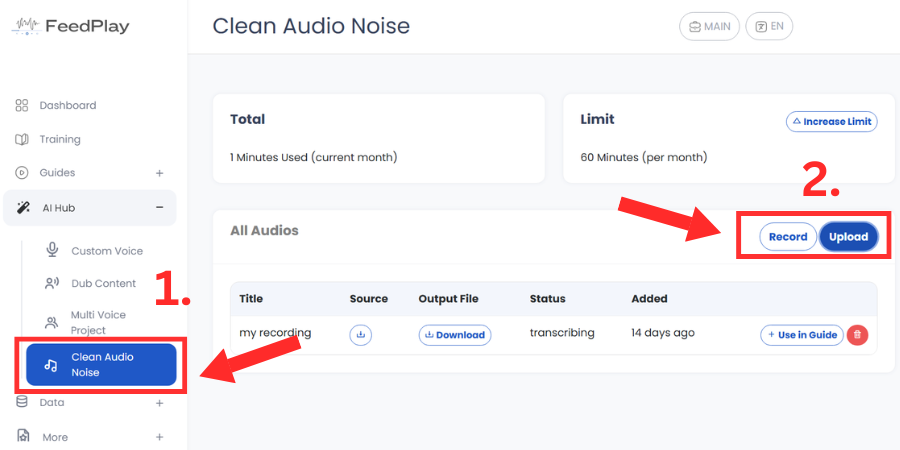
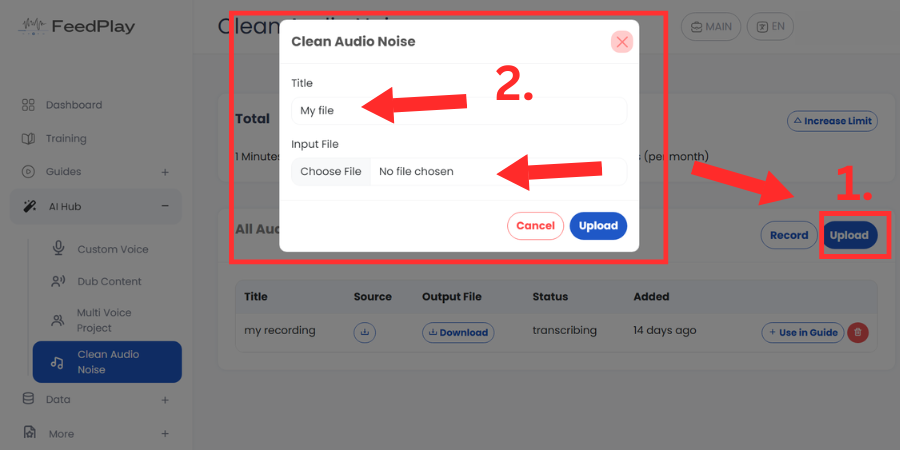
2. Upload or Record Audio
- Record directly within FeedPlay or click “Upload” to select an existing audio file.
- Give the file a Title.
- Upload the audio file. FeedPlay will begin processing the file to reduce or remove background noise.
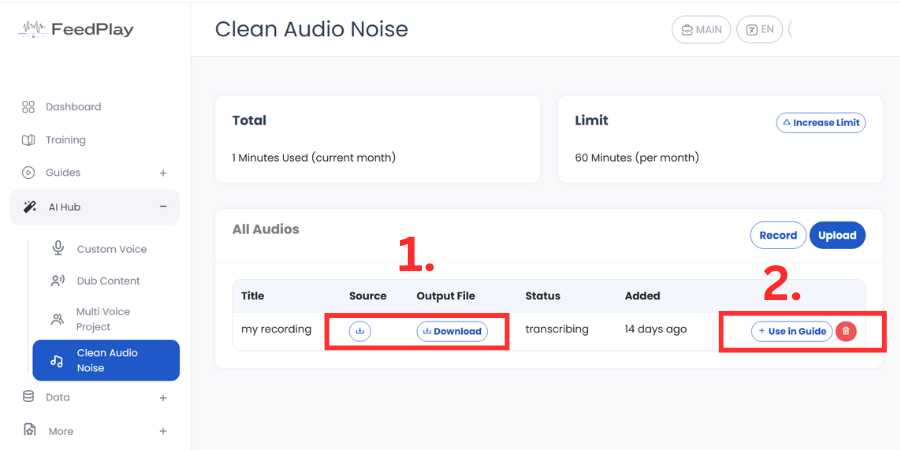
3. Download or Use the Cleaned File
- Once the cleaning process completes, you can click “Download” to save the cleaned file to your device.
- Alternatively, click “Use in Guide” to integrate it immediately into FeedPlay.
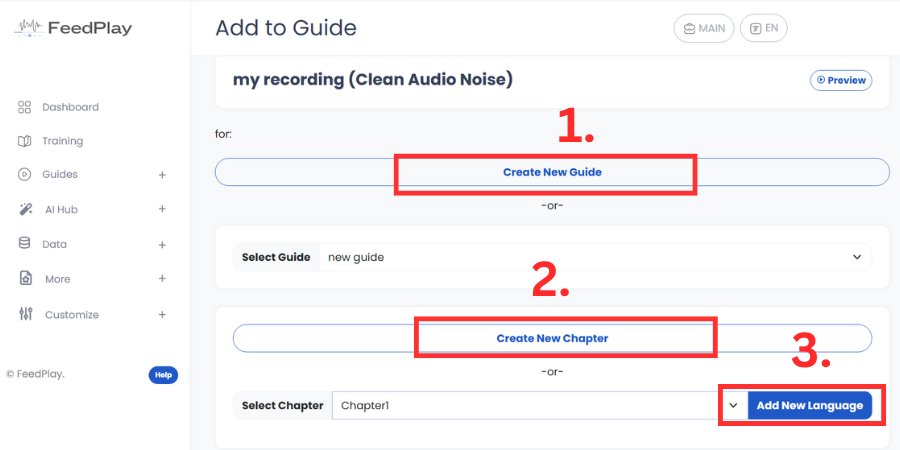
4. Options for Using the Cleaned Audio in a Guide
Upon selecting “Use in Guide,” you’ll see three options:
Create a New Guide
- Start an entirely new FeedPlay guide using the cleaned audio.
Add as a New Chapter in an Existing Guide
- Insert this cleaned audio as an additional chapter in one of your existing guides.
Use as an Alternate Language Version of an Existing Chapter
- Replace or supplement audio in a chapter where you’re adding a new language track.
That’s it! With just a few steps, you can quickly clean up any audio file and seamlessly use it in your FeedPlay content.
Was this article helpful?
That’s Great!
Thank you for your feedback
Sorry! We couldn't be helpful
Thank you for your feedback
Feedback sent
We appreciate your effort and will try to fix the article